By default, the Web Player will use the Main Station Colours set in the Station Settings section. If you want to customise your Web Player with different colours for background, icons and text, you can use the Override Station Theme option in Player Appearance.
1. Login to your Broadcast.Radio portal.
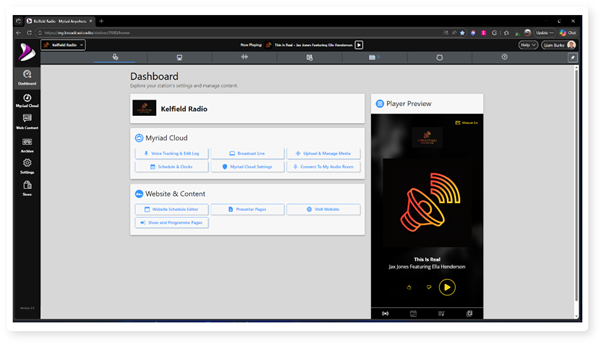
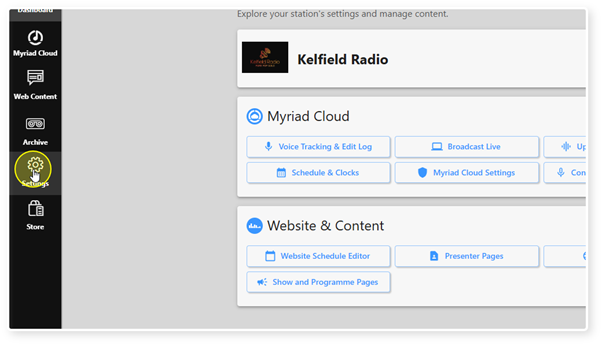
2. Click on Settings.
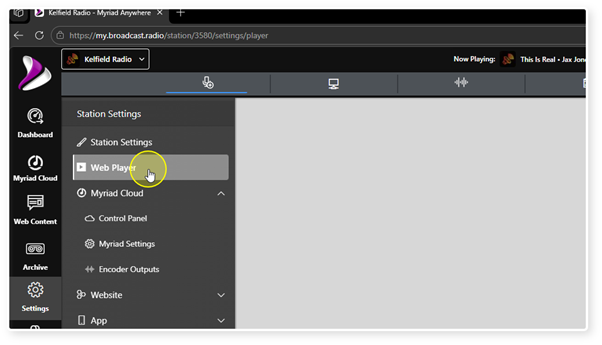
3. Select Web Player.
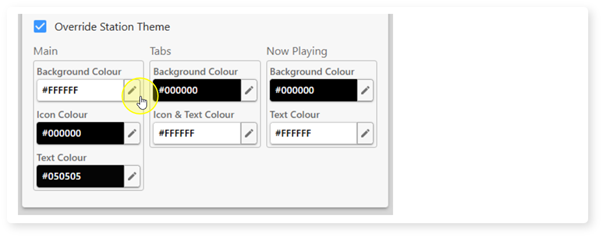
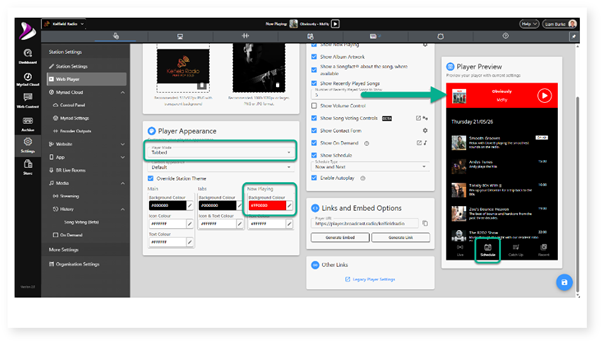
4. In the Player Appearance section, tick the Override Station Theme option.
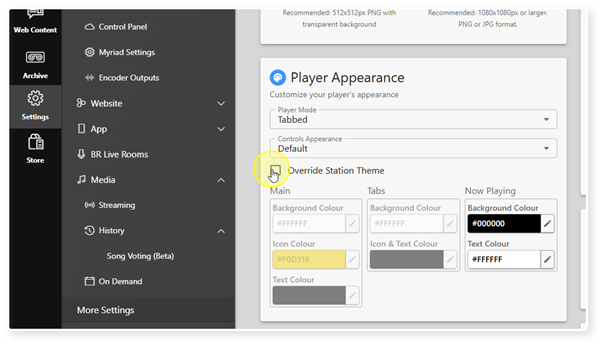
5. To select a colour, click on the Edit button to open the colour picker.
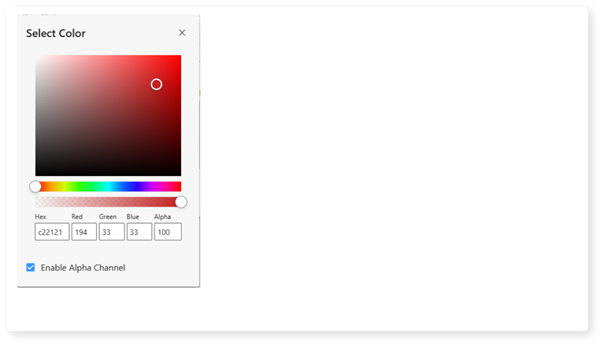
6. Choose the colour you want to assign to the selected option. You can also set Alpha Channel for semi-transparency.
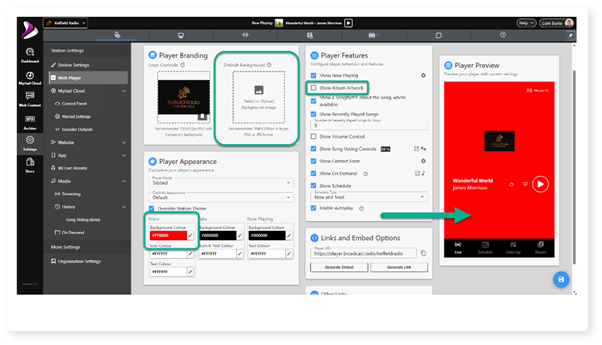
7. Main Background Colour changes the overall background colour of the web player.
Combine this with disabled Album Art and no Default Background to display a solid background colour in your Web Player.
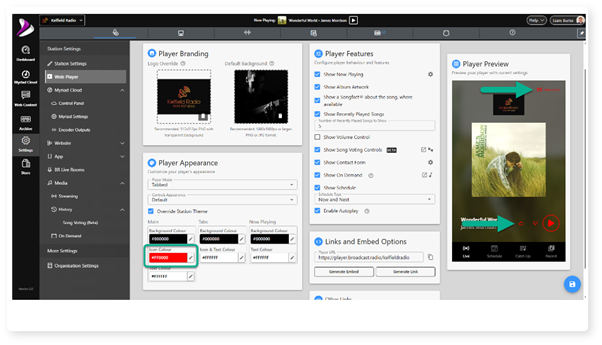
8. Main Icon Colour affects the Play Button on the Player along with the Voting Controls, Volume Control and Message Studio buttons.
9. Main Text Colour changes the colour of the text displayed in the Web Player.
This includes the Now Playing text as well as text on the other information views (Schedule, Recently Played etc).
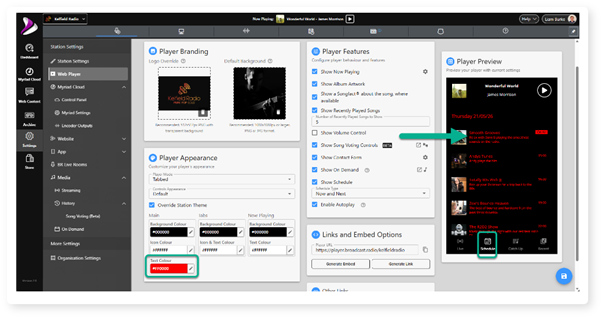
10. Tabs Background Colour changes the background colour of the navigation panel in Tabbed mode.
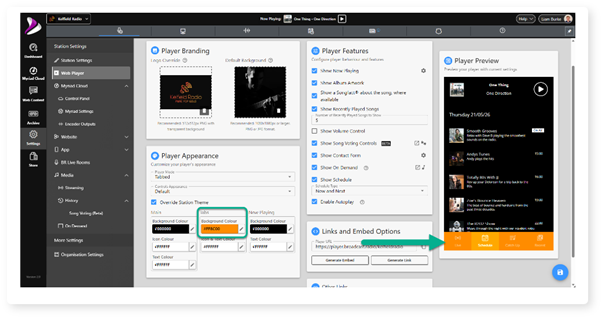
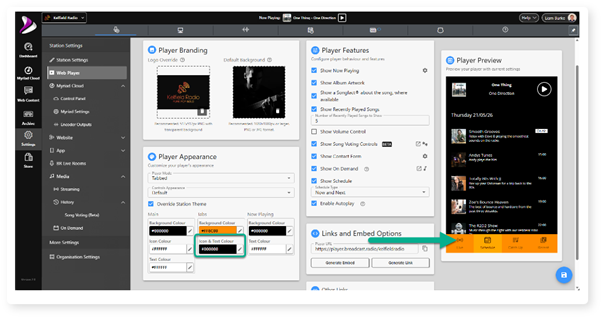
11. Tab Text Colour allows you to adjust the text colour in the navigation panel in Tabbed mode.
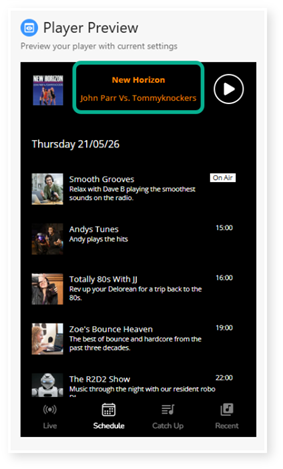
12. Now Playing Background colour changes the background colour the embedded Web Players when they are set to Compact Player mode.
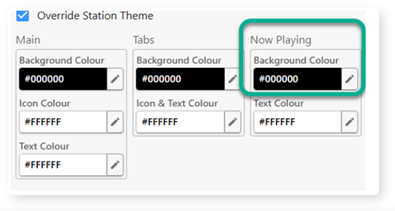
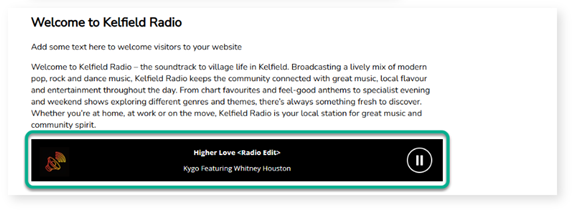
This option will also change the background colour on the mini player at the top of the Web Player when you viewing other tabs in Tabbed mode.
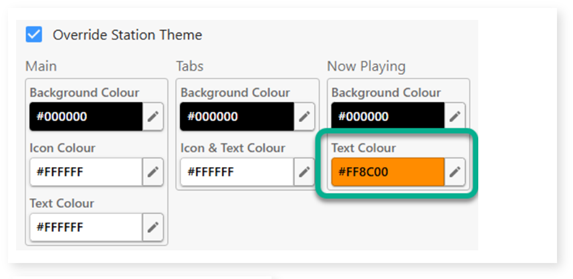
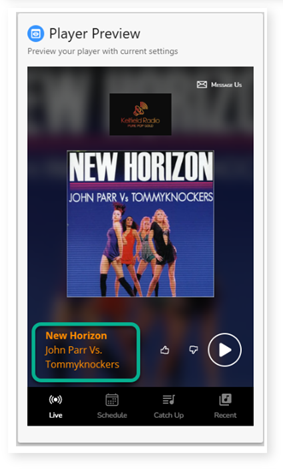
13. Now Playing Text colour changes the text colour for the Now Playing text on the main Web Player, on the mini player displayed at the top of other tabs in Tabbed mode, and any embedded Web players in standard or compact mode.

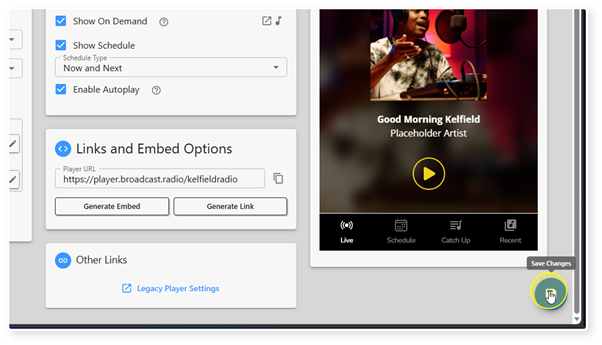
14. When you are happy with your colour changes, click on the Save button.
Was this article helpful?
That’s Great!
Thank you for your feedback
Sorry! We couldn't be helpful
Thank you for your feedback
Feedback sent
We appreciate your effort and will try to fix the article