The Player Settings page allows you to design your Web Player for use on your Landing Page, optional Website CMS or 3rd party hosted website.
To access the Player Settings page click on:
Dashboard > Settings > Web Player.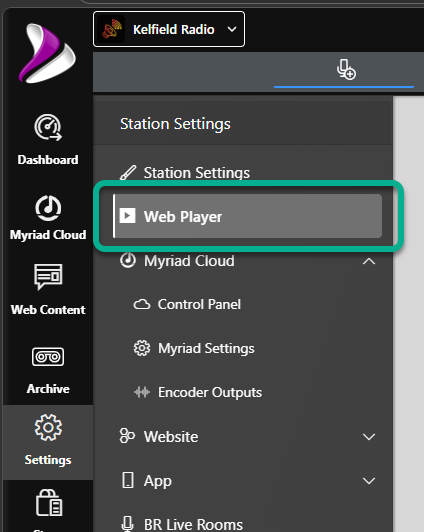
The Player Setting page is split into sections to make it easier to design your Web Player.
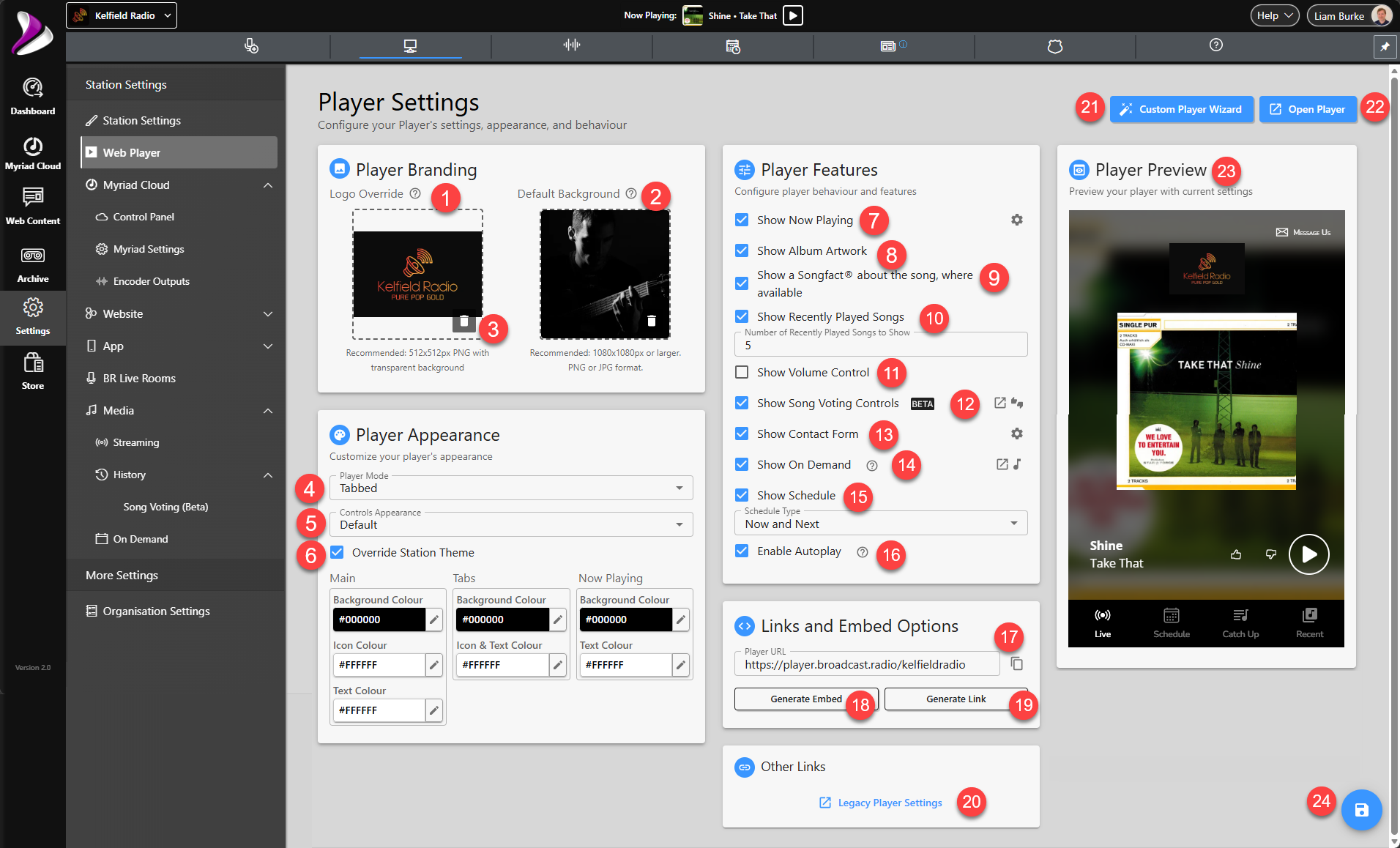
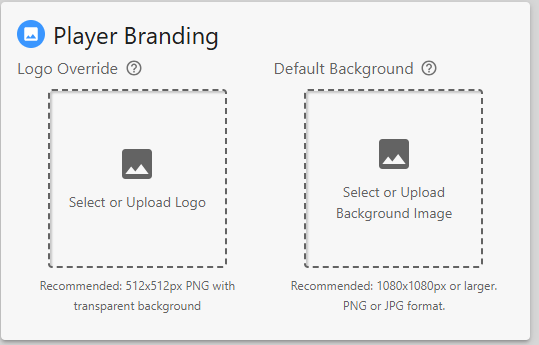
- Logo Override - You can click on the Logo Override option to select an image from the uploaded Media Library, or upload a new image. This image will be used as the main logo on your Web Player. If no Logo Override is set then the Station Default Logo (Stations Settings) will be used.
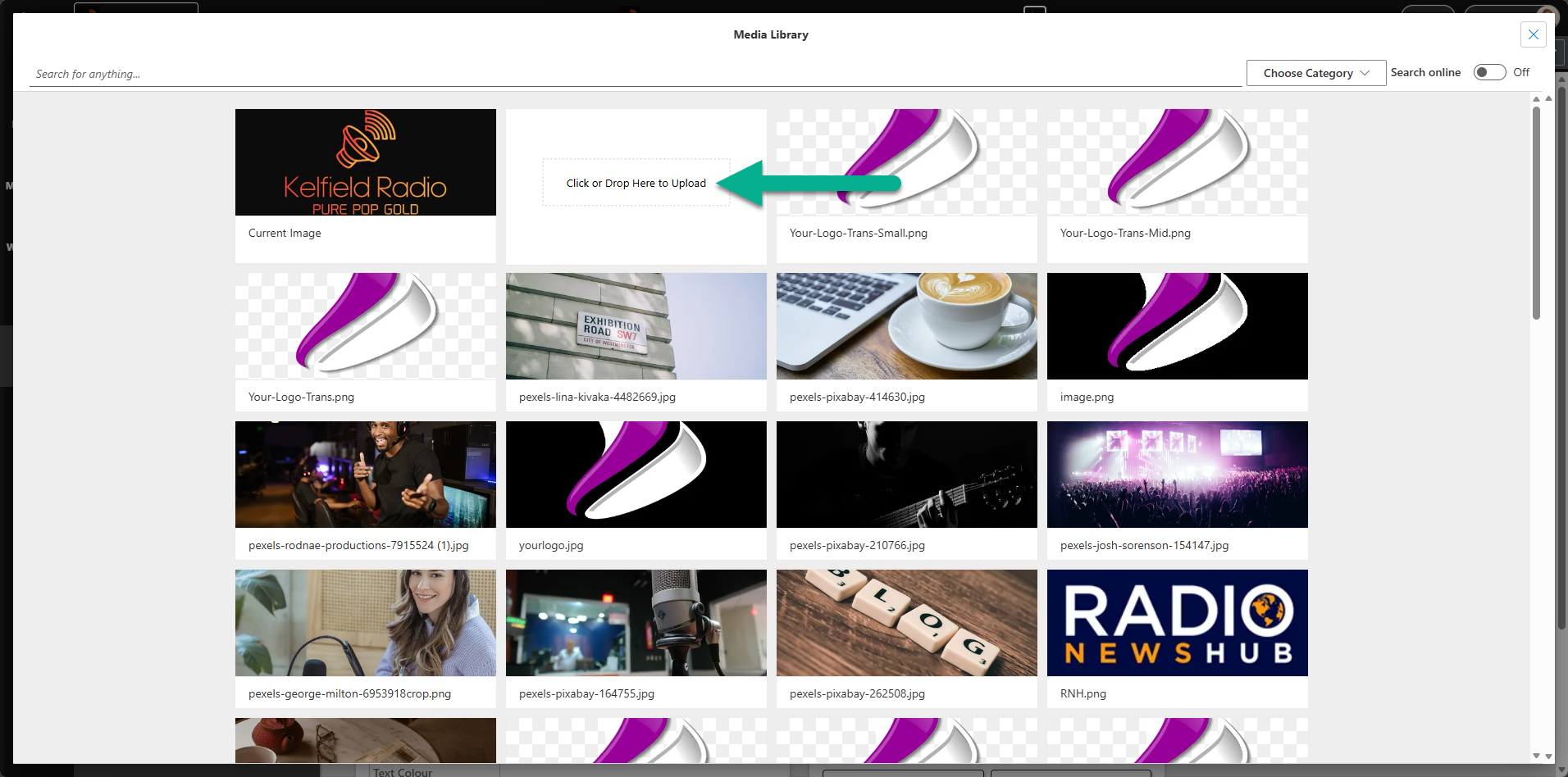
When you click on this options, the Media Library window will open. You can select a previously uploaded image or you can add a new image using the Click or Drop Here to Upload option. - Default Background - The Default Background image is used in the Web Player to fill the blurred background area of the player when there is no Album Cover Art or Presenter/Show image available.
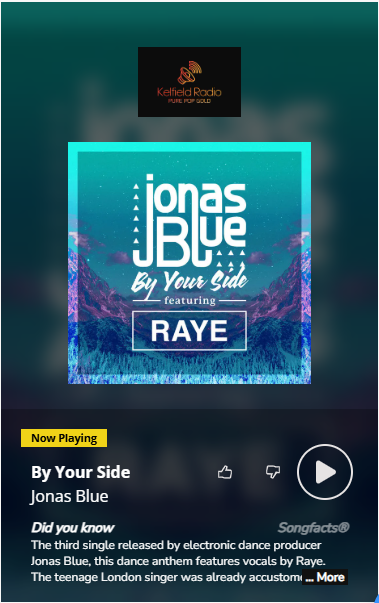
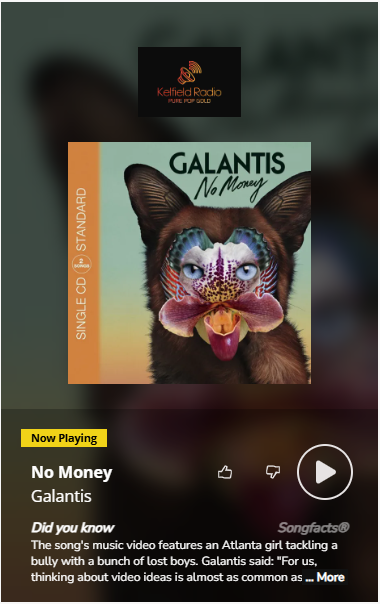
Typically, the background of the Web Player shows a blurred version of the Album Art or Presenter/Show image (as above) but if no image is available, a blurred version of the Default Background will be displayed instead.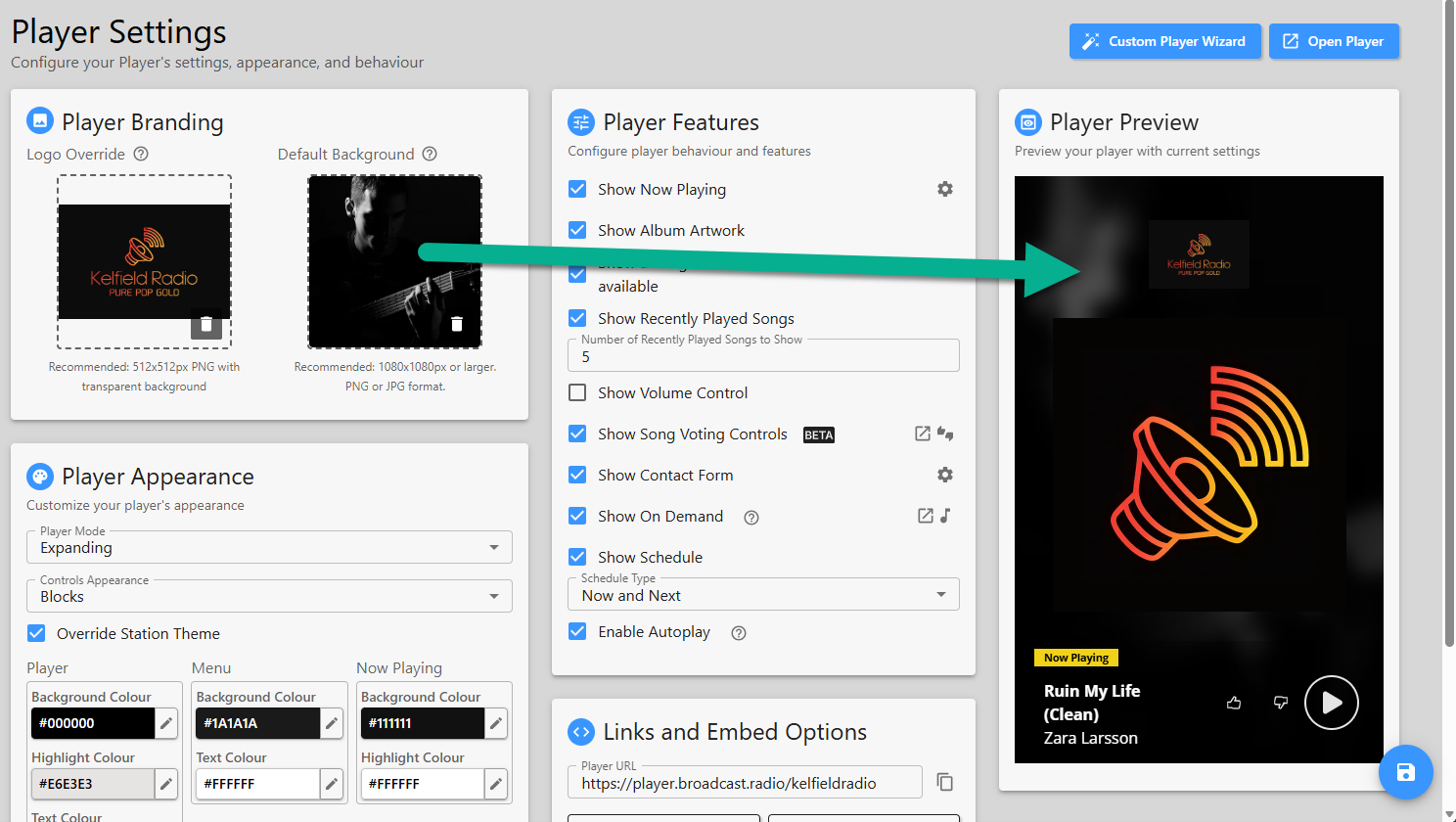
You can click on the option to select an existing image from the Media Library or upload a new image. - Remove Image -The waste basket icon on both the Logo Override and Default Background options can be used to clear the image section.
- Player Mode- The Player Mode drop down option allows you to select one of four Web Player options.
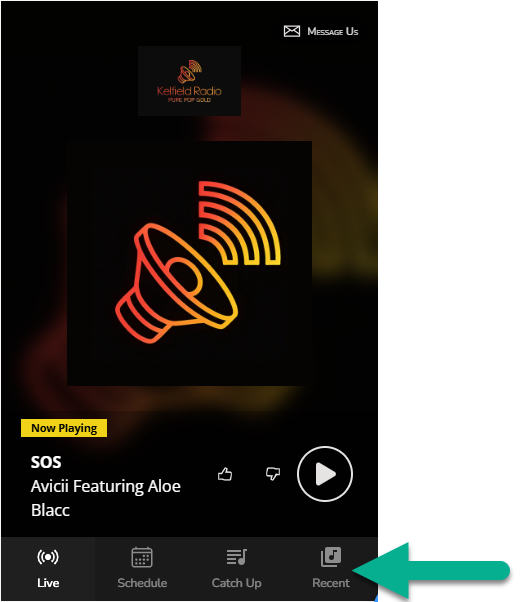
- Tabbed - Navigation options appear along the bottom of the Web Player.
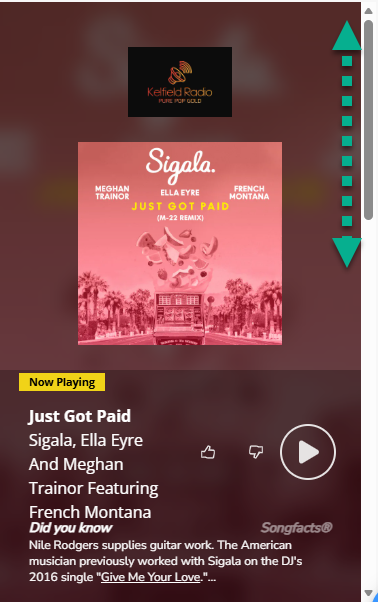
- Full Page - The enabled options for the Web Player (Schedule, Recently Played etc) are displayed in a single, scrollable page.
- Player Only - Only the basic Web Player information is included. There is no navigation to extended features such as Schedule or Recently Played.
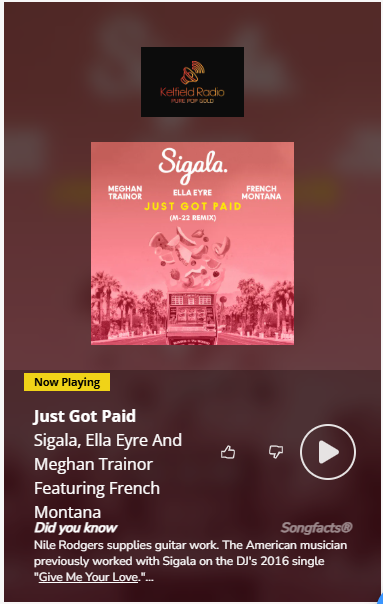
- Expanding - The Web Player will dynamically change it's appearance to fit the size of the container it is placed in on a website or popup window.
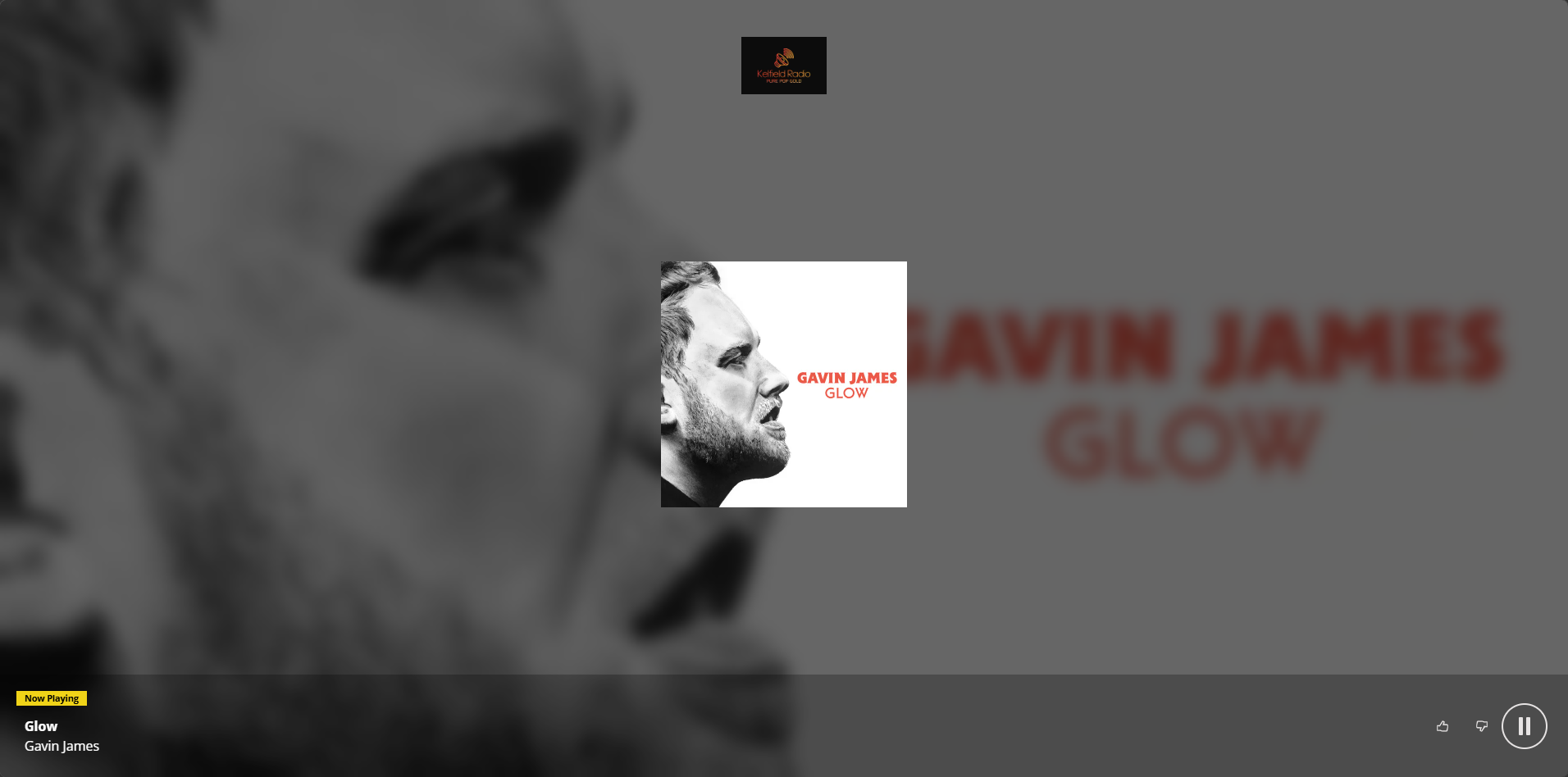
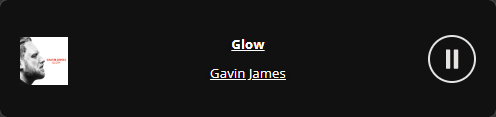
- Controls Appearance - Use the drop down option to set whether the Controls (Play, Voting, Volumen, Now Playing etc) are displayed directly on the Web Player background or on a semi-transparent block to help with visibility.
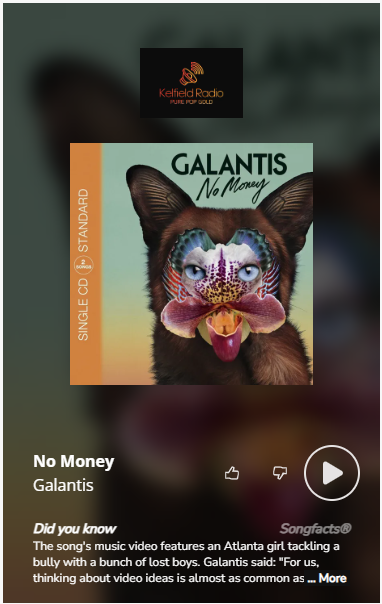
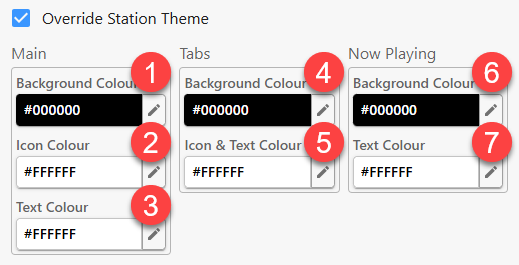
- Override Station Theme - The Web Player will use the Station default colour themes (Station Settings) by default. You can override them in the Web Player using the Override Station Theme option and select the colours you want to use.
To adjust the colour for each of these options, click on the Edit button and select the colour and alpha channel (transparency) value using the colour picker window.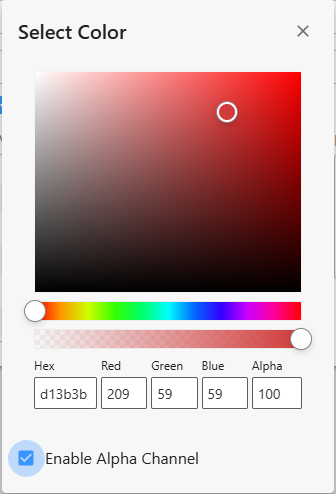
- Main Background Colour changes the overall background colour of the web player. Combine this with disabled Album Art and no Default Background to display a solid background colour in your Web Player.
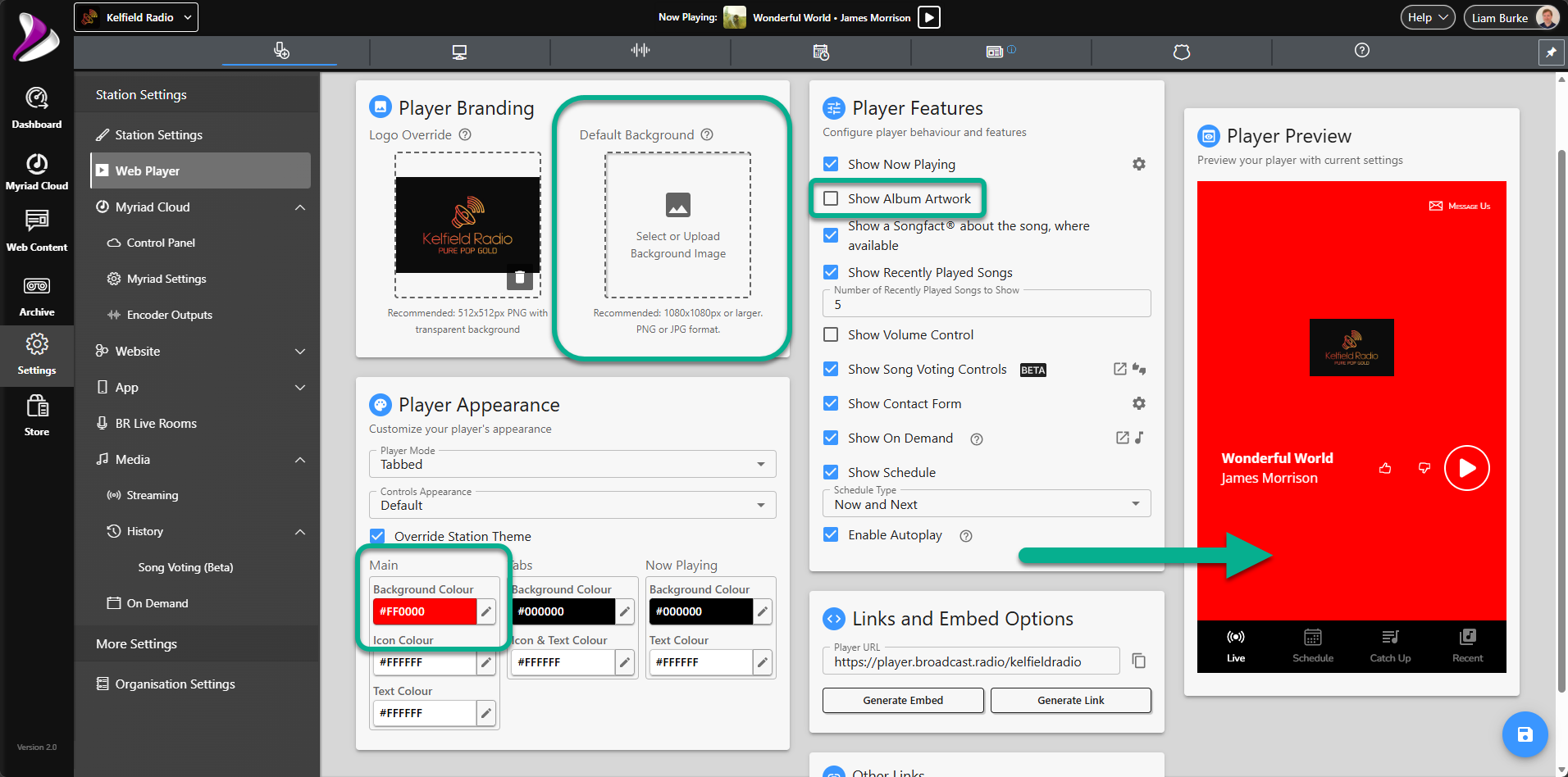
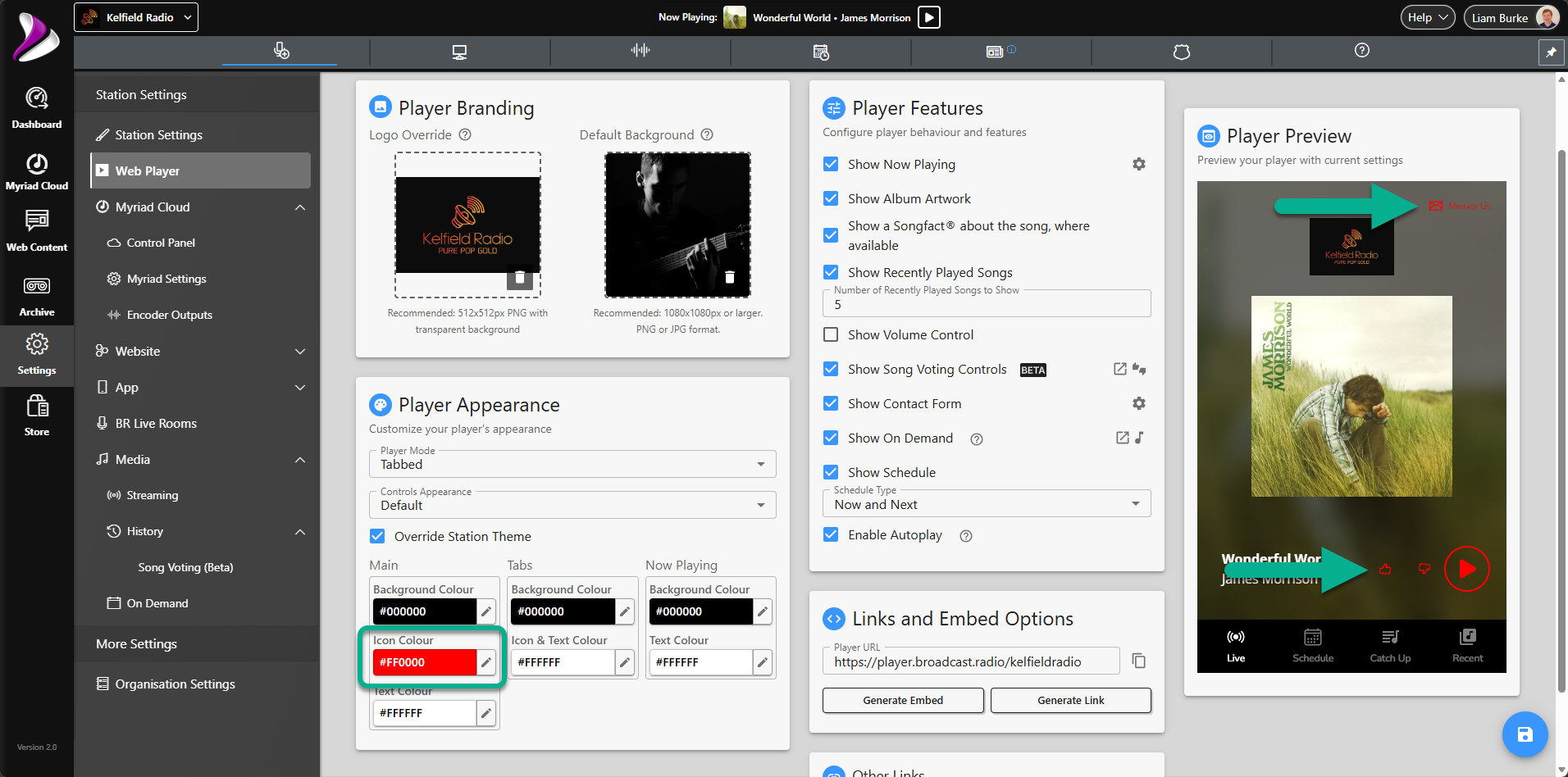
- Main Icon Colour affects the Play Button on the Player along with the Voting Controls, Volume Control and Message Studio buttons.
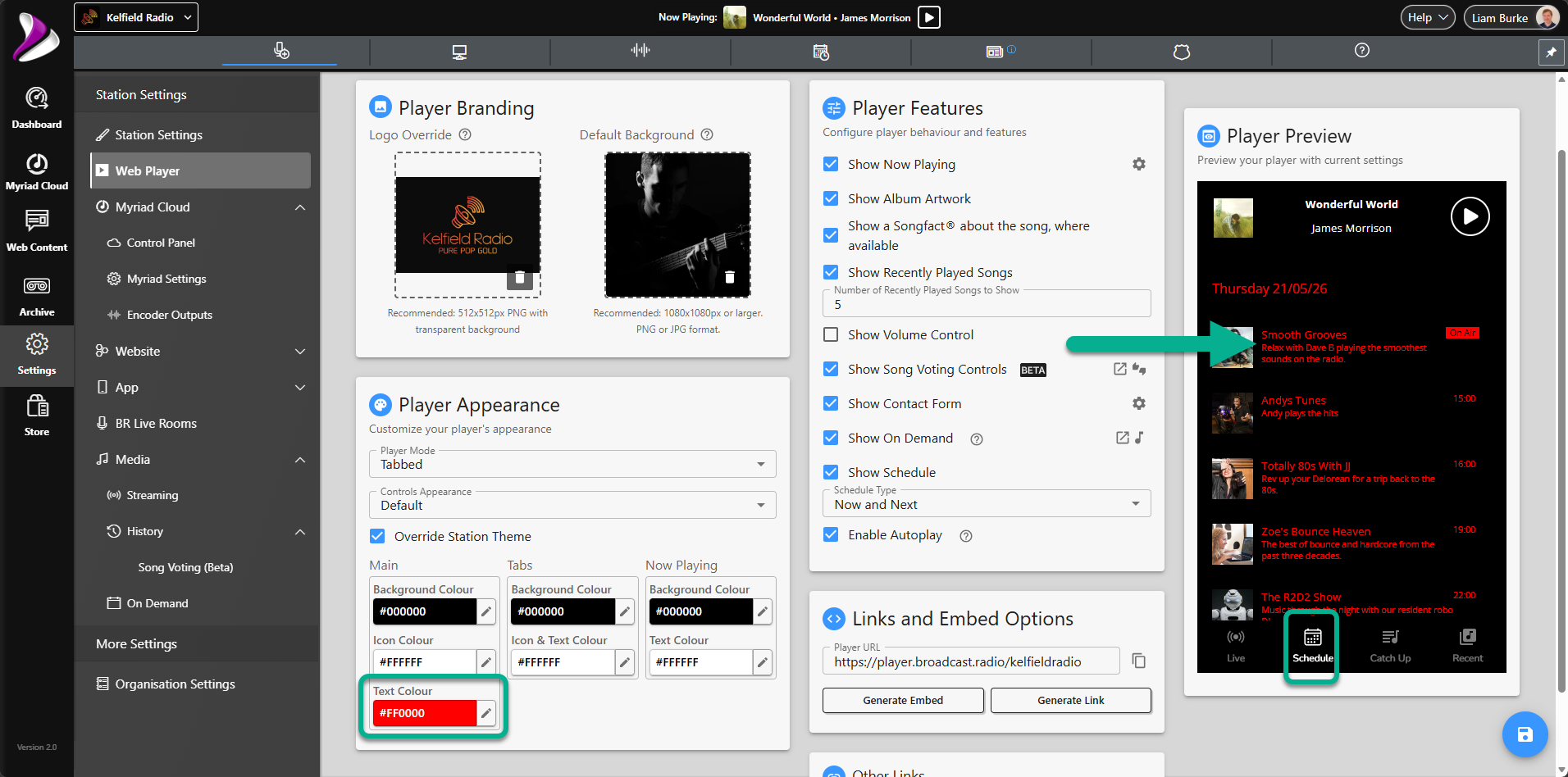
- Main Text Colour changes the colour of the text displayed in the Web Player. This includes the Now Playing text as well as text on the other information views (Schedule, Recently Played etc).
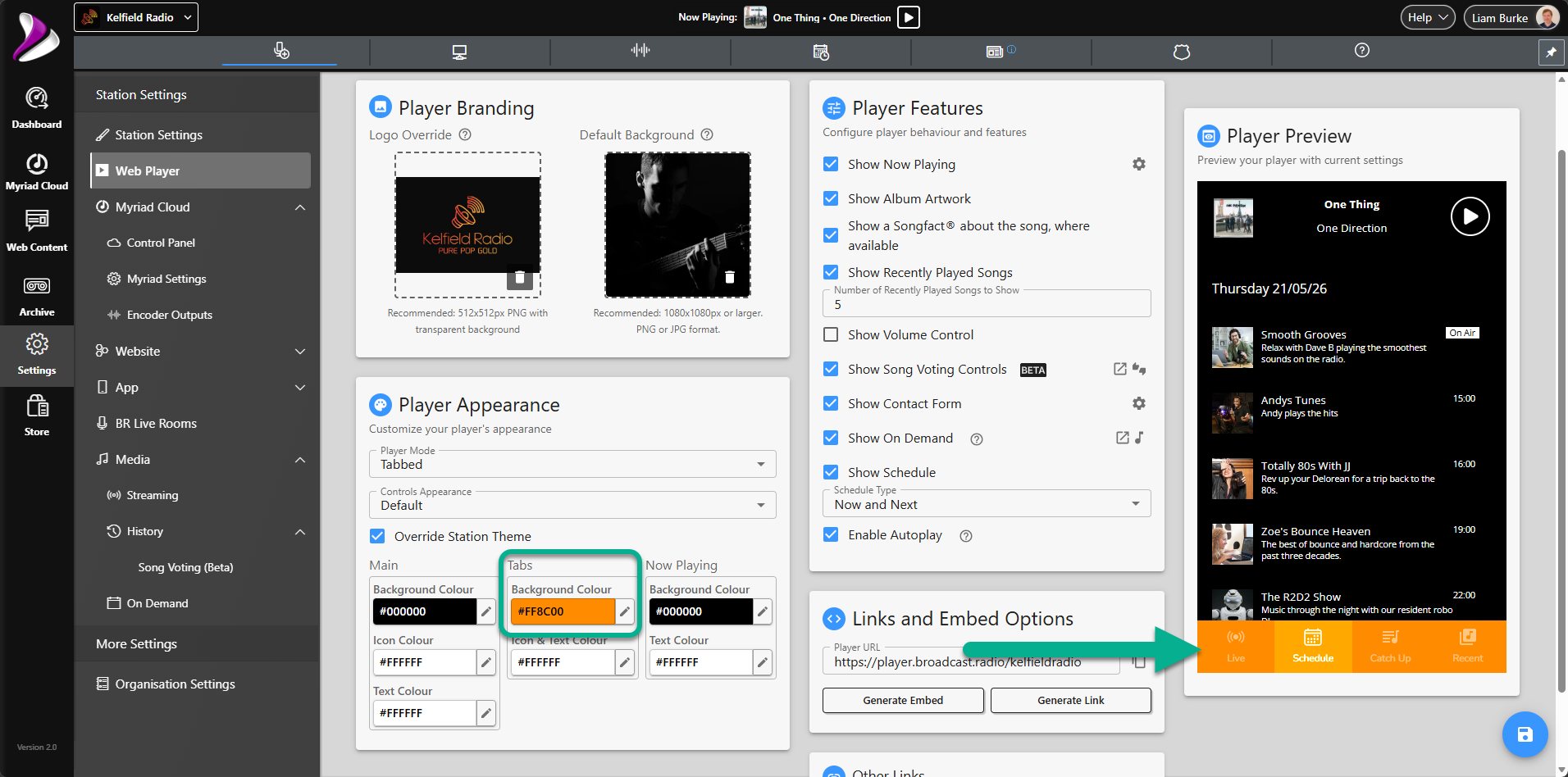
- Tabs Background Colour changes the background colour of the navigation panel in Tabbed mode.
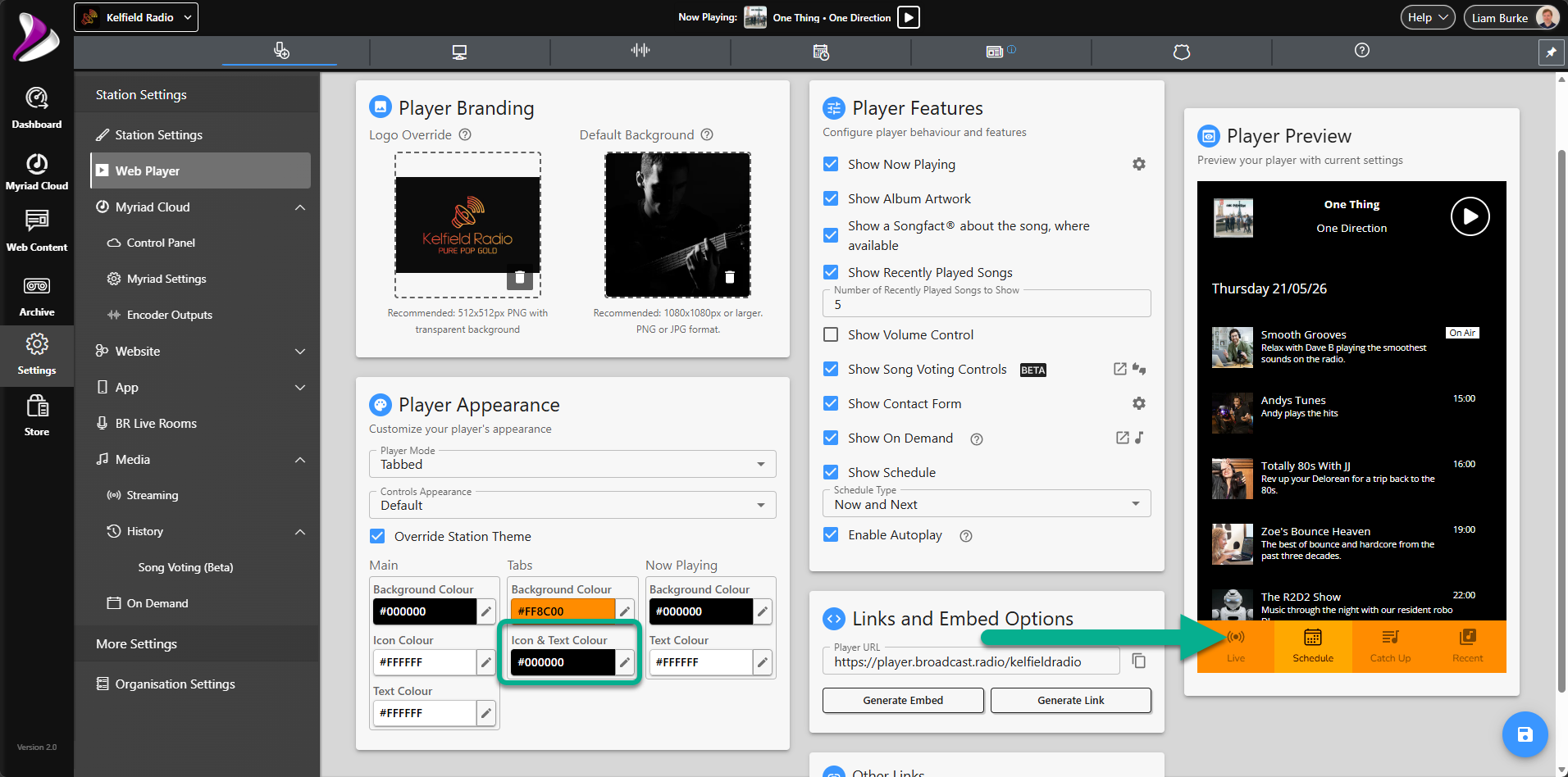
- Tab Text Colour allows you to adjust the text colour in the navigation panel in Tabbed mode.
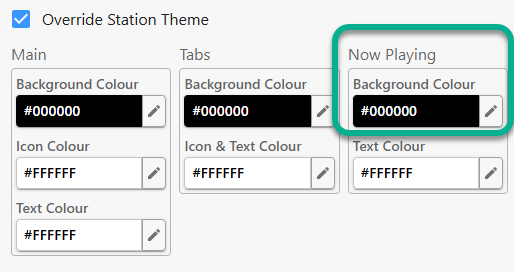
- Now Playing Background colour changes the background colour the embedded Web Players when they are set to Compact Player mode.
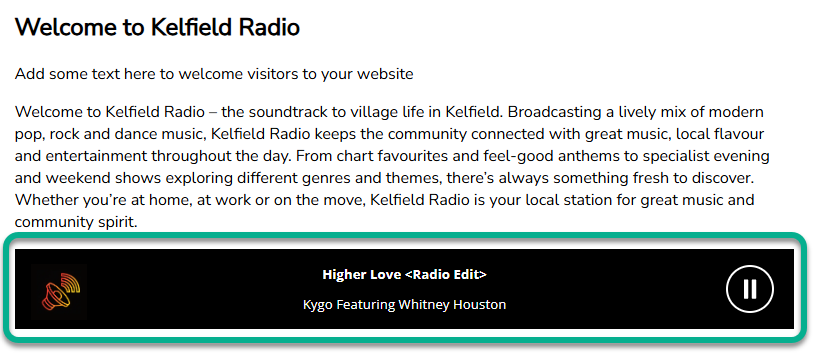
This option will also change the background colour on the mini player at the top of the Web Player when you viewing other tabs in Tabbed mode.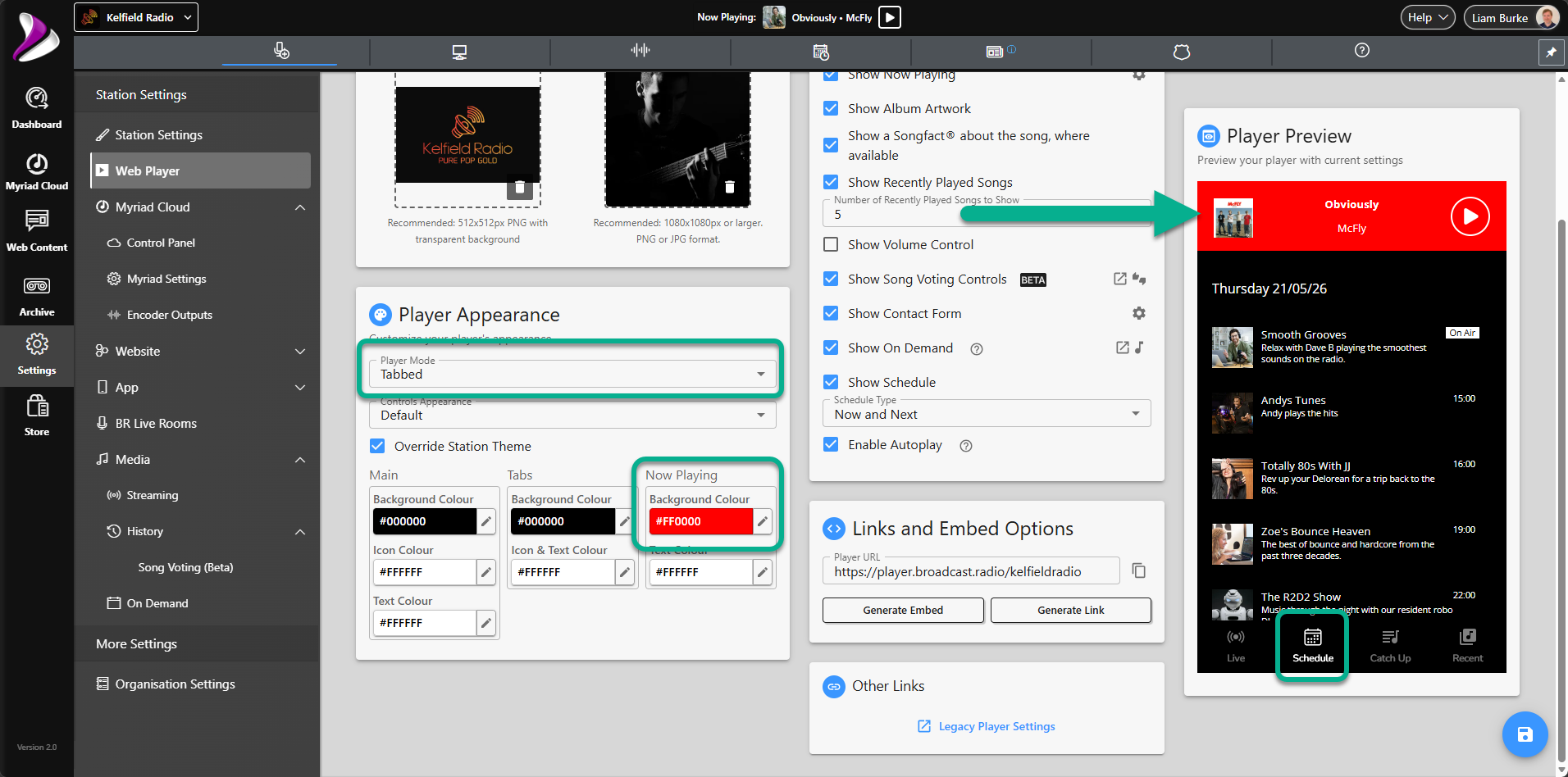
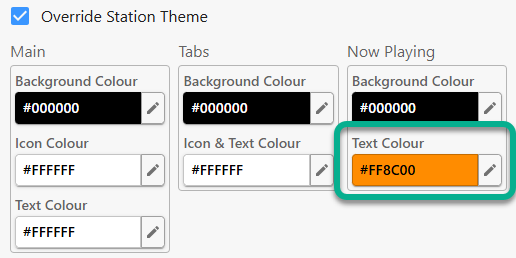
- Now Playing Text colour changes the text colour for the Now Playing text on the main Web Player, on the mini player displayed at the top of other tabs in Tabbed mode, and any embedded Web players in standard or compact mode.
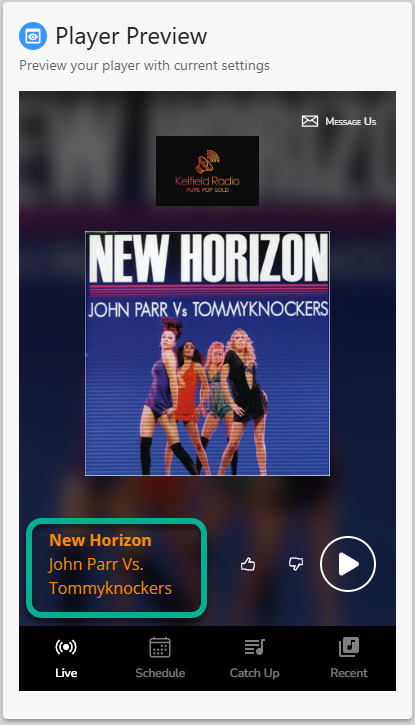
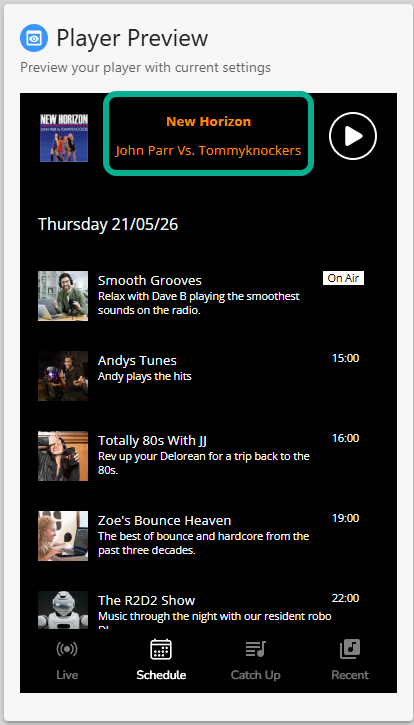

- Main Background Colour changes the overall background colour of the web player. Combine this with disabled Album Art and no Default Background to display a solid background colour in your Web Player.
- Show Now Playing - This option allows you to change whether Now Playing information is displayed in the Web Player. If your Playout system does not provide the appropriate metadata then you can turn the Now Playing feature off.
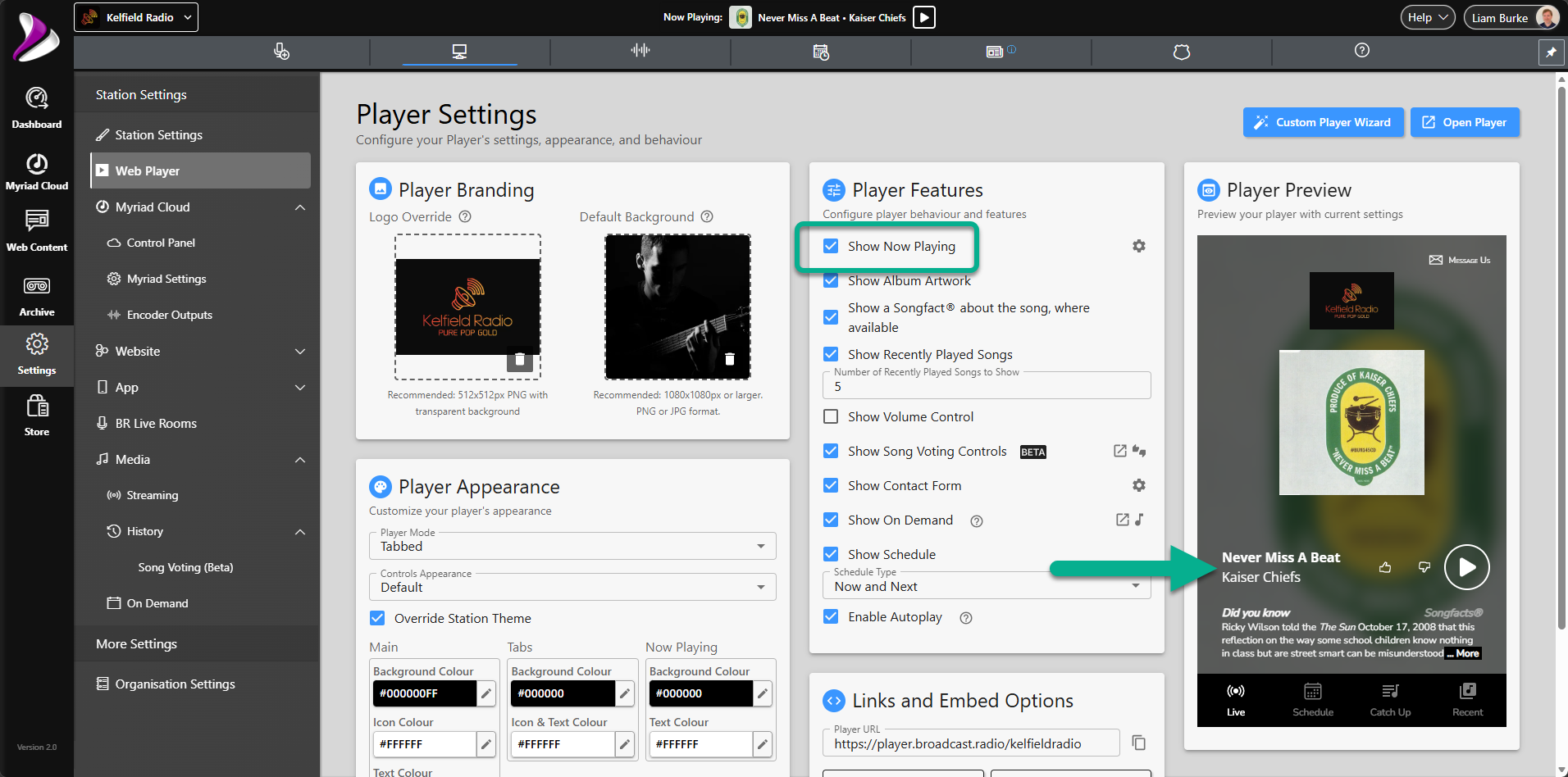
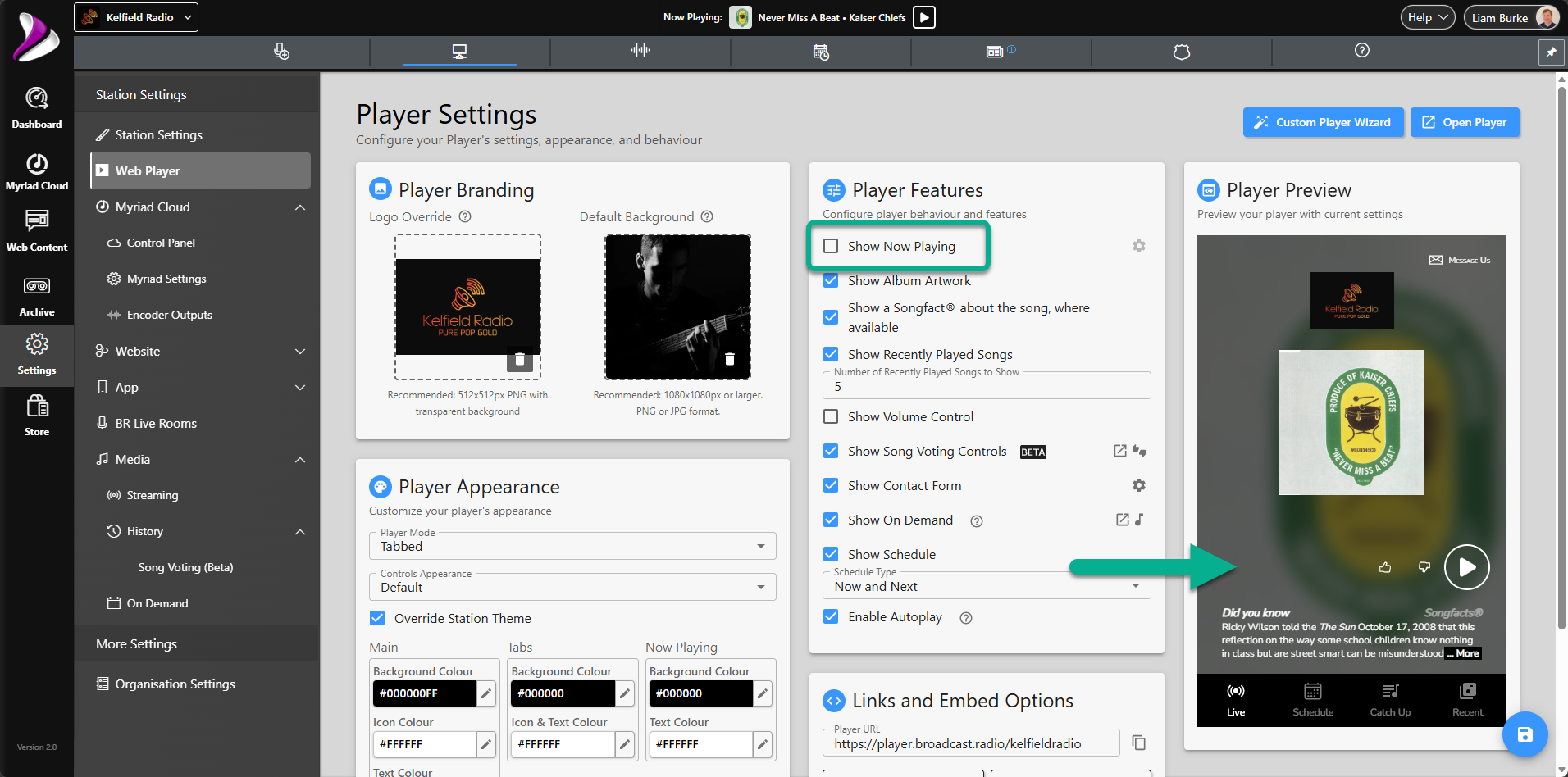
You can also set alternate text to be displayed when there is no 'Now Playing' text to display (for example when a Voice Track is playing). Click on the 'Cog' icon to and add text to be displayed when no Now Playing information is available.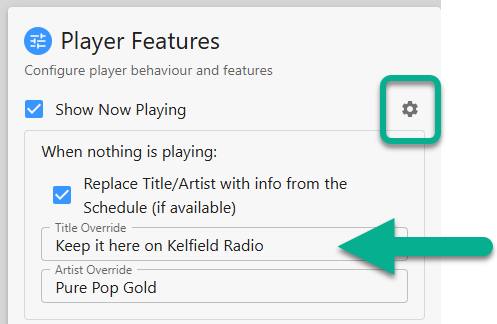
The Web Player will always try and display Now Playing information first. If that is not available but you have the 'Replace Title/Artist with info from the Schedule' option ticked, the Web Player will display the Show Title or Presenter Name from the Programme Schedule instead. If neither the Now Playing or Show/Presenter Name are available then the Title and Artists Overrides are displayed.
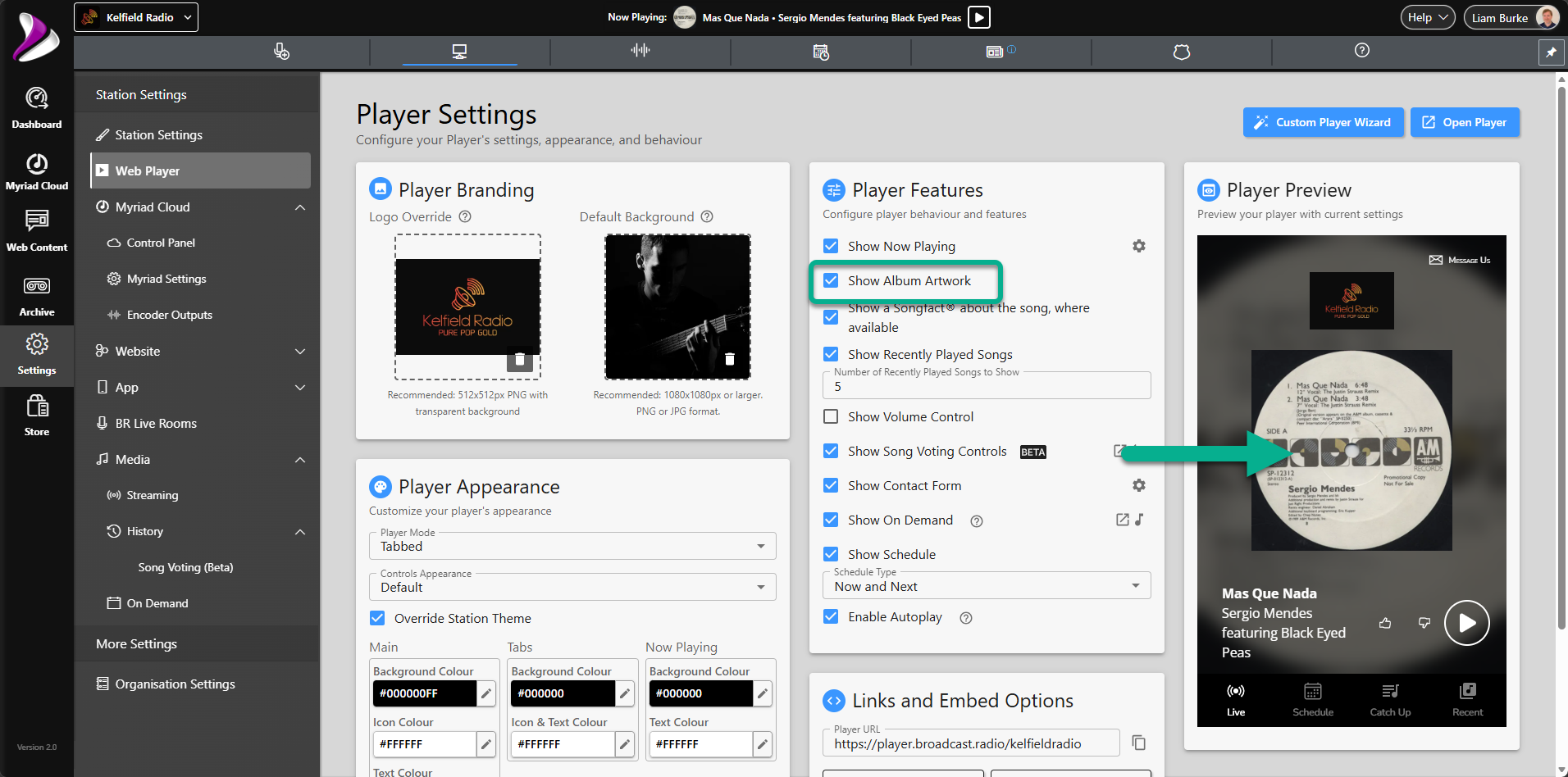
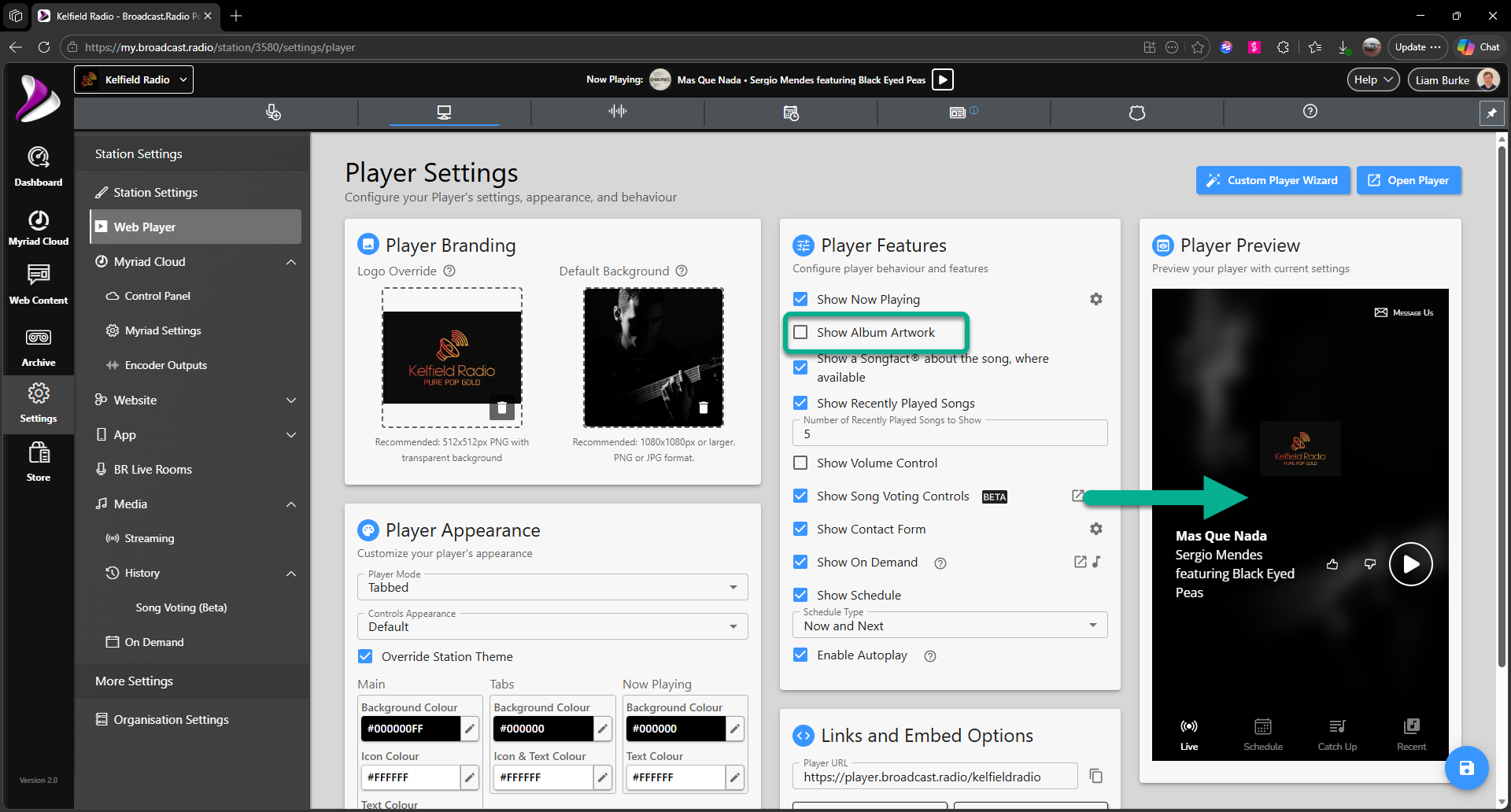
If you want to display the Title/Artists Overrides in preference to the Show/Presenter Name then un-tick the 'Replace Title/Artist with info from the Schedule' option. - Show Album Art - You can use this option to set whether your Web Player should display Album Artwork (when available), or not.
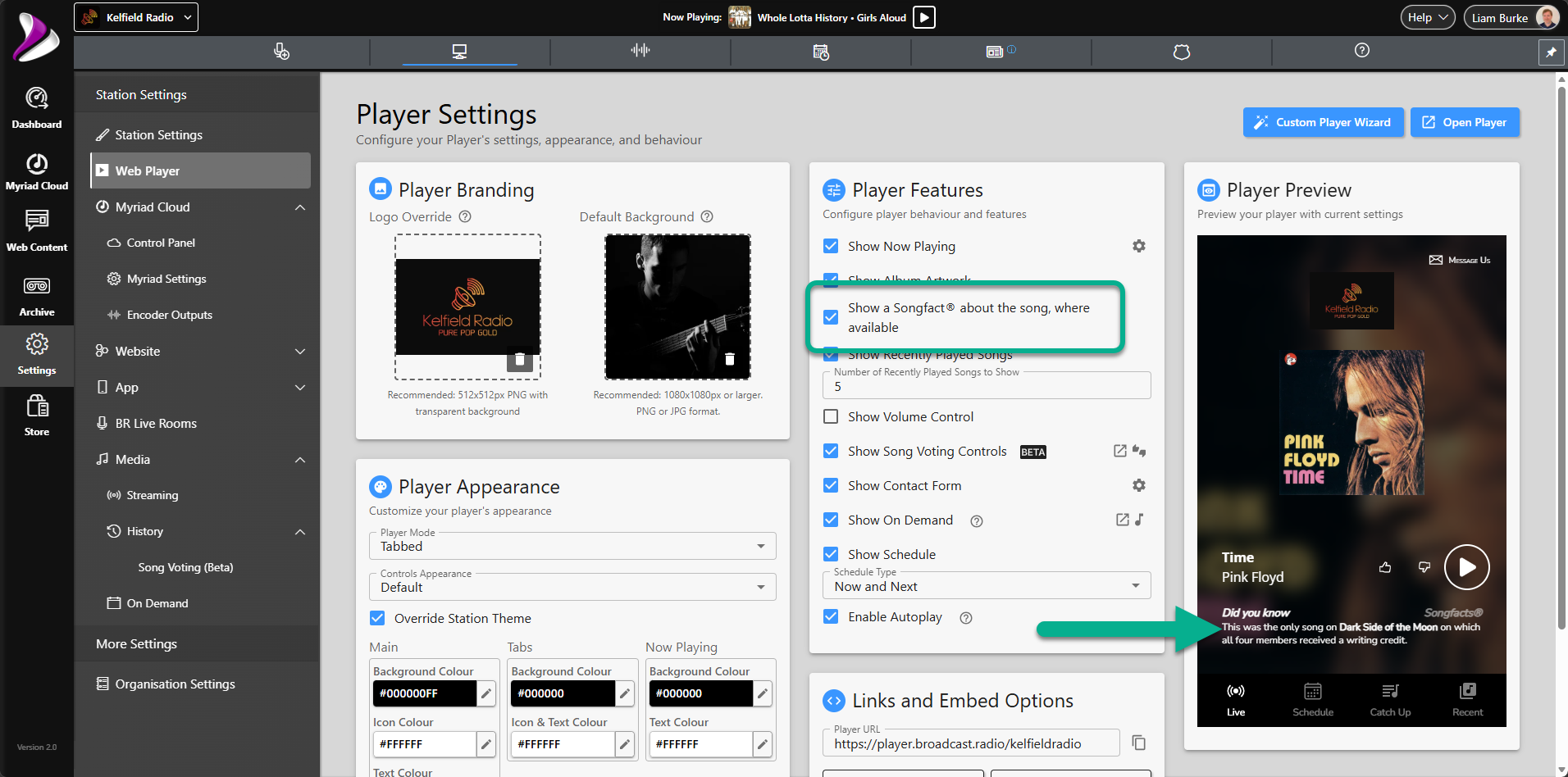
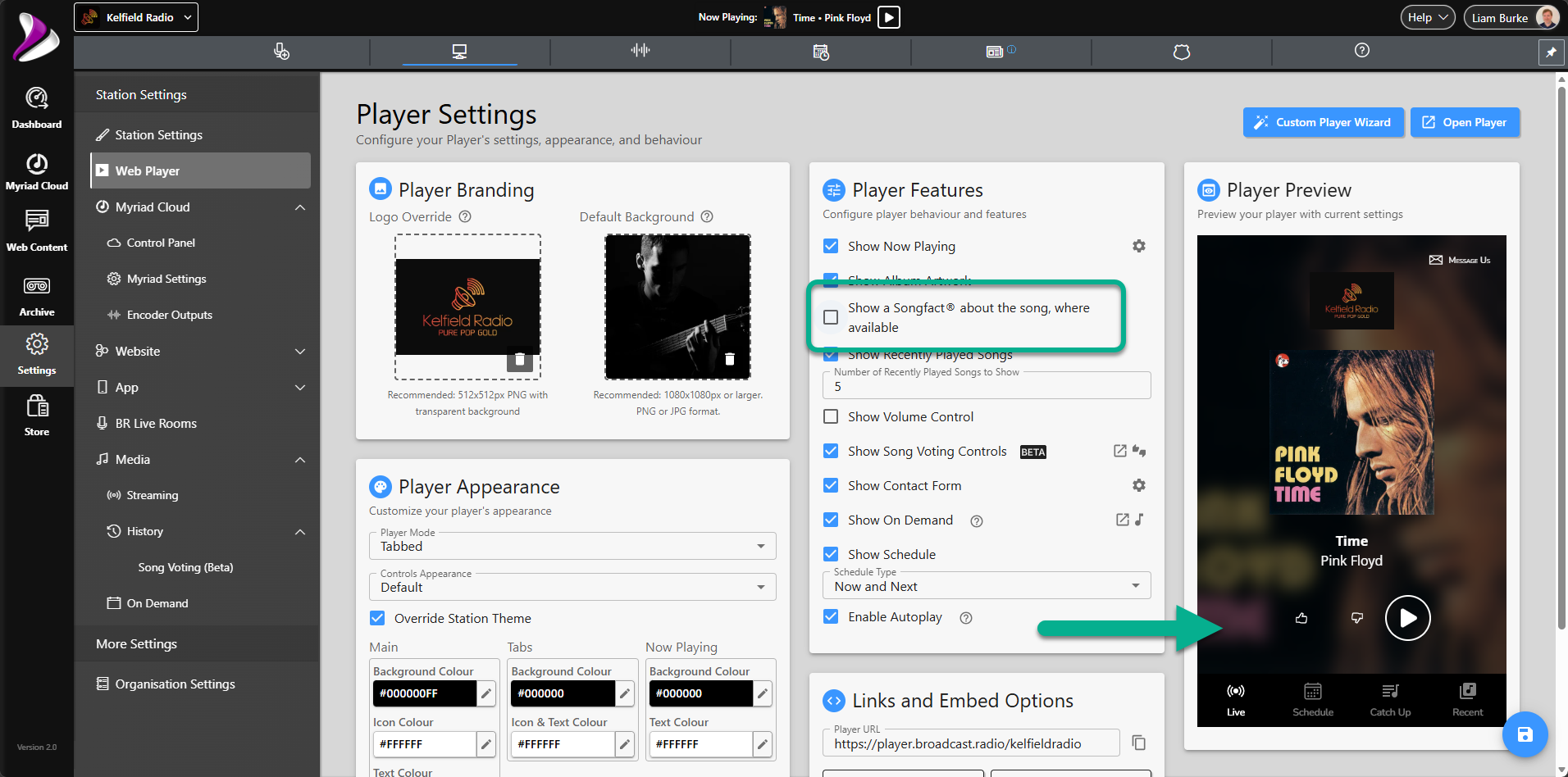
- Show Songfacts - This option will include information from the Songfacts service on your Web Player, if available. Songfacts is a USA based service so there is more focus on US and International artists meaning that not all Songs / Artists are included in their information database. Songfacts information is provided at no extra costs for all Broadcast Radio streaming custmers.
- Show Recently Played Songs - You can enable the Recent tab in Tabbed Mode or include the Recently Played section in Full Page mode, using this option.
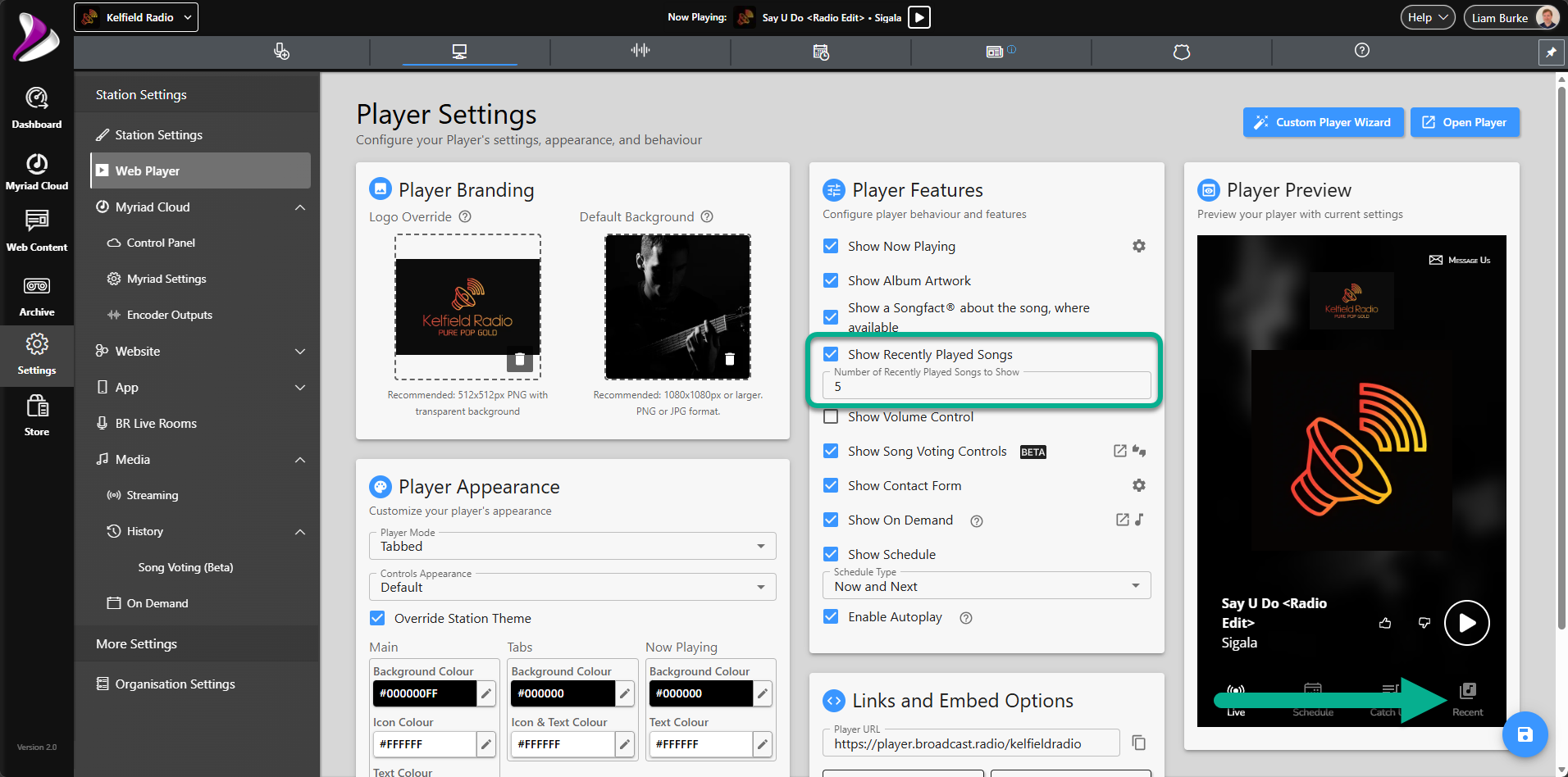
When a listener clicks on this Tab, the Web Player will display the most recent X songs played on your station.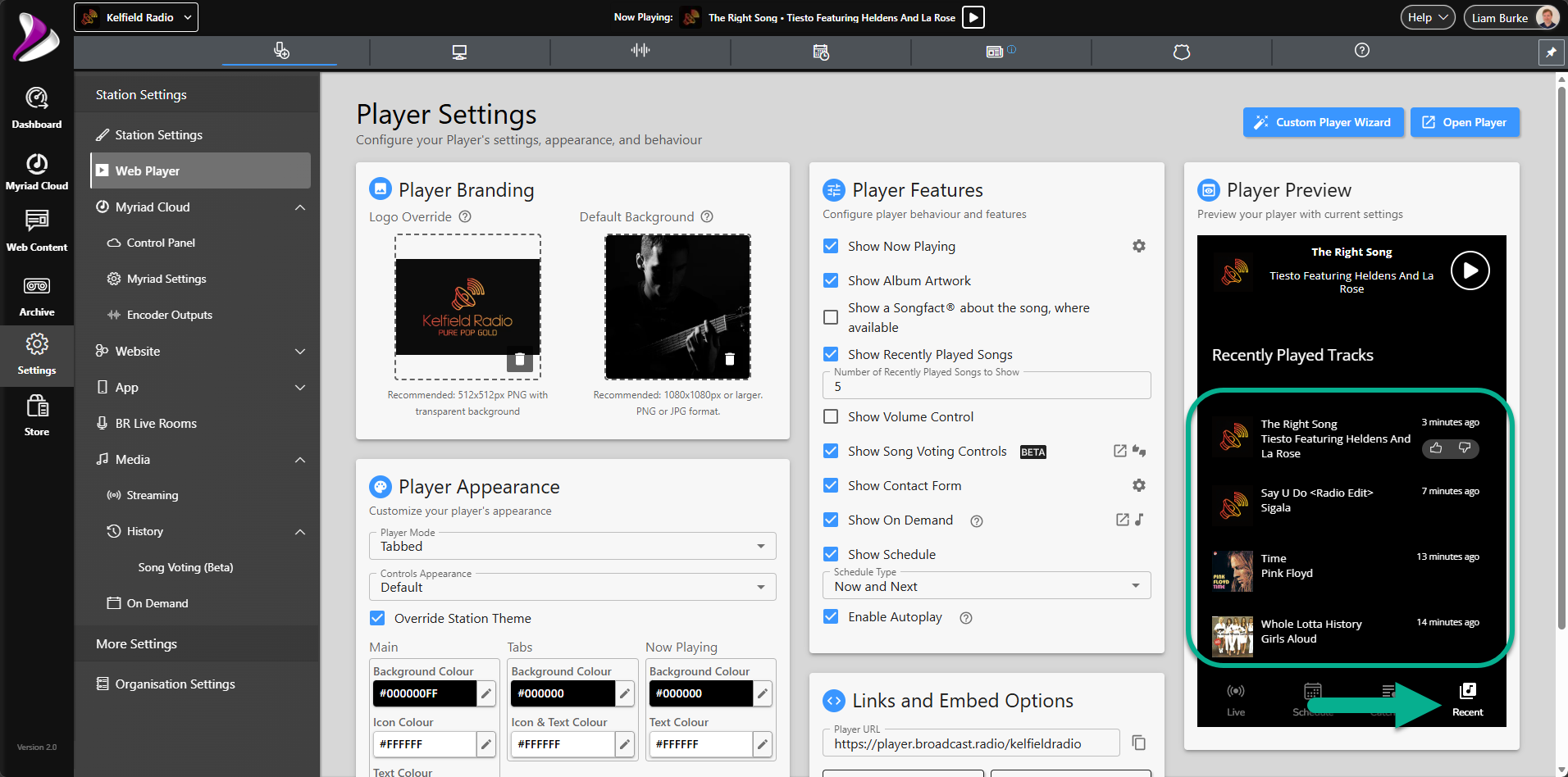
The number of Recent Songs displayed is set using the ' Number of Recently Played Songs to Show' option.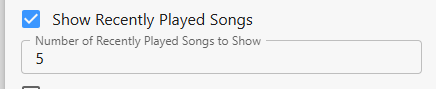
- Show Volume Control- Toggle whether to display a volume control icon on your Web Player to allow the listener to adjust the playback volume.
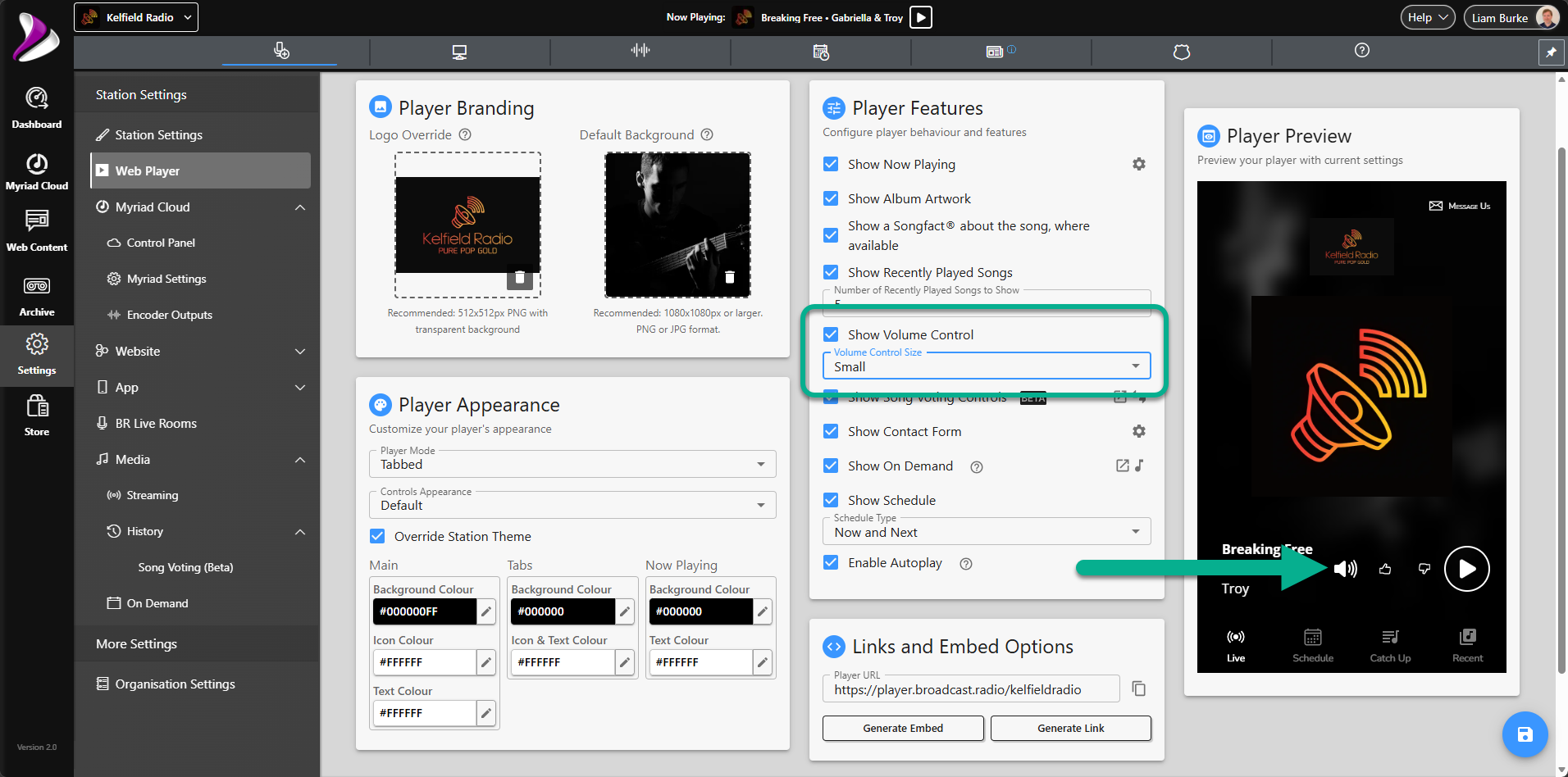
You can also select whether to display the volume control icon as small or medium size using the drop down option.
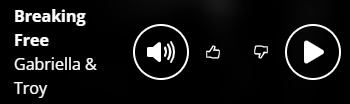
- Show Song Voting Controls- This option allows you to enable or disable the Song Voting icons on your Web Player. These optional buttons allow listeners to indicated whether they like or dislike the currently playing Song.
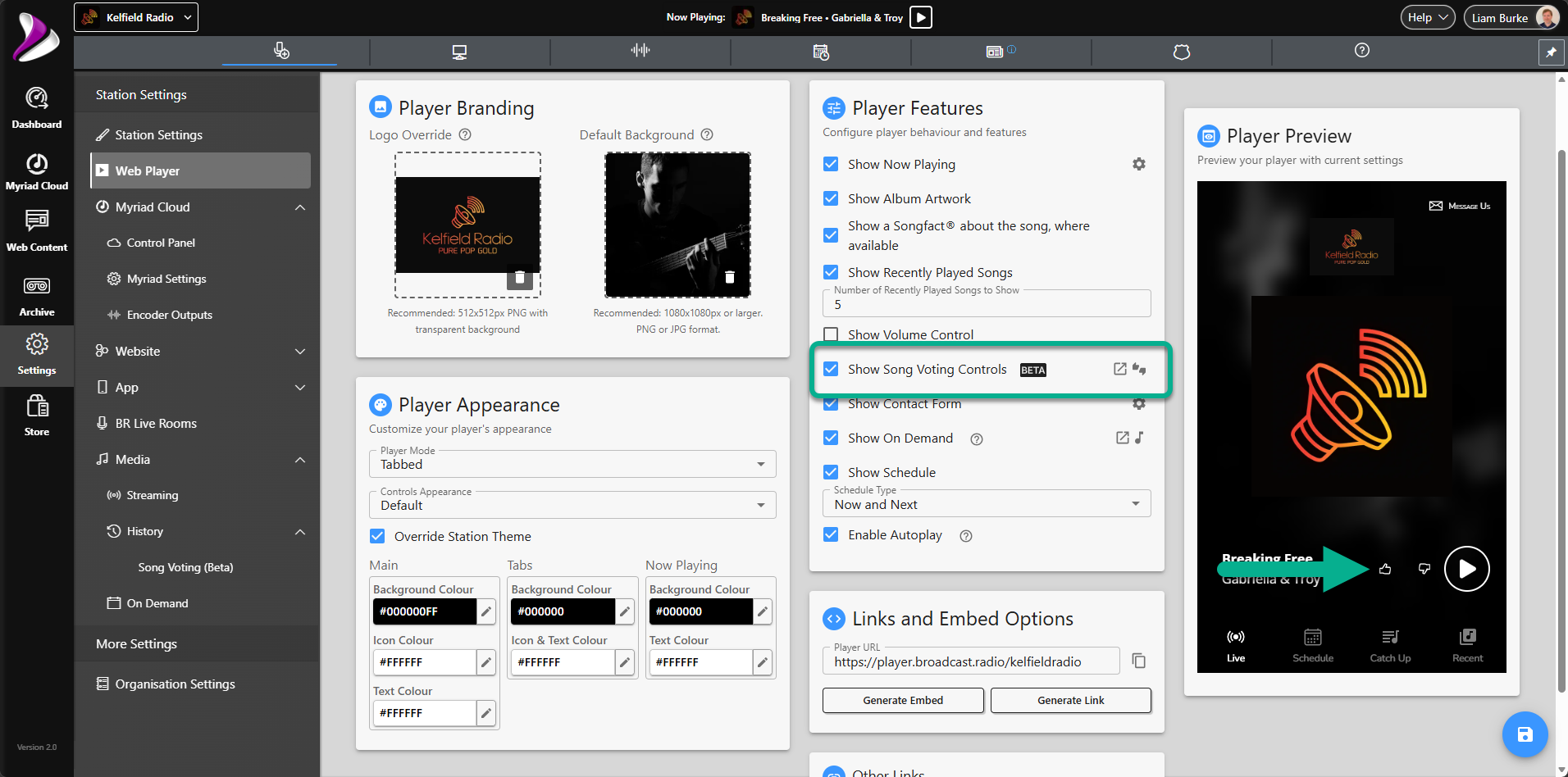
You can access the Song Voting History by clicking on the Open Page icon to the right of the option.
You can also access this via Settings > Media > History > Song Voting.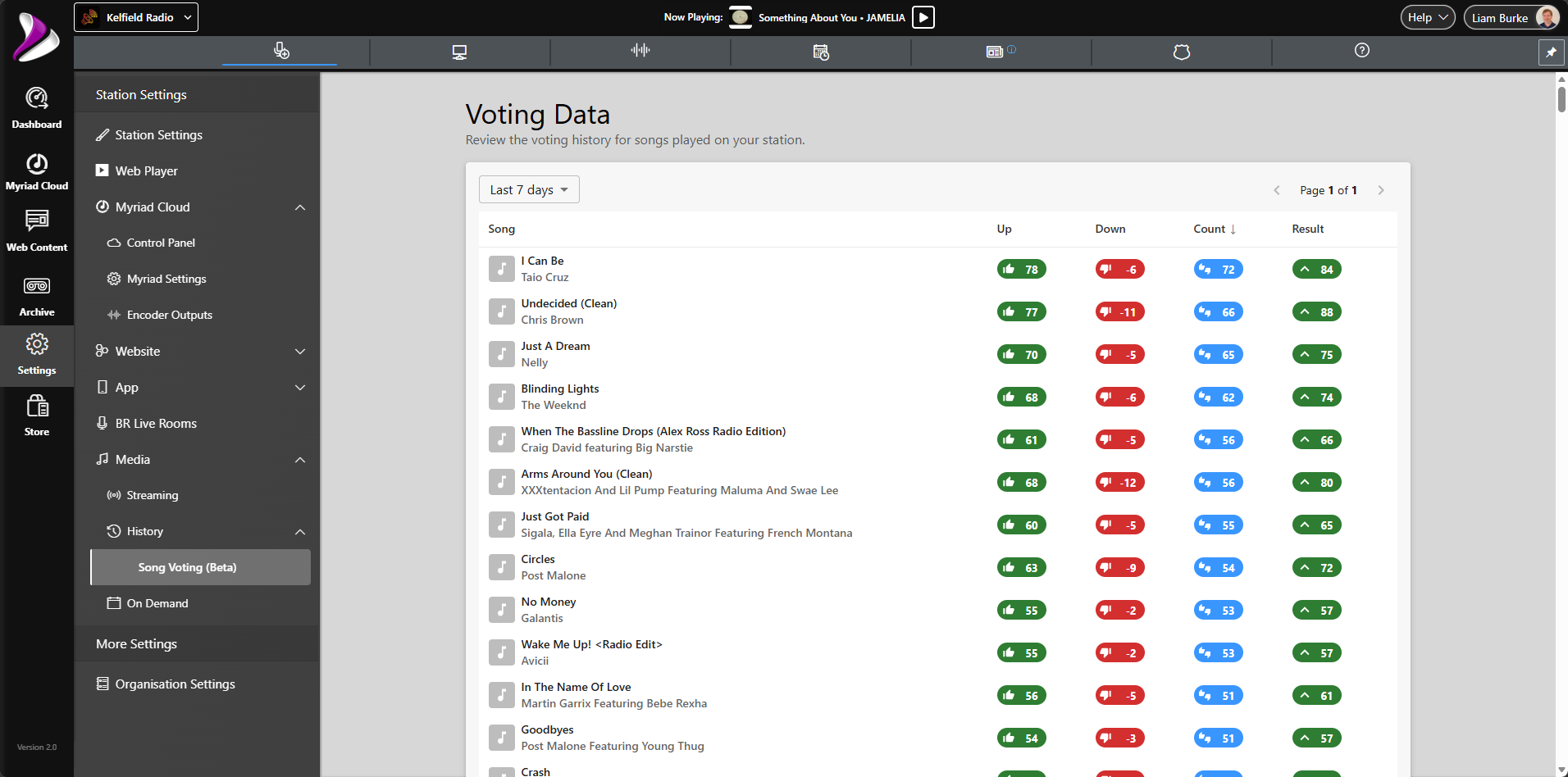
- Show Contact Form - This option controls whether to display the Message Us link in the top right of your Web Player.
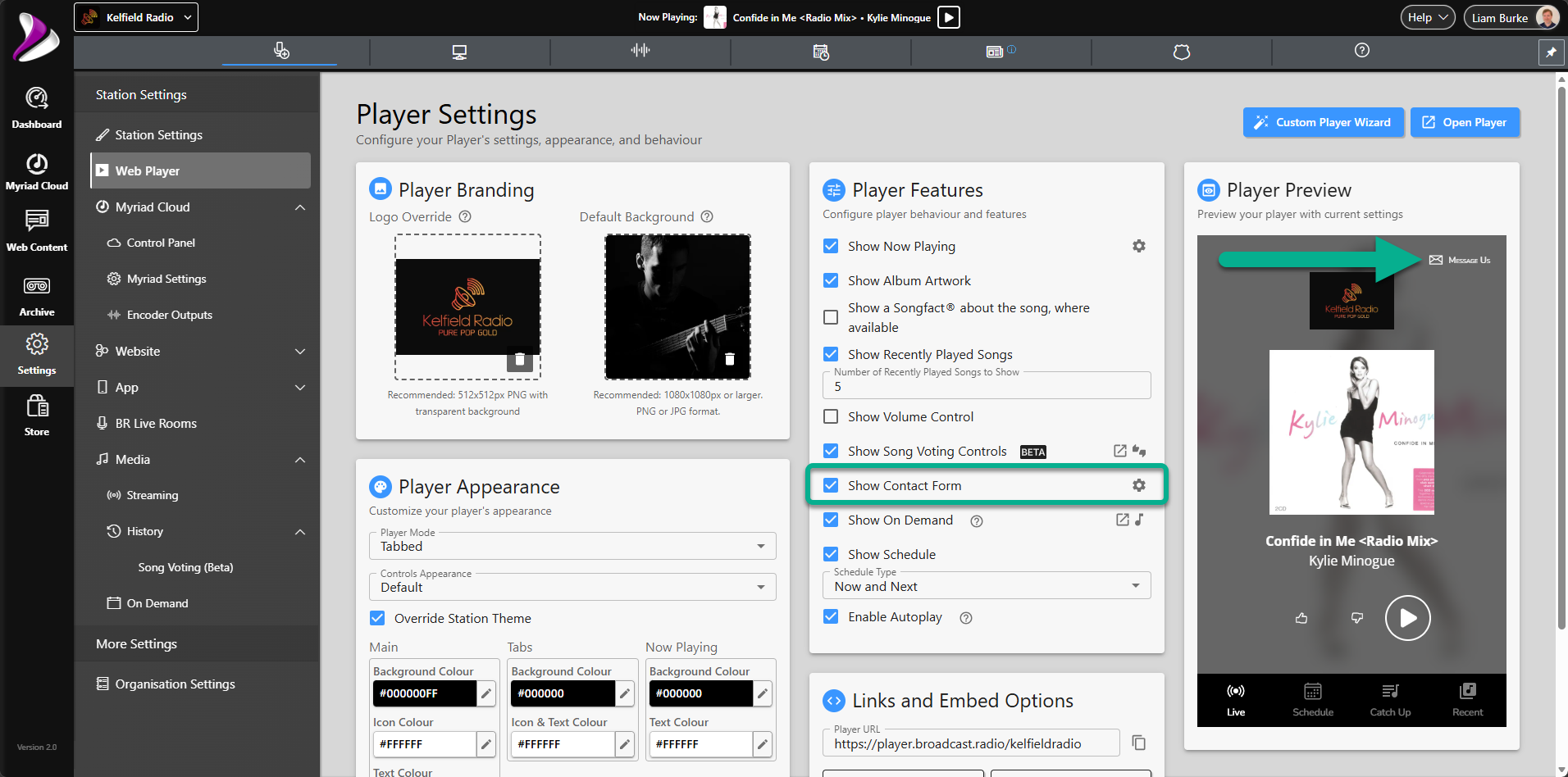
When a listener clicks on this option, they can type a message which will be emailed to the default station email address (Station Settings).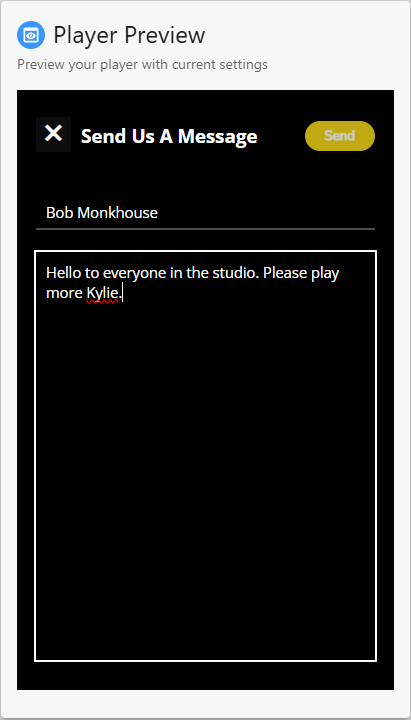
You can click on the cog icon to the right of this setting to set whether Name and Email are visible and / or required.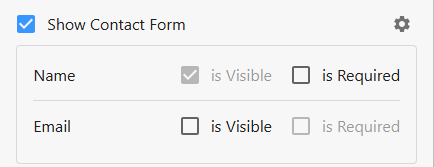
- Show On Demand - The Web Player has the ability to include content from either MixCloud, Podbean or RSS feed, to provide quick access to your uploaded 'On Demand' content hosted on those platforms. Toggling on this option will display the Catch Up Tab in Tabbed mode or enable the Catch Up section in Full Page mode.
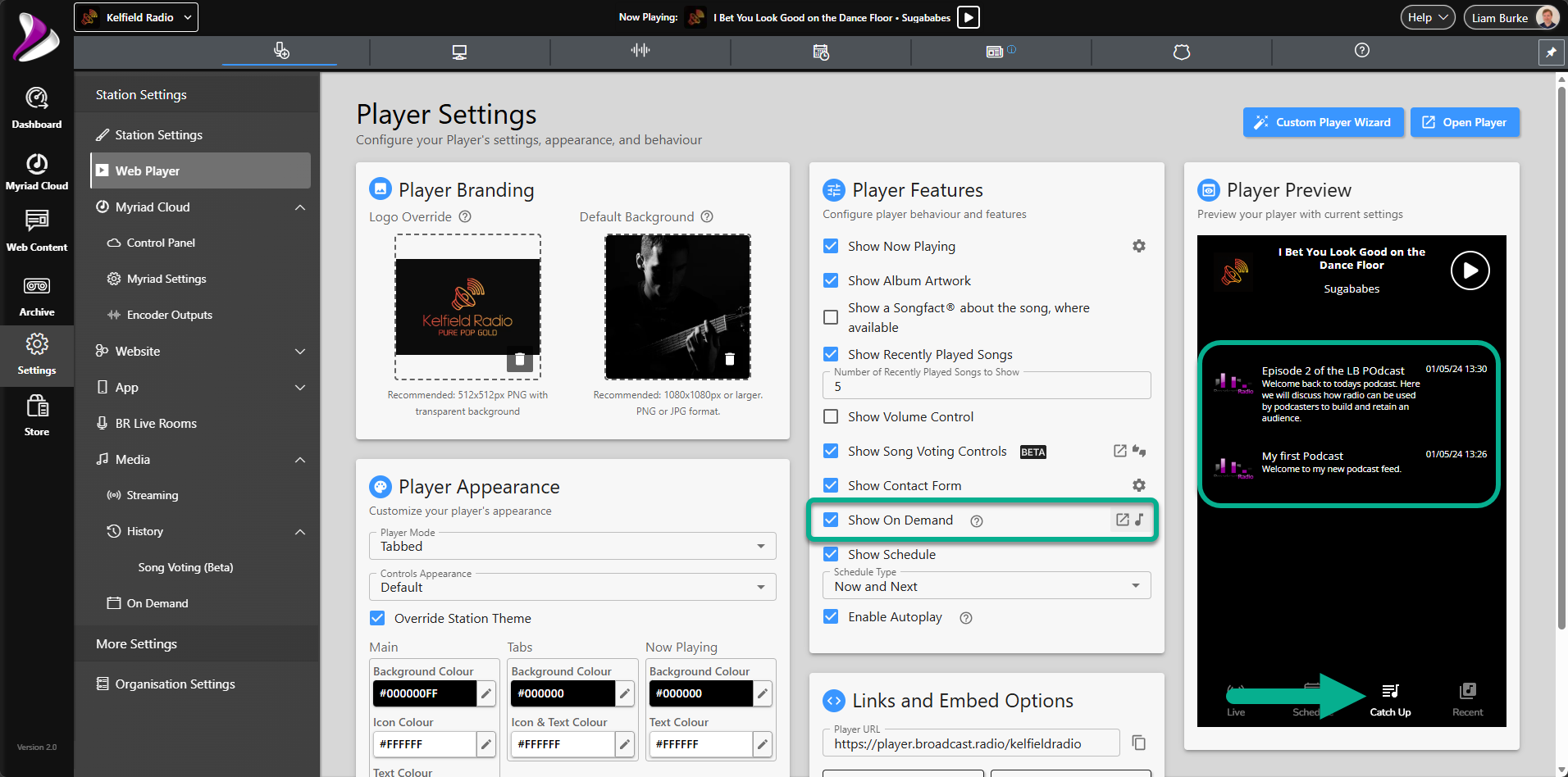
To configure access to your Mixcloud or Podbean account, click on the Setup icon to the right of the setting.
You can also access this via Settings > Media > On Demand.
To add a new On Demand provider, click on the Add On Demand Provider button.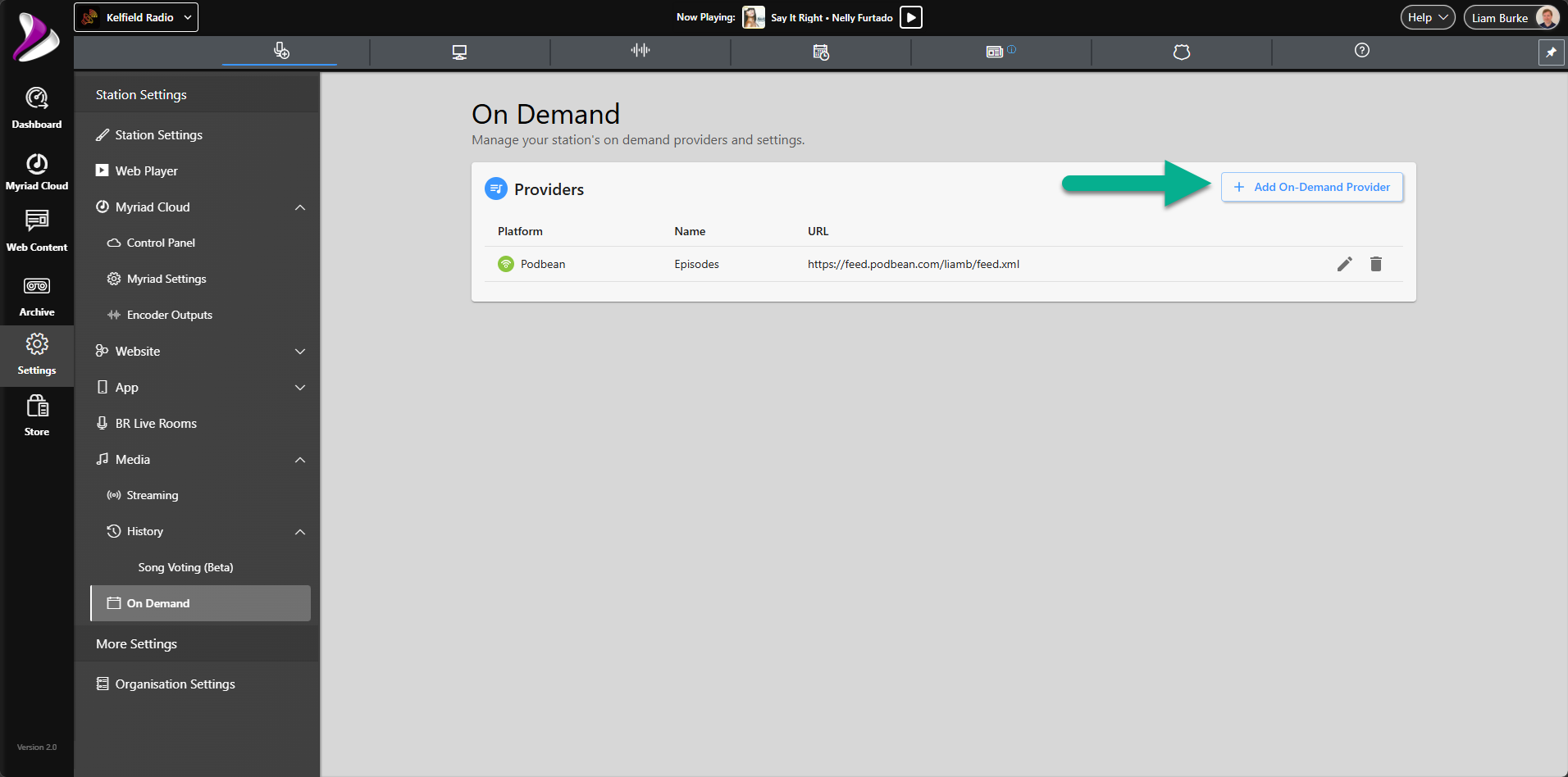
Select the service you wish to add and paste in the content URL and a suitable name for the feed.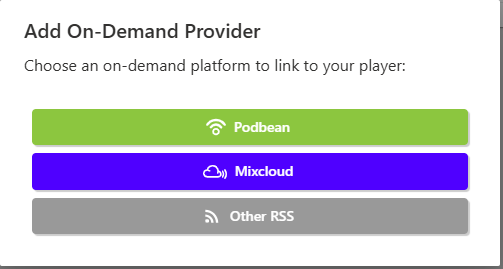
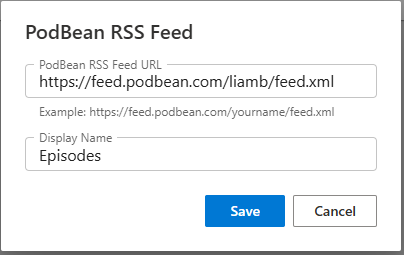
You can also edit the settings for an existing service using the Edit icon to the right of the service.
- Show Programme Schedule - The Broadcast.Radio portal allows you to create a published list of the Shows on your station (see Web Content > Programme Schedule) which can be displayed within your Web Player. Ticking this option will enable the Schedule tab in Tabbed mode and include the Schedule section in Full Page mode.
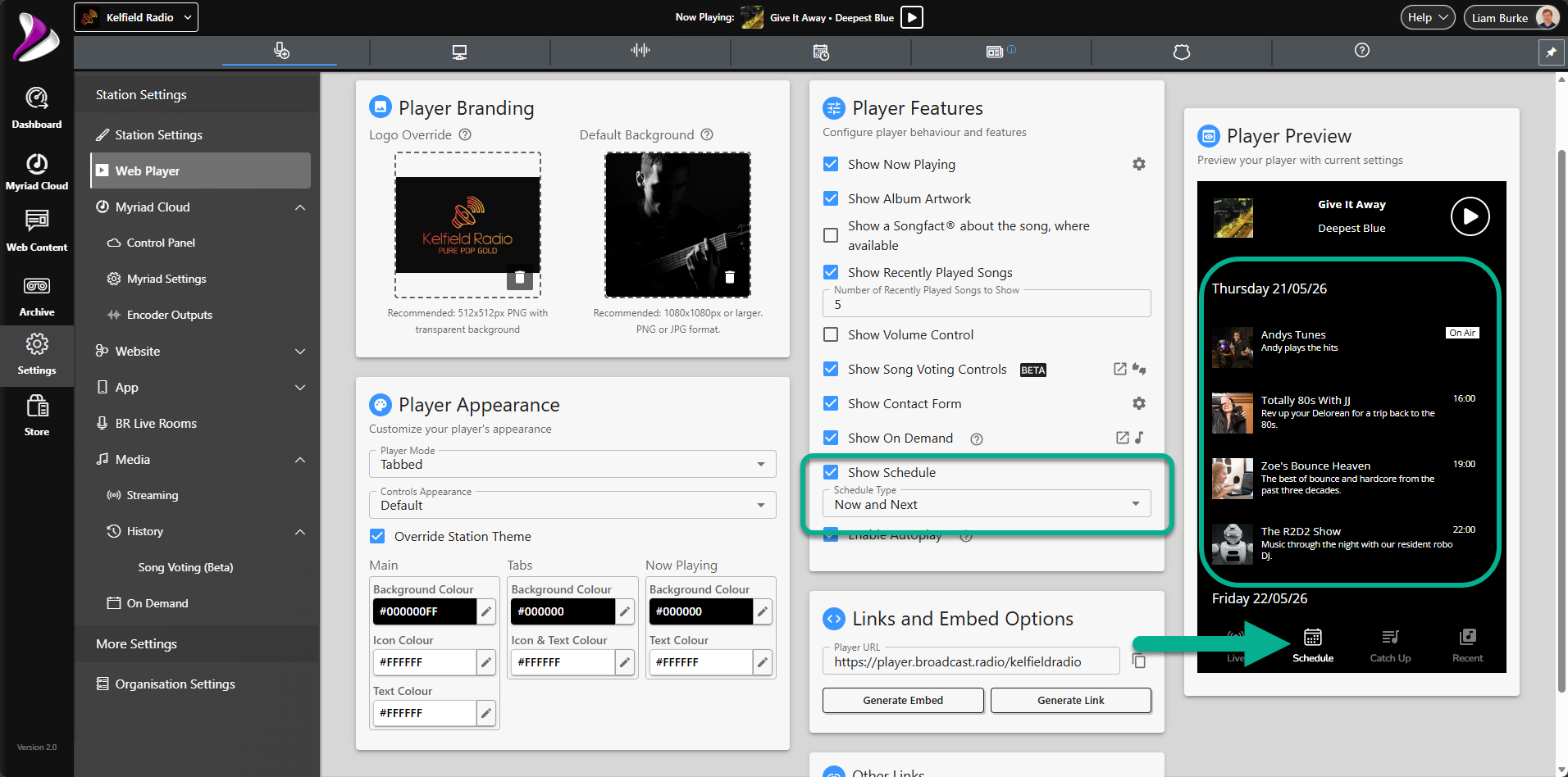
You can also use the Schedule Type drop down to select how much of the Programme Schedule to display.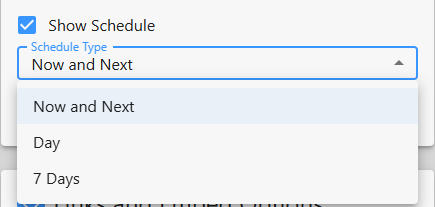
You can limit the display to only the current and next Programmes, the Programmes for today or a full seven days. - Enable Autoplay- When this option is ticked, the Web Player will attempt to automatically start playback when the player launches. Unfortunately, most modern web browsers block this behavior for security reasons, so this option will not have any effect for most listeners.
- Player URL - The Player URL field shows the unique URL address for your Web Player. This simple link can be used to visit your Web Player from a standard web browser. You can click on the Copy button to the right to copy the URL.
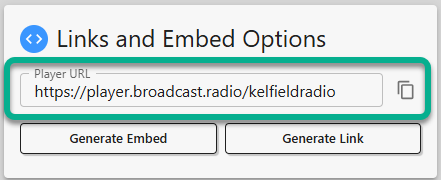
- Generate Embed- To embed your Web Player on a 3rd party website, you can use the Generate Embed button to generate the HTML code that needs to be added to an HTML widget on your external site.
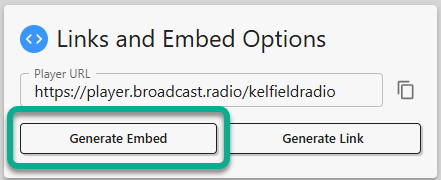
Clicking the Generate Embed button will open the Embed Code popup window which allows you to select the shape of the Web Player to be embedded on your website.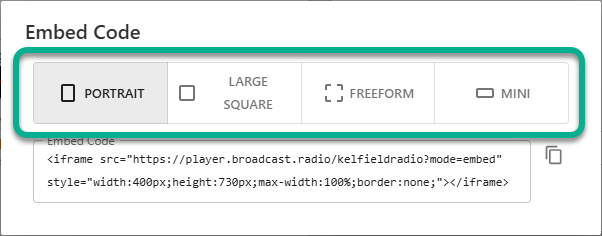
Portrait - Standard tall Web Player.
Large Square - Creates a larger, square Web Player.
Freeform - Creates a Web Player that will expand to fill the HTML container it is placed in.
Mini - Creates a compact Web Player ideal for placing in a header section on a website.
The code for each option is displayed in the Embed Code section. You can click on the Copy button to the right to copy the code to the clipboard.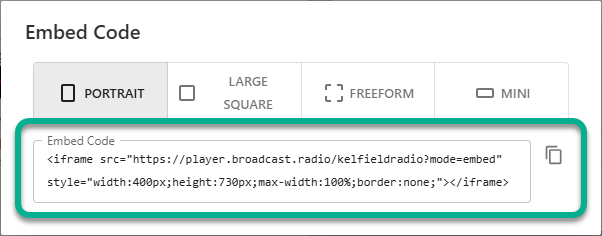
If you examine the Embed Code, you will see values for Width and Height. You can adjust these on our website as required. - Generate Link - The Generate Link option provides a simple method to add a button to your website that will open your Web Player as either a pop-up window or a new browser tab.
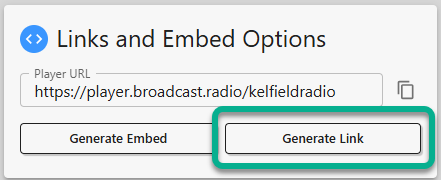
Clicking the Generate Link button will open the Generate Link window which can be used to select the options for your Web Player link code.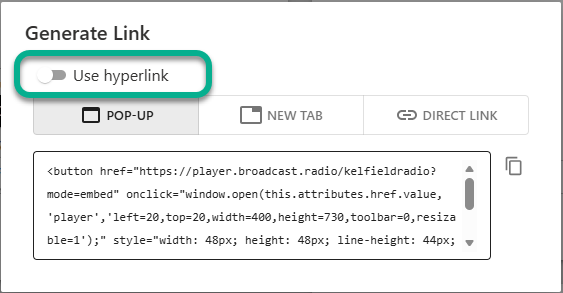
By default, the Generate Link option will generate HTML code that includes a simple button that will be displayed on your website, which will launch the Web Player as either a Pop-up or New Tab (see below).
If you want to use a customer button image or other clickable element, you can toggle on the Use Hyperlink option to change the generated code to be an HTML hyperlink which can be attached to any clickable HTML element. You should only use this option if you are confident using HTML code.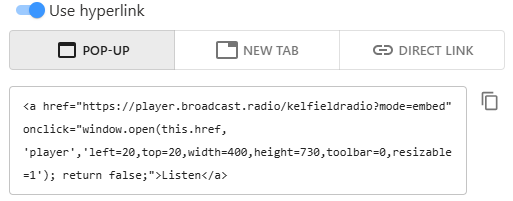
You can also select whether the Web player should open in a floating Pop-Up window.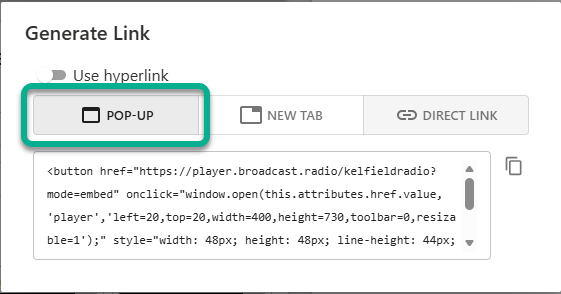
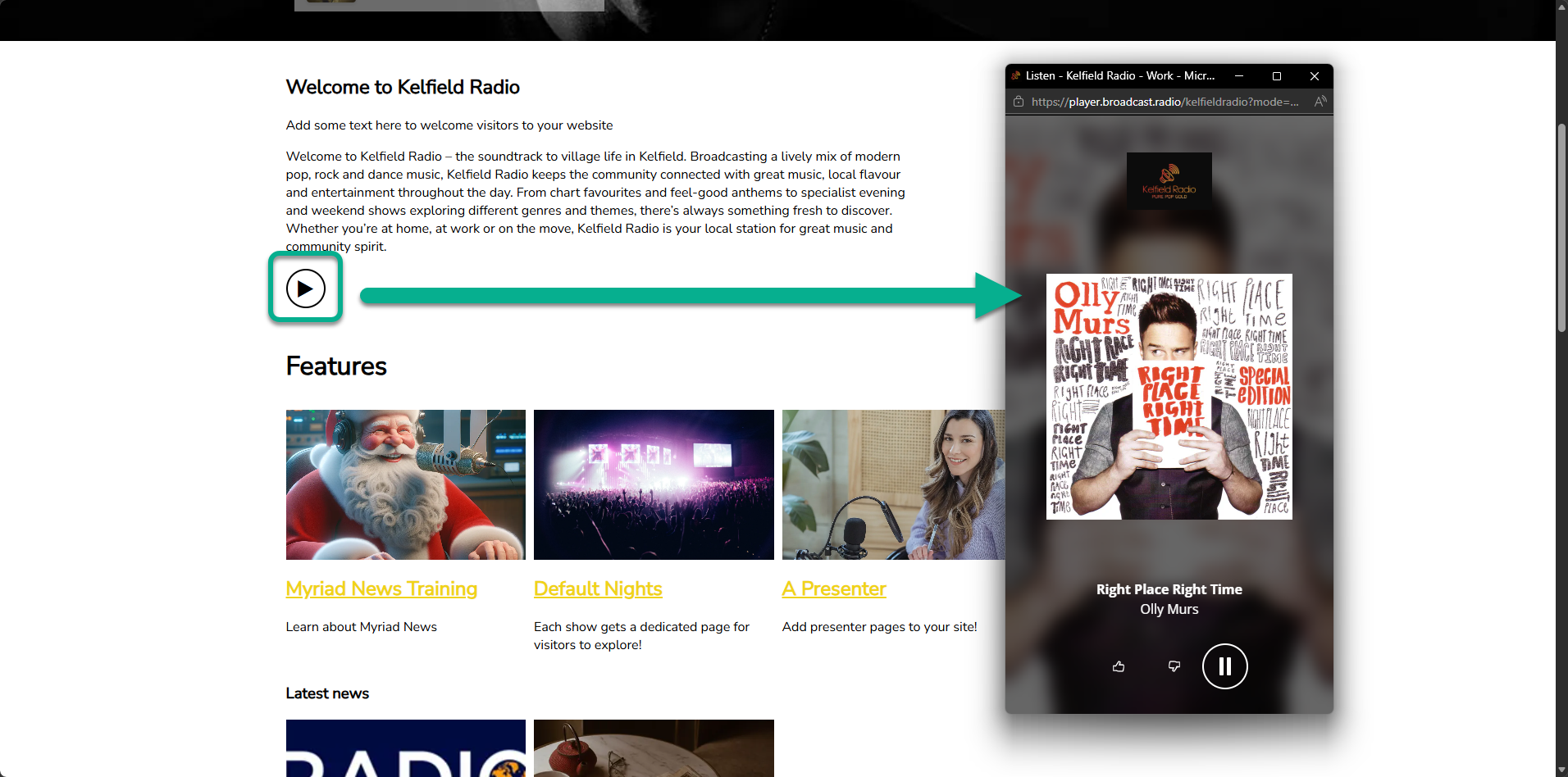
Or you can have the Web Player open in a new browser tab.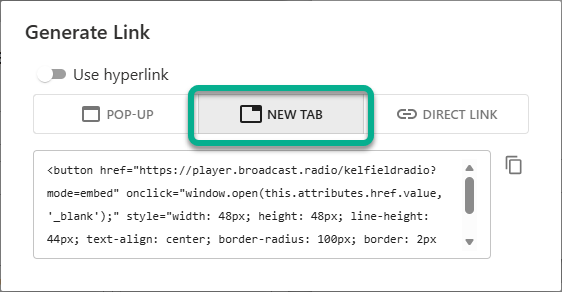
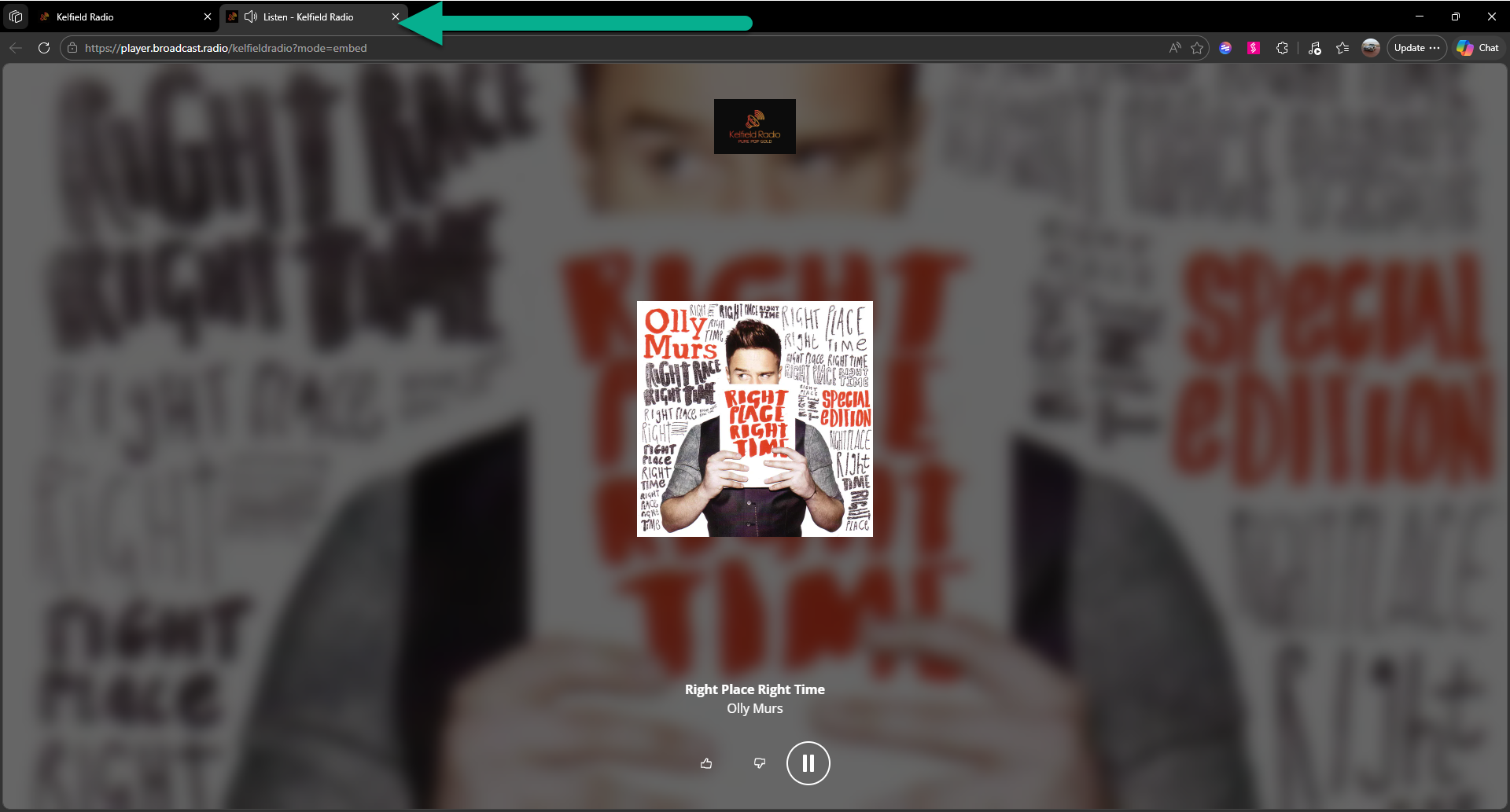
Finally, you can generate a direct URL link which will open your Web Player directly.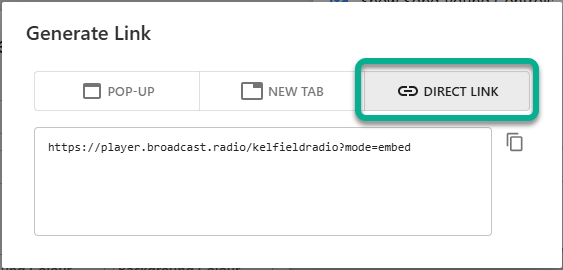
Once you have selected the options you want, click on the Copy button to the right of the code preview to copy the code ready to be pasted into an HTML widget on your 3rd party website.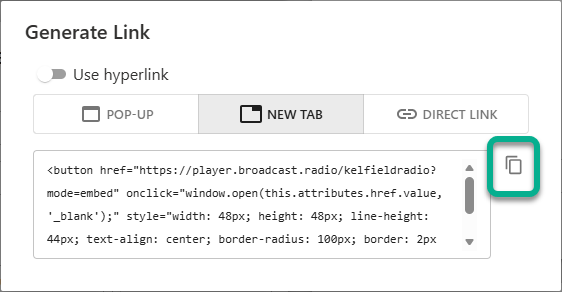
- Legacy Player Settings - You can use this link to revert back to the legacy Broadcast.Radio Web Player settings page. This option may be removed in a future revision of the platform.
- Custom Player Wizard - The Custom Player Wizard is a quick and simple tool to help you design a Web Player but walking you through the key steps of the setup process.
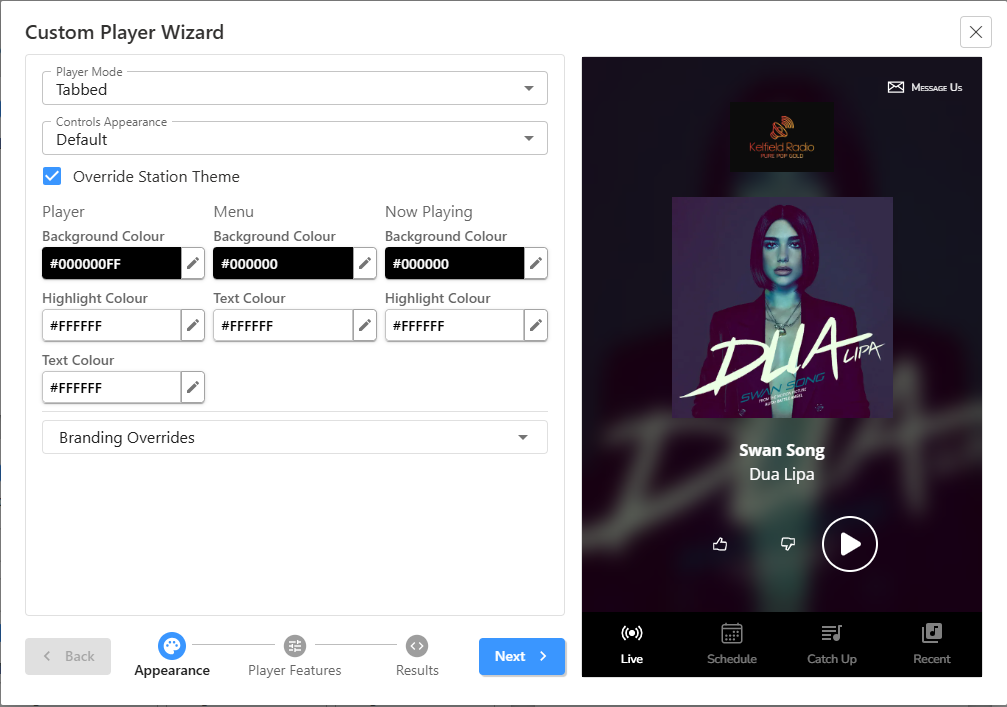
The options are the same as on the main Web Player page but they are organised by Appearance > Player Features > Results (embed options).
Use the options on each page to customise your Web Player. The preview to the right shows you what your player will look like in real time. As you complete each page, click on the Next button to move on. - Open Player - Click this button launch your live Web Player.
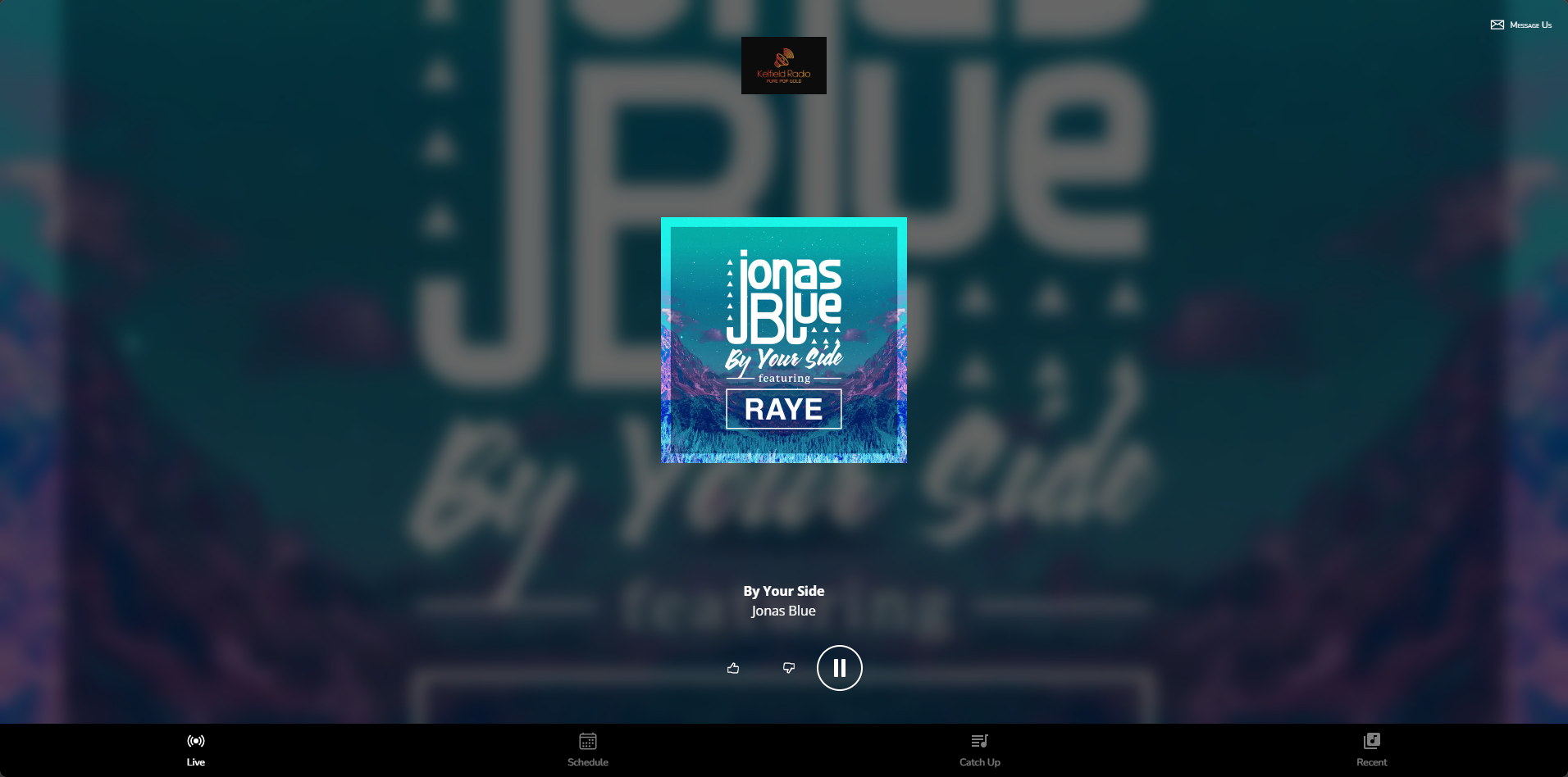
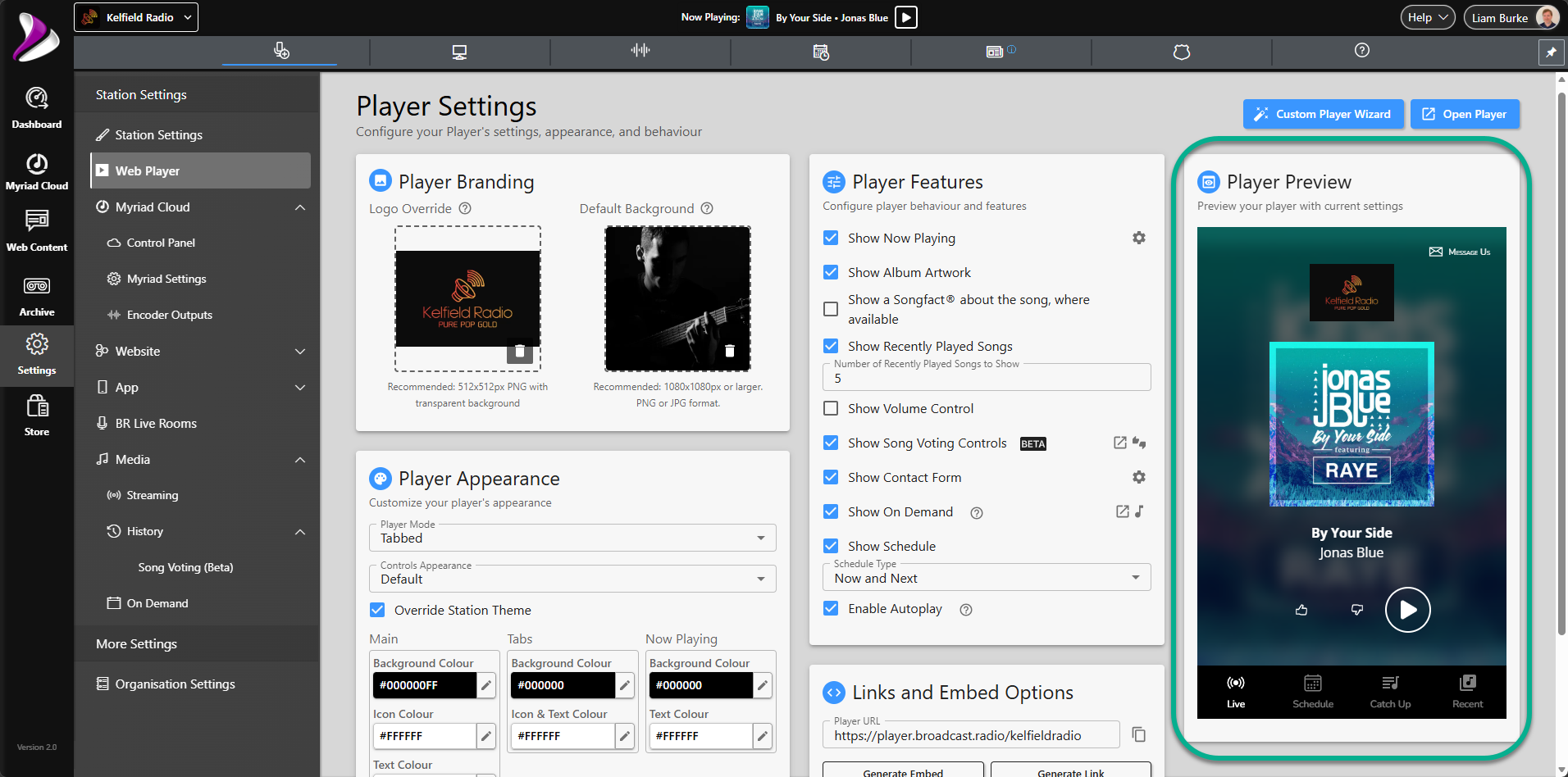
- Player Preview- As you make changes to your Web Player, the Player Preview will update in real time to allow you to instantly see the results without needing to update the 'live' Web player.
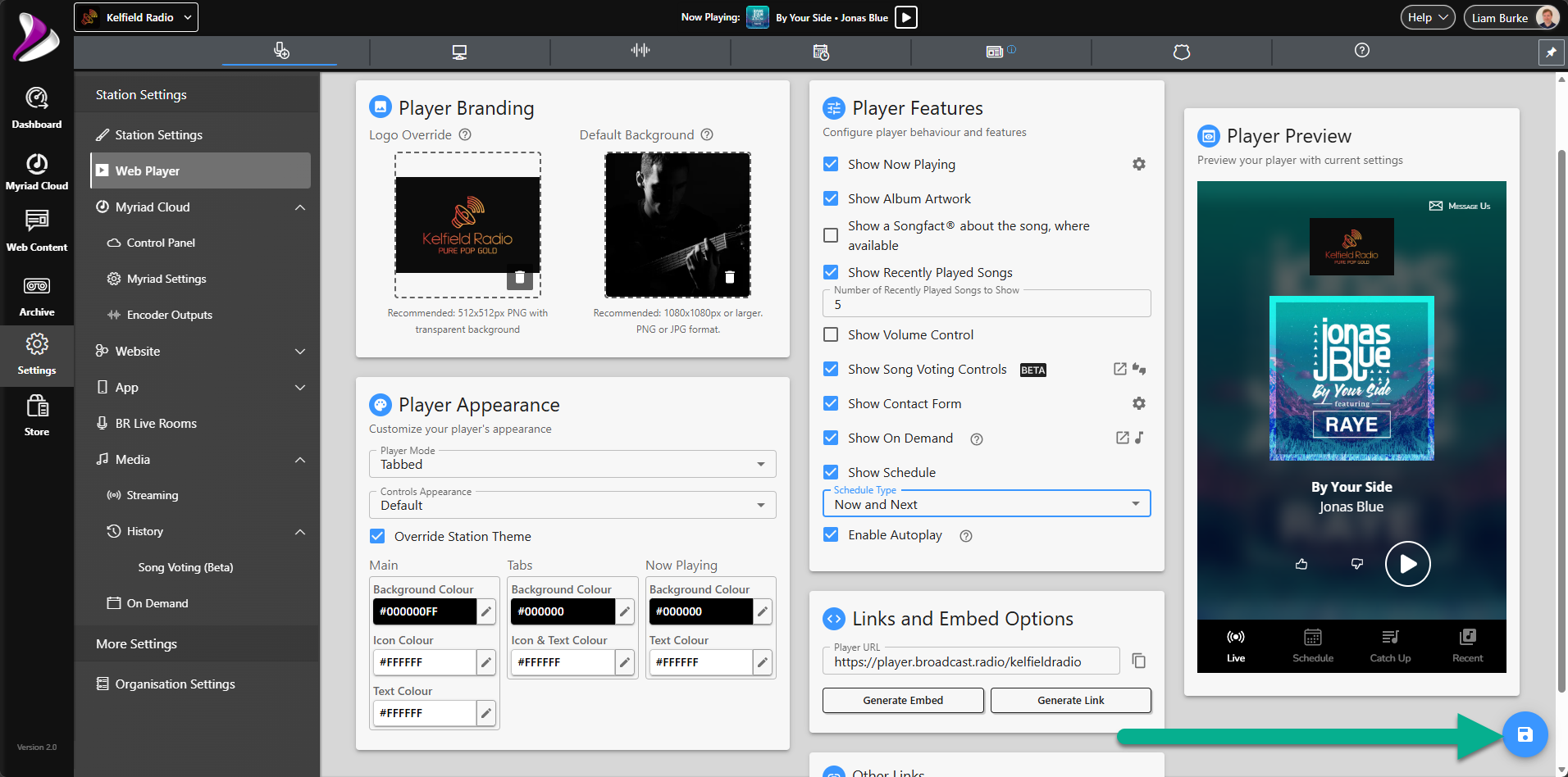
- Save Button - Every time you make a change to a setting or feature on the Web player page, the Save Button will be displayed in the bottom right hand corner of the window. Changes will not be saved to the 'live' Web Player until you click on the Save button.
- Tabbed - Navigation options appear along the bottom of the Web Player.
Was this article helpful?
That’s Great!
Thank you for your feedback
Sorry! We couldn't be helpful
Thank you for your feedback
Feedback sent
We appreciate your effort and will try to fix the article