To export an individual Media Item, follow these steps.
- Select the Media Item on the Media Wall or Library.
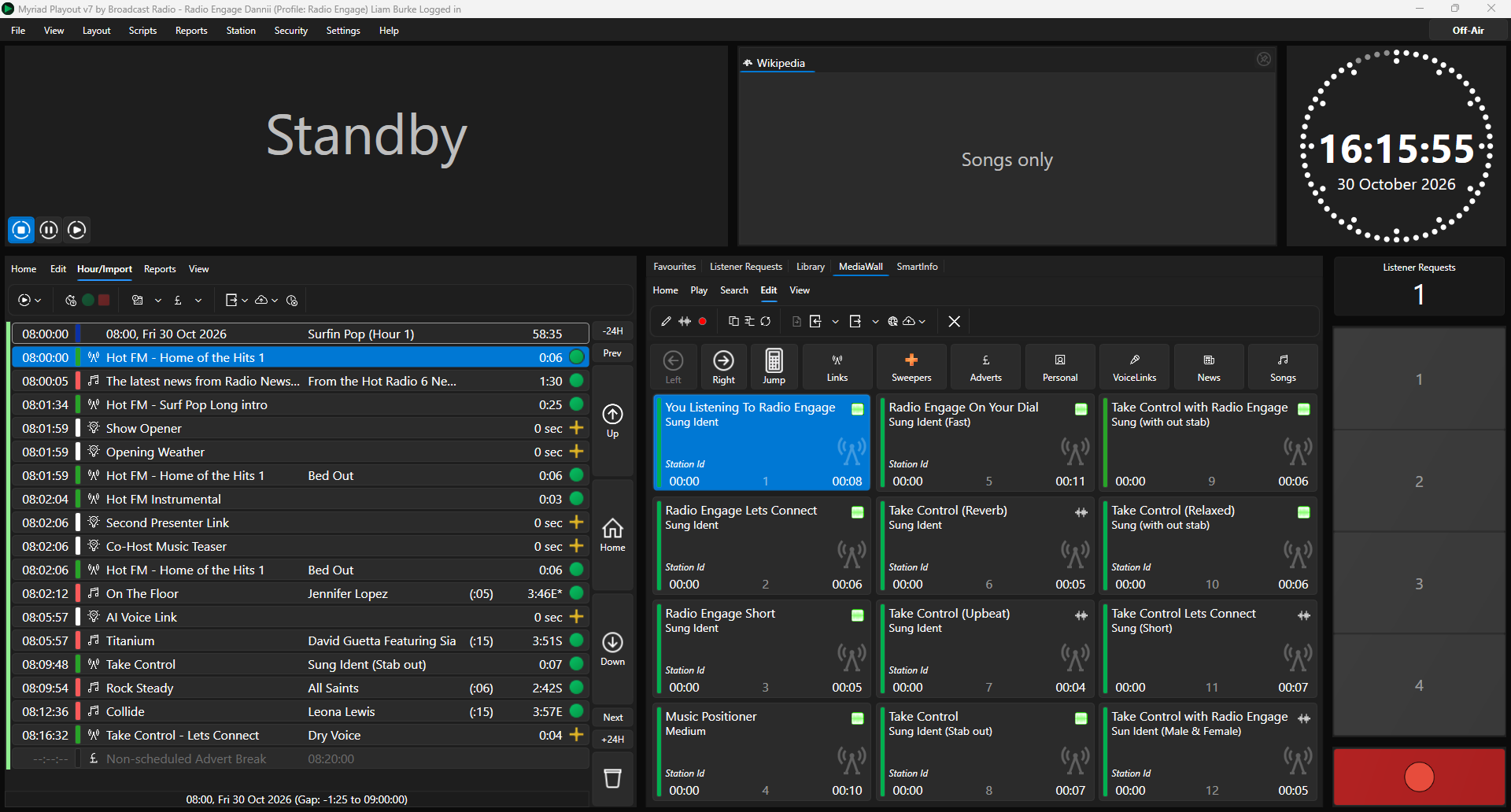
- Right click on the Media Item and expand the Export/Publish/Replicate menu option.
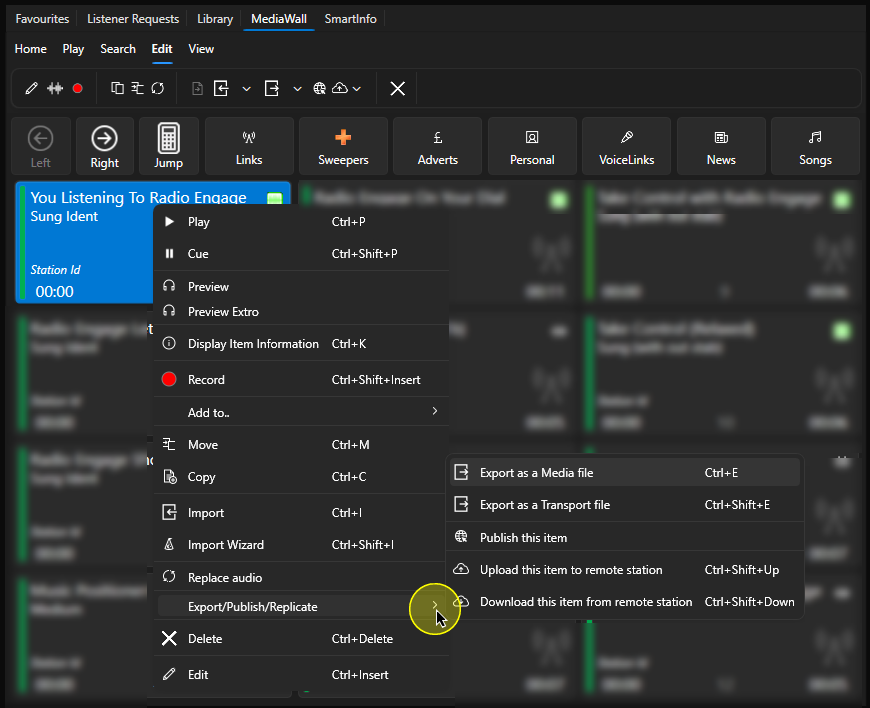
- The option on this menu are:
- Export as a Media file - export as a standard Media file (wav, MP3 OPUS etc). This includes basic metadata embedded in the file header (not supported by all export formats).
- Export as a Transport file - export as a .ZIP file that includes extended Myriad metadata that can be reimported into Myriad systems.
- Publish this item - publish the audio to a configured MixCloud account.
- Upload this item to a remote station - uploads to a configured remote station using Myriads built in replication tools.
- Download this item from a remote station - allows you to download the content from a configured remote station using Myriads built in replication tools.
Please note that these options are also available on the Edit Tab ribbon menu.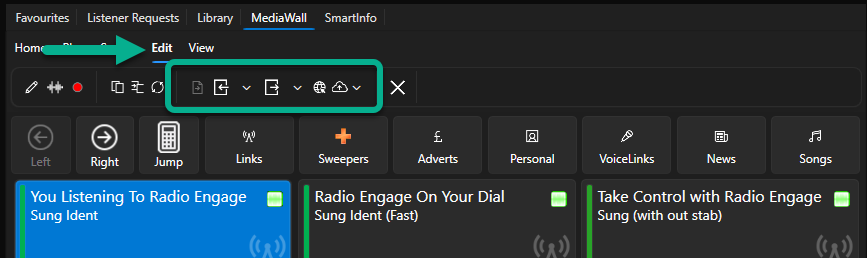
- In this example, we will Export as a Media file.
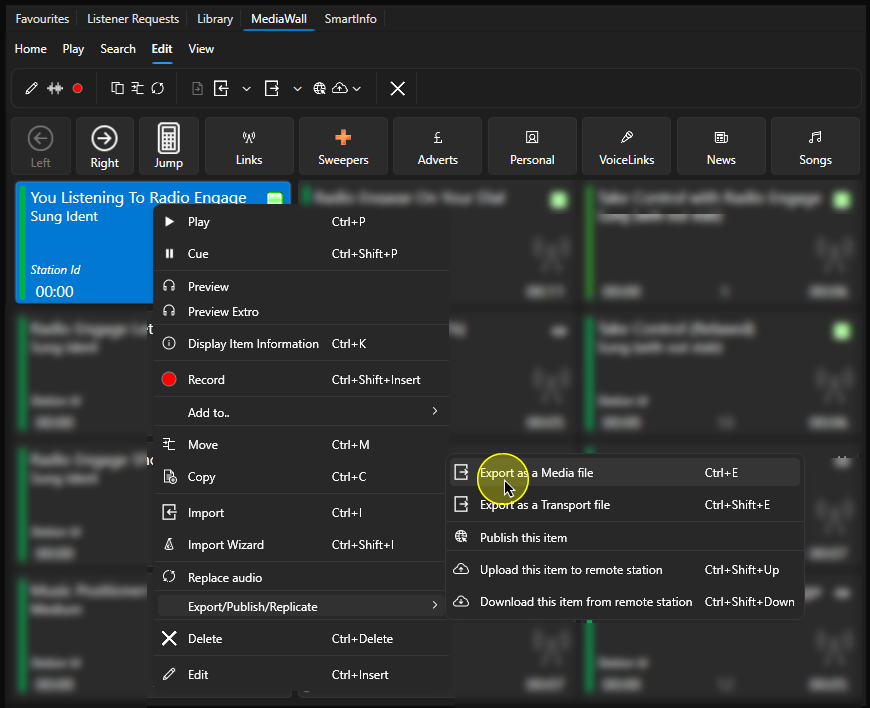
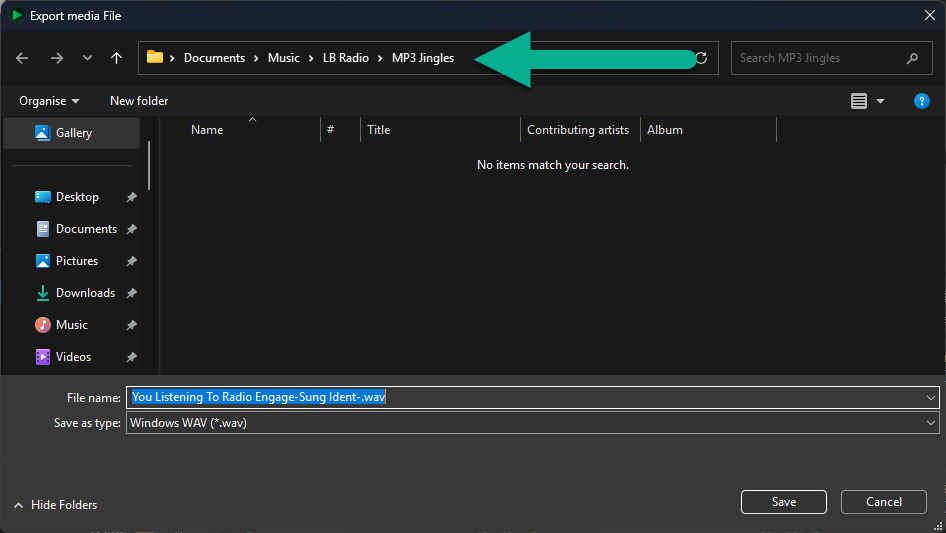
- Set the location to export to.
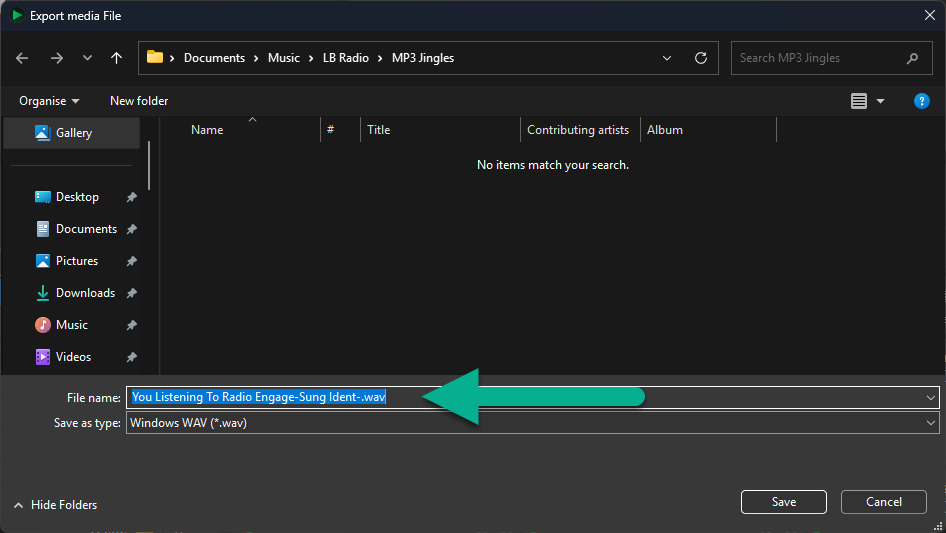
- Set the file name to use.
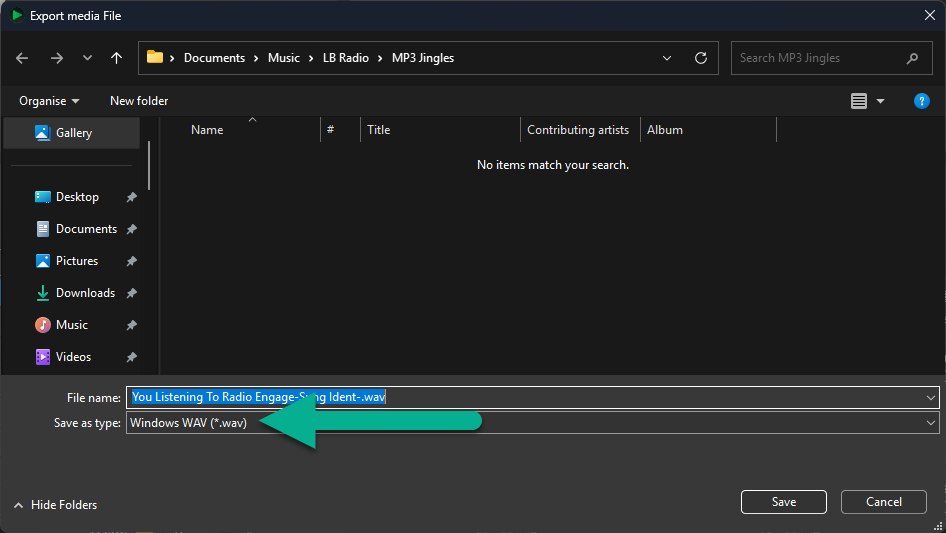
- Select the file format to use (WAV, MP3, OPUS etc)
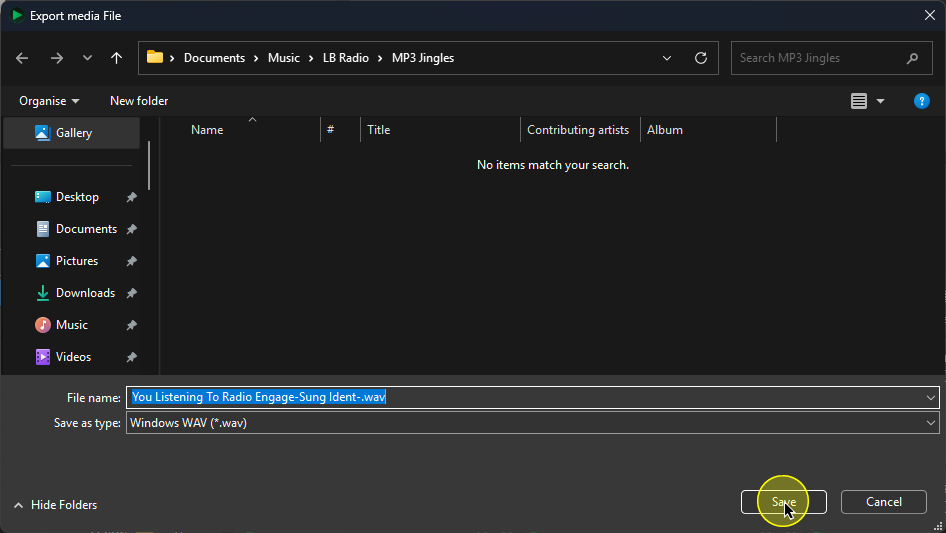
- Click on Save.
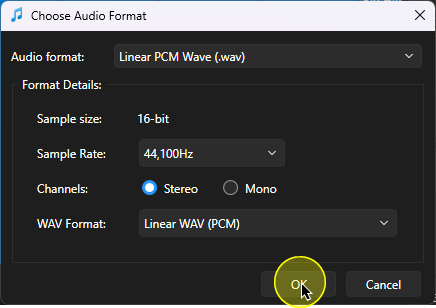
- Set the specific settings for the selected file format. Then click OK.
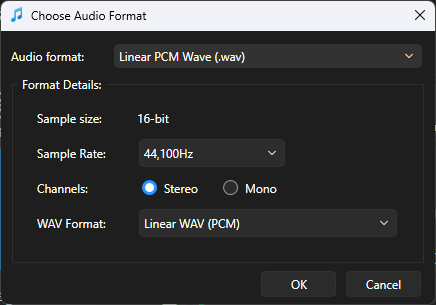
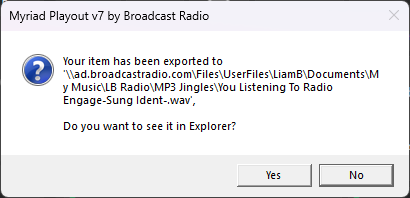
Please note that these settings may differ for alternative file formats. - Once the export is complete, you will be asked whether you wish to open the folder the file was exported to.
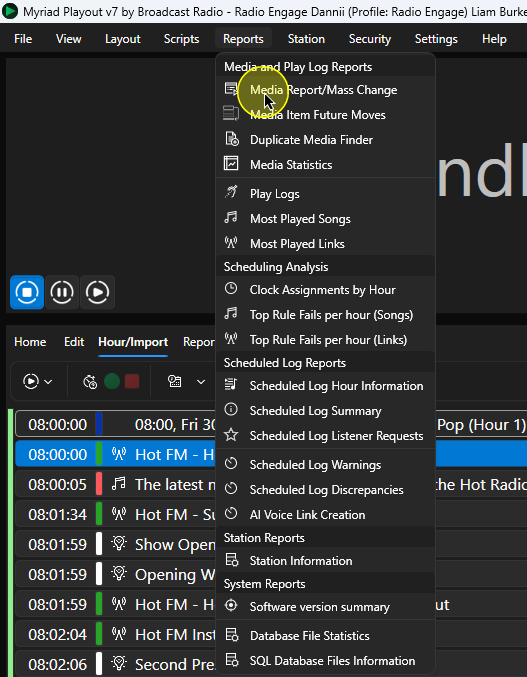
You can also mass export Media Items using the following steps:
- In Myriad Playout Myriad Schedule, click on Reports Menu > Media Report / Mass Change.
Use the Search, Advanced Search or Navigation Tree to select the content you want to export. In this example, we will export all of the Songs in the Recurrent Category.
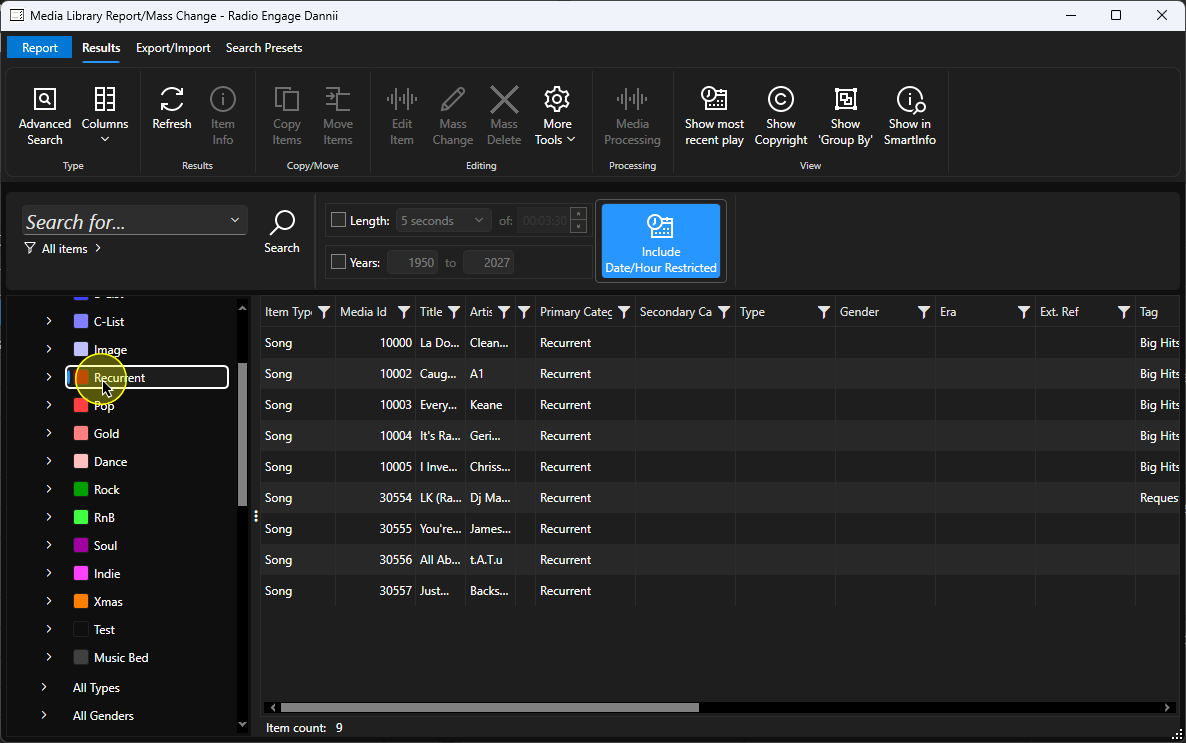
You can use the <Crtl>+left click to select the Media Items you want to change (you can also used <Shift>+left click to select a range or <Ctrl + A> to select all items listed.
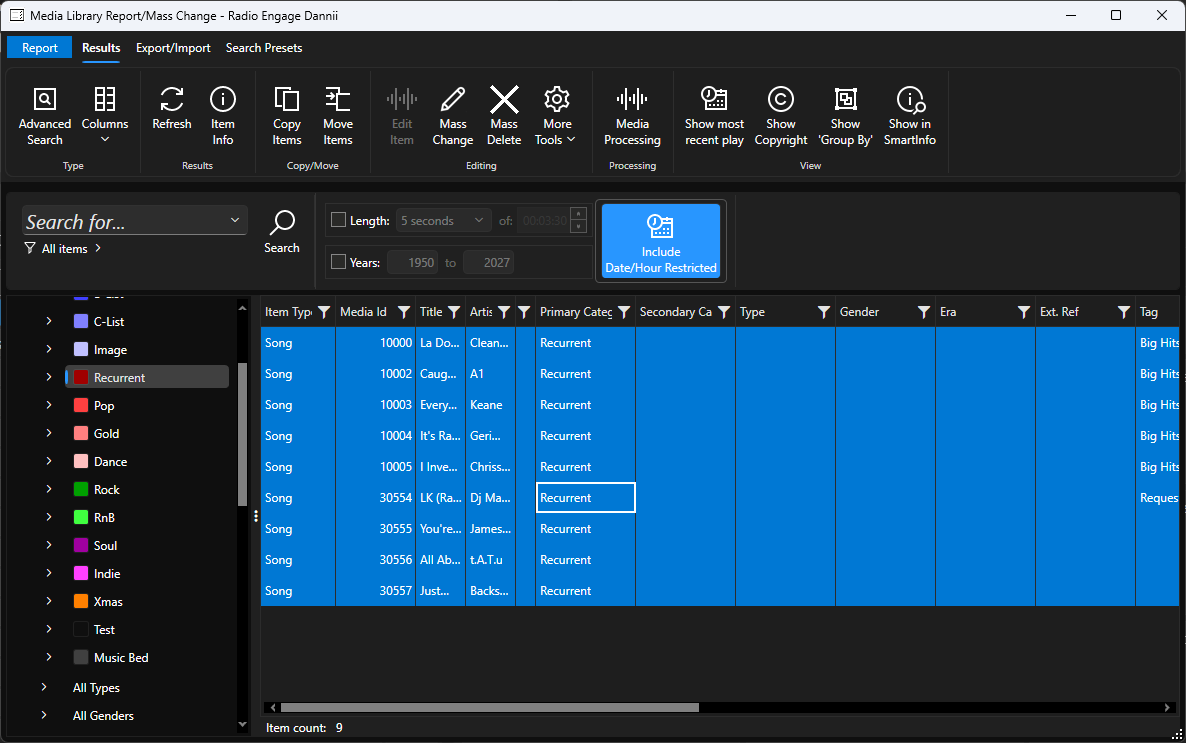
Click on the Export / Import Tab.
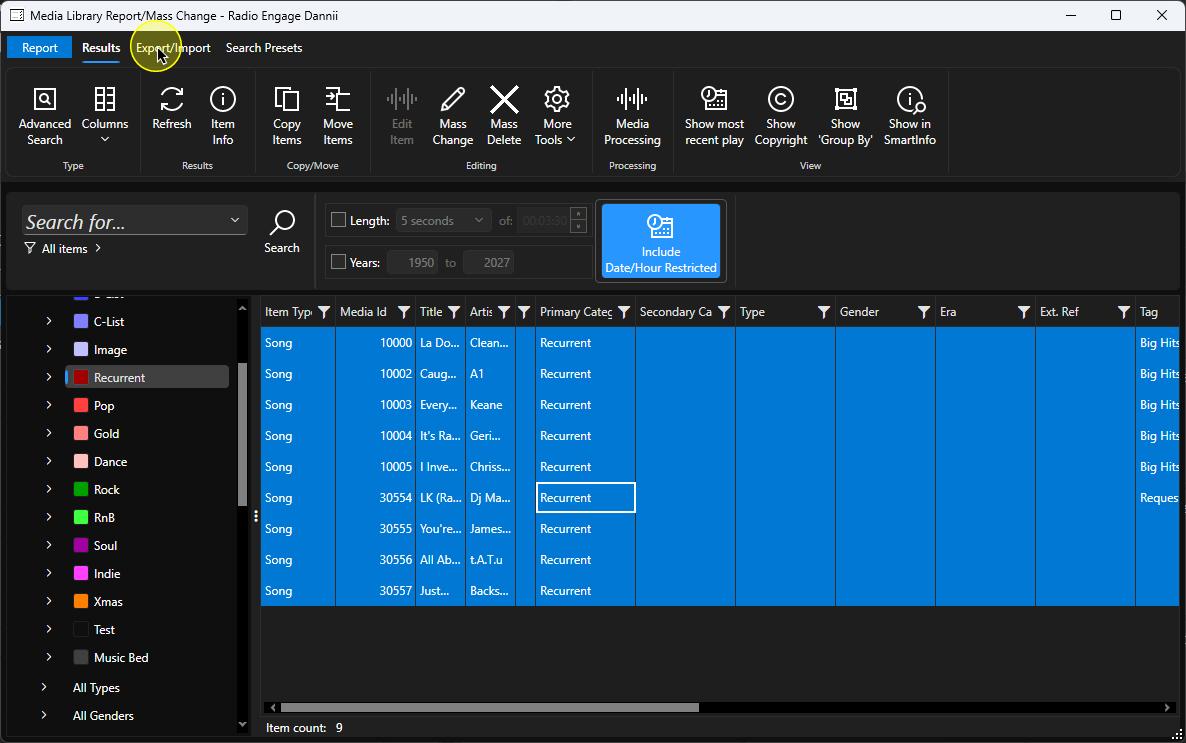
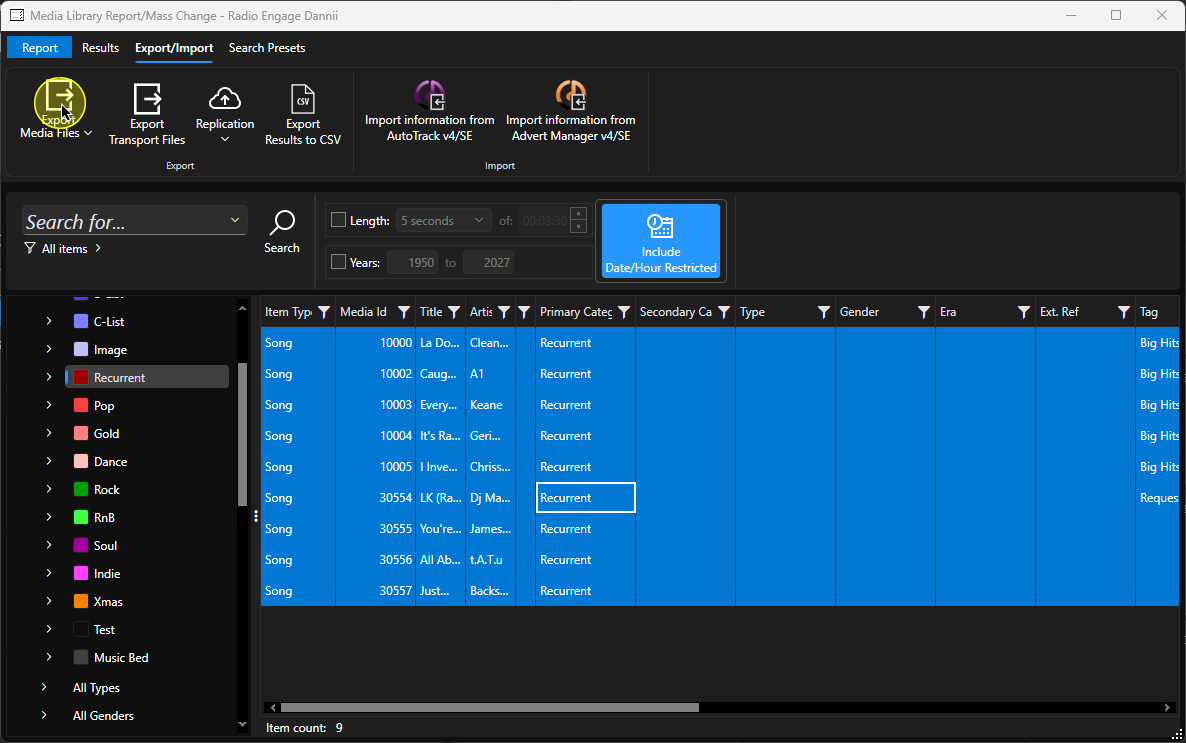
- Click on the Export Media Files button (or the Export Transport Files button for extended metadata that can be imported by other Myriad systems).
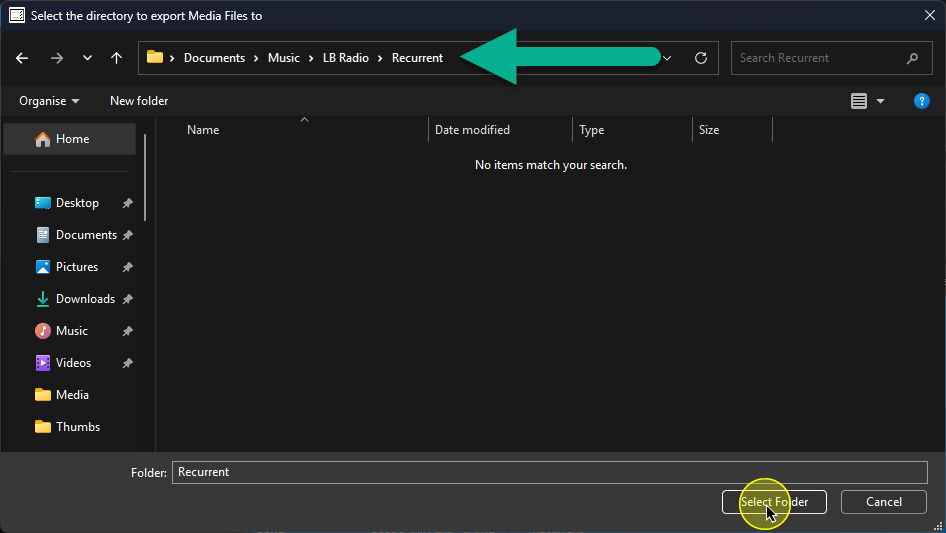
- Browse to the folder you want to export the files to, then click on the Select Folder button.
- Select the File Format (using the drop down) and format options for the selected format. Then click OK.
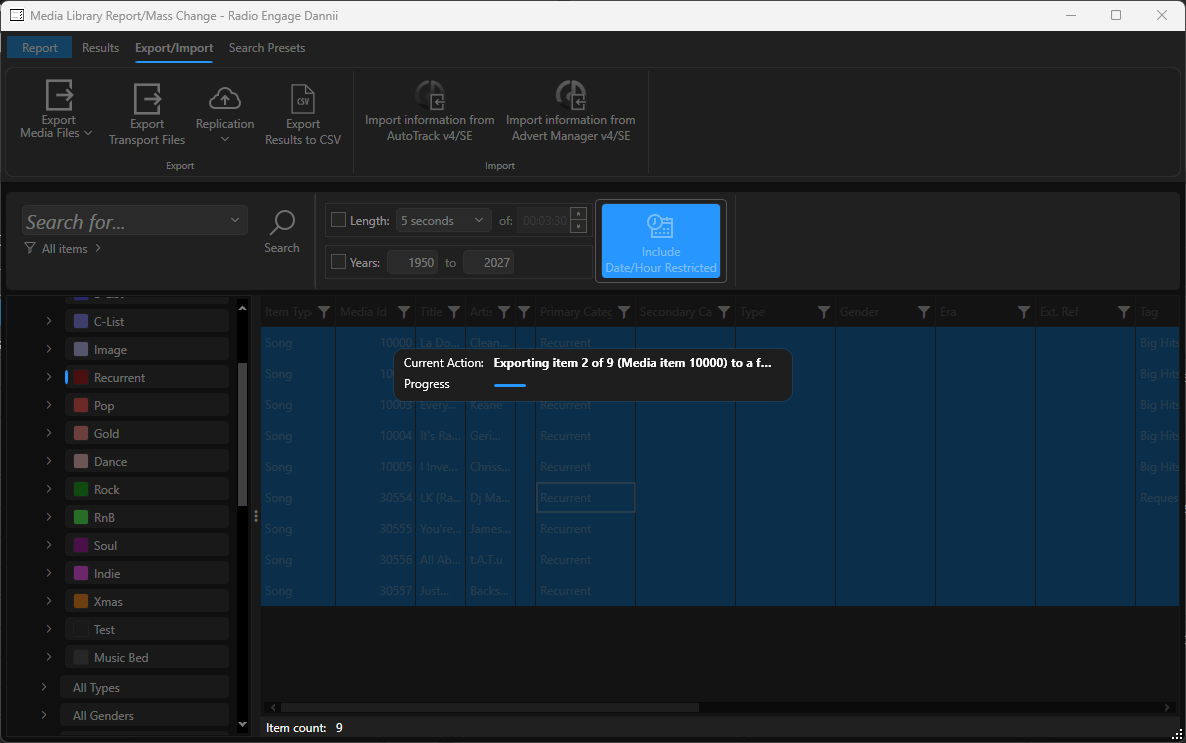
- The process may take some time depending on the number of files and the selected export format.
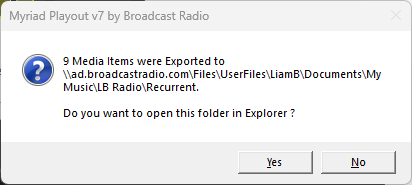
- Once the process is complete, Myriad will ask whether you wish to open the folder the files were exported to.
Click Yes to see the review the exported files.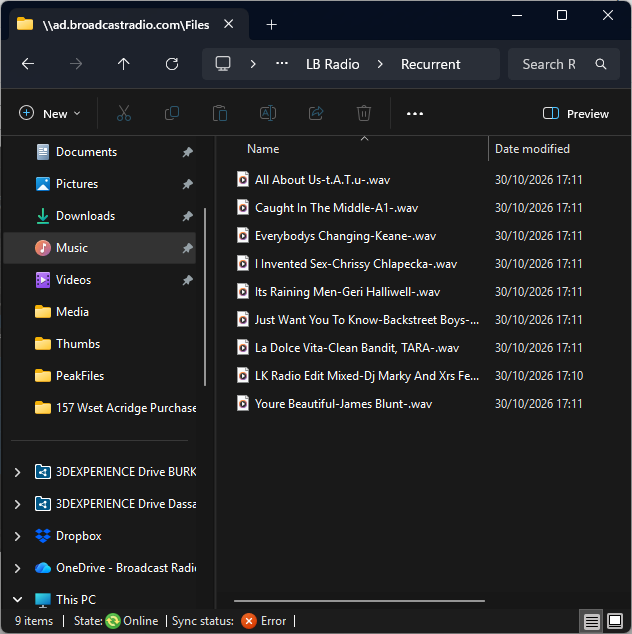
Was this article helpful?
That’s Great!
Thank you for your feedback
Sorry! We couldn't be helpful
Thank you for your feedback
Feedback sent
We appreciate your effort and will try to fix the article