Prerquisites
To access Split VT's you will need the following:
- Myriad v7.1 or higher.
- Two or more Splits licensed and configured on your system.
Introduction
Split VT allows you to record Voice Tracks for playout on your network splits. This allows you to customise the content for split playout for different regions or on different platforms.
The presenter / announcer has the option to record a unique VT for each split, or reuse the primary VT on any of the configured split networks.
As the VT's will be played as part of split playout (ie music and main Log content is the same on all splits with only advert breaks, selected jingles and VT's split), the duration of each split VT must be the same.
The Split VT tools built into the Segue Editor make recording unique VT's for each split, or sharing a VT to multiple splits, as simple as recording a standard VT.
Adding A Split VT Placeholder
The first step is adding a Split VT Placeholder to the Log. This can be done in the Clock used to generate the schedule for the hour, or by manually inserting a Split VT Placeholder in the Log.
Adding Split VT Placeholders To Clocks
If you want to add a Split VT Placeholder in to a Clock, follow these steps:
- Click on Station Menu > Select Station > Edit Myriad Clock Assignments.
- Double click on your default Assignment Set or any other Assignment Set you want to edit.
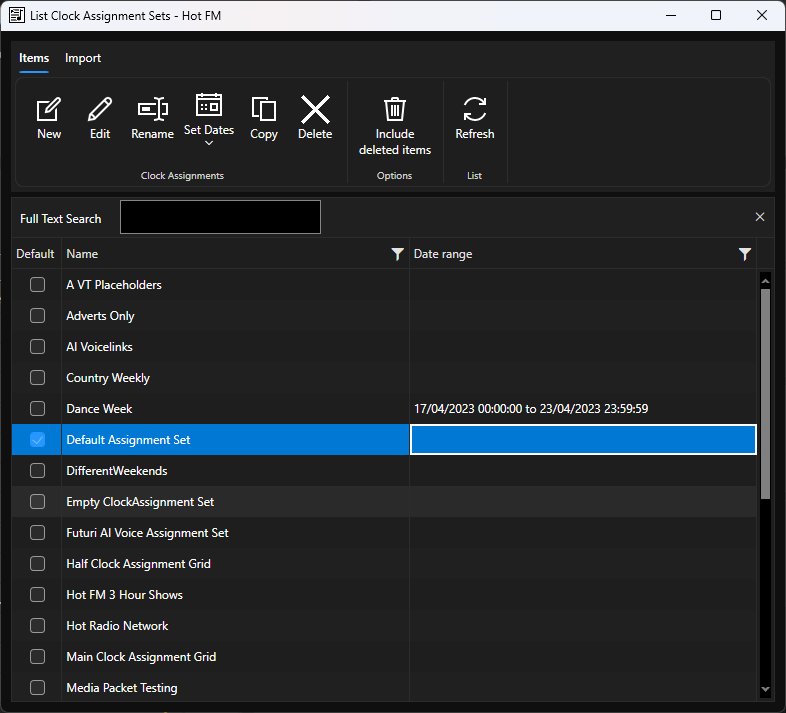
- Double click on the Clock you want to edit.
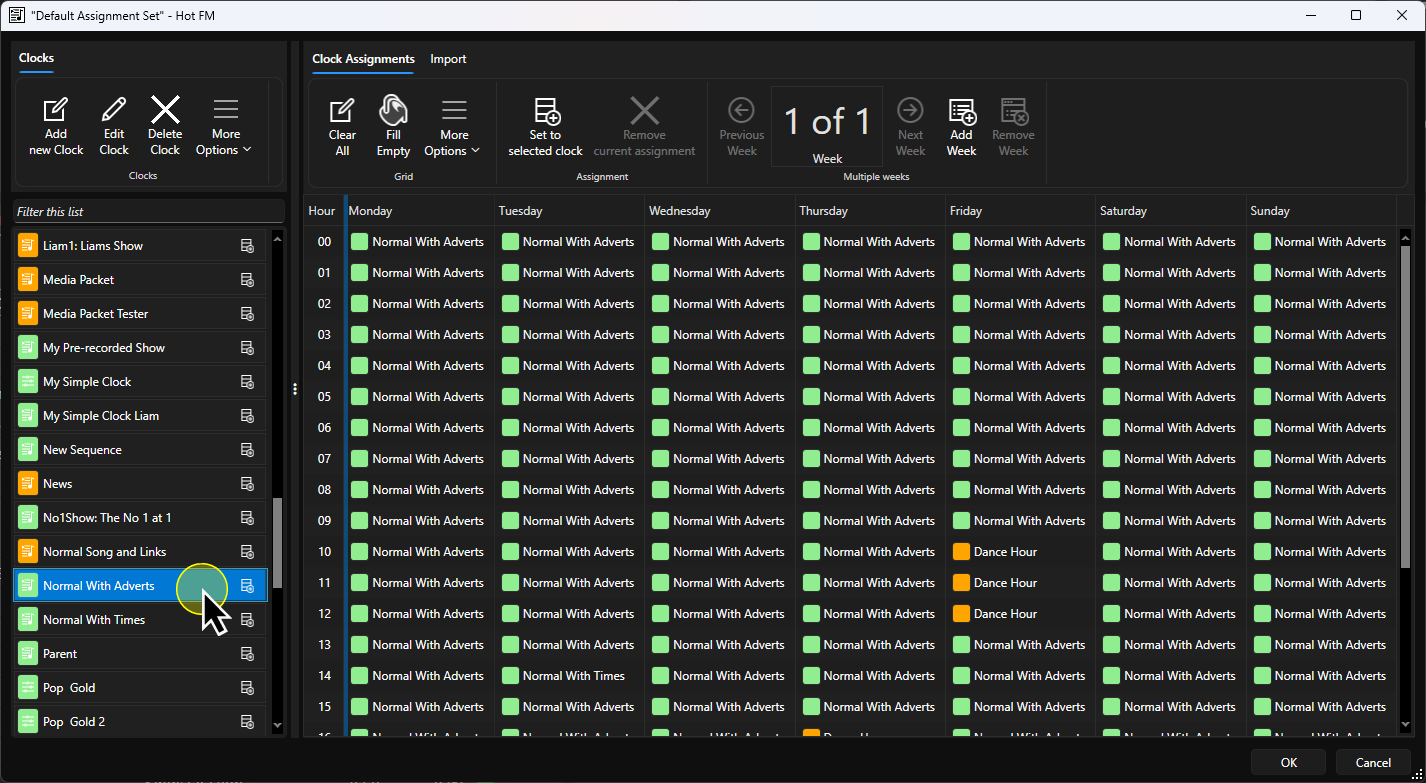
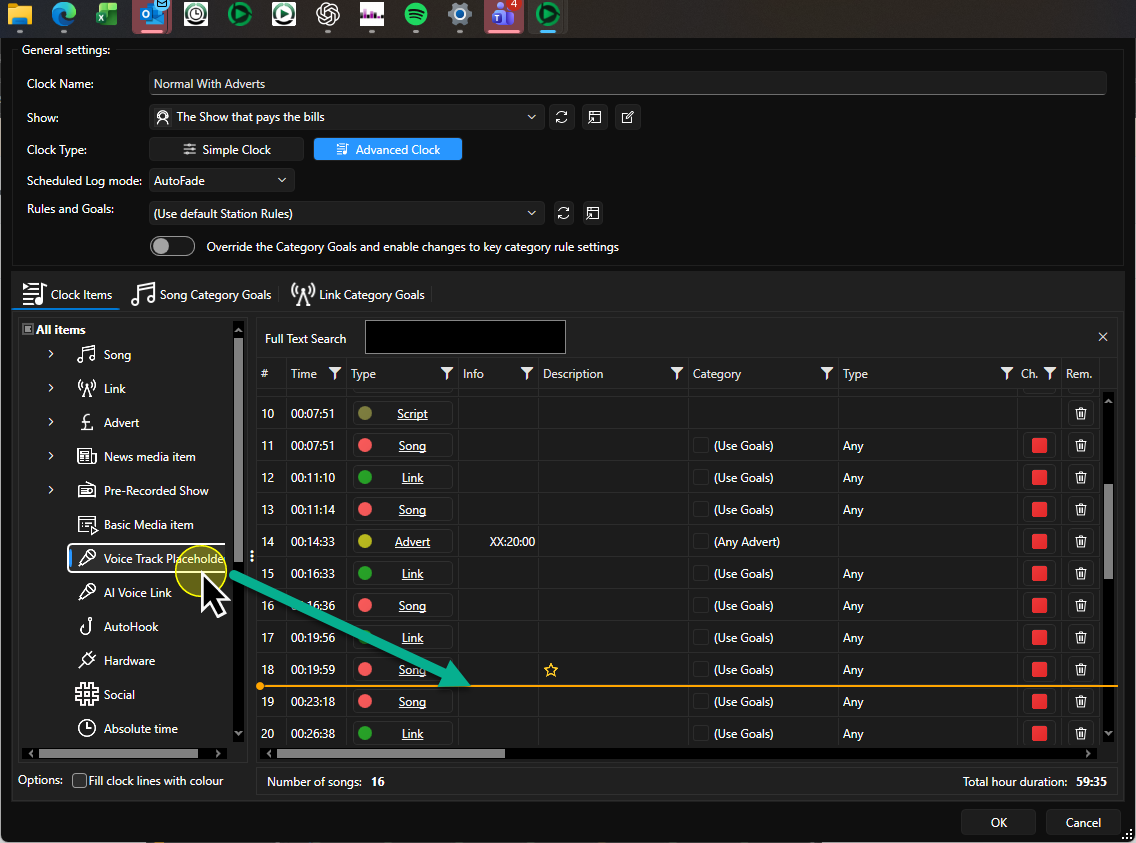
- In the Clock Items list on the left-hand side, scroll down to Voice Track Placeholder and drag it into the correct position in the Clock.
- Click on the VT Placeholder to edit the settings.
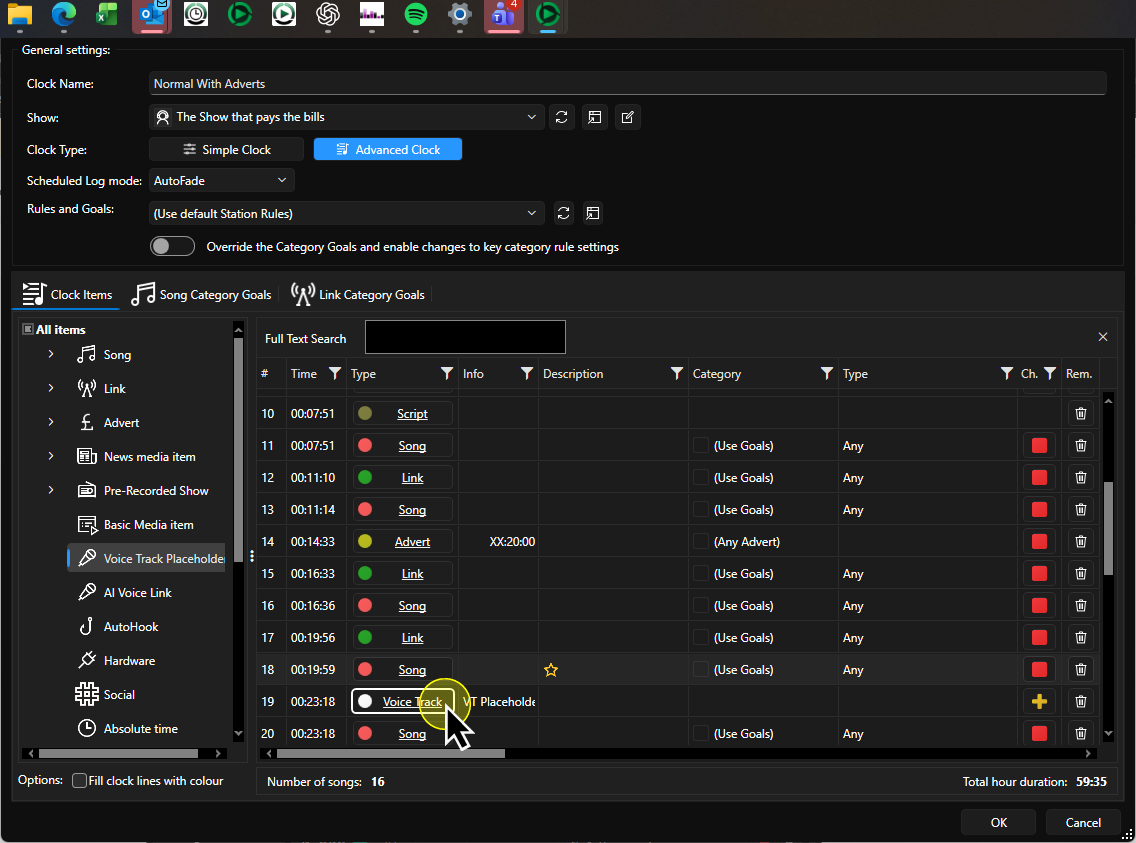
- Add a suitable Title and any Notes you want to add for the presenter recording the VT.
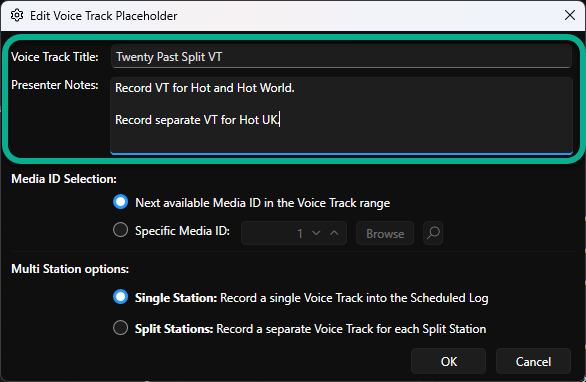
- Select Split Stations in the Multi Station Options section.
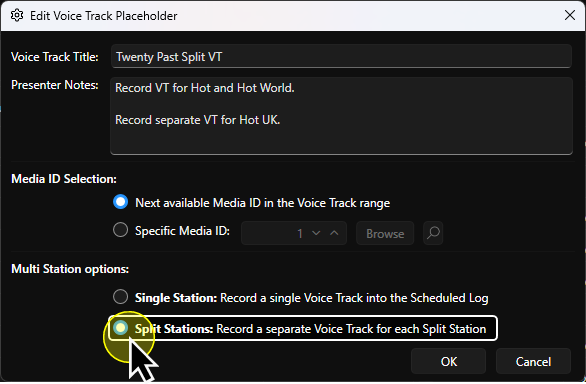
- Click OK.
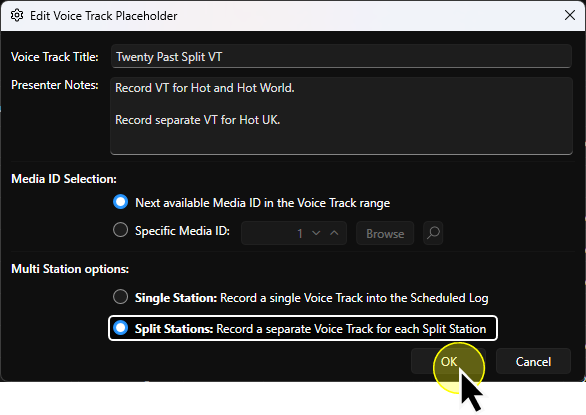
- The Split VT will now be included in any hours scheduled using this Clock.
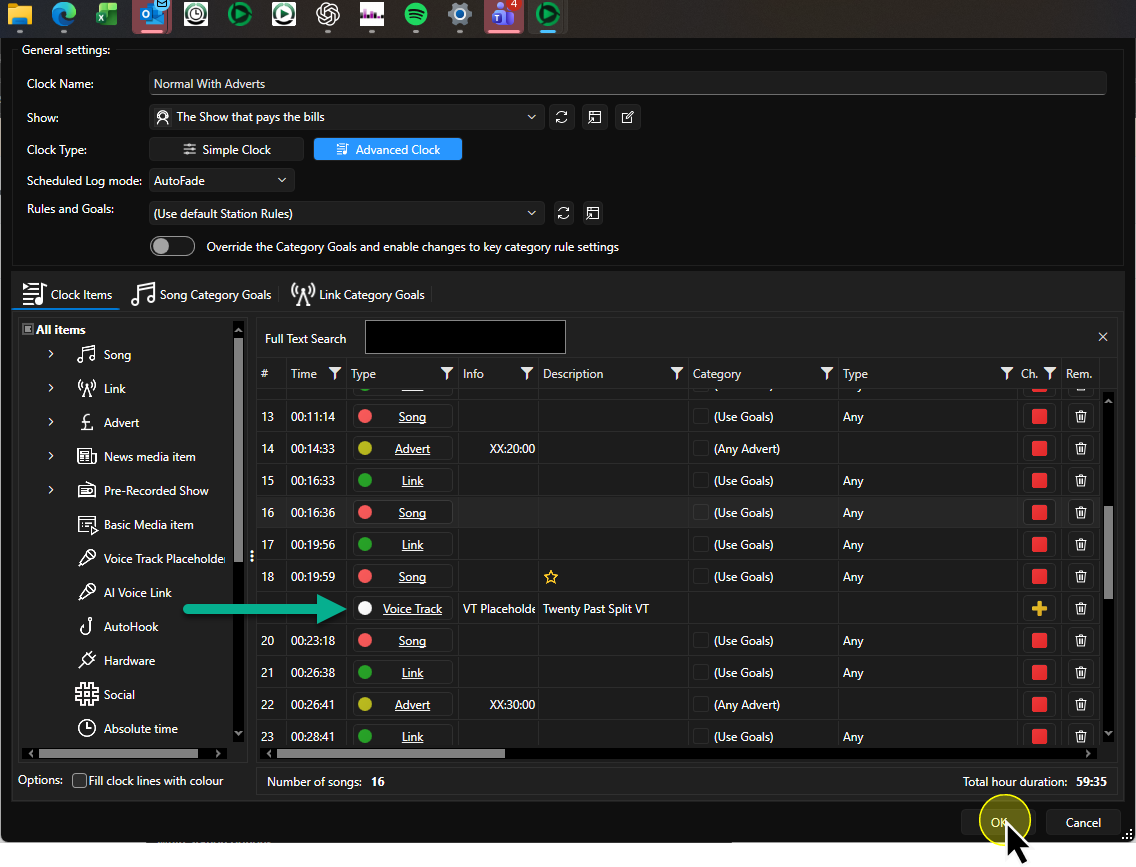
Remember to click on OK on the Clock to save and close the Clock.
Adding Split VT Placeholders Directly To The Log
You can also manually add VT Placeholders to the log using these steps:
- Find the position in the Log you want to insert the VT Placeholder above.
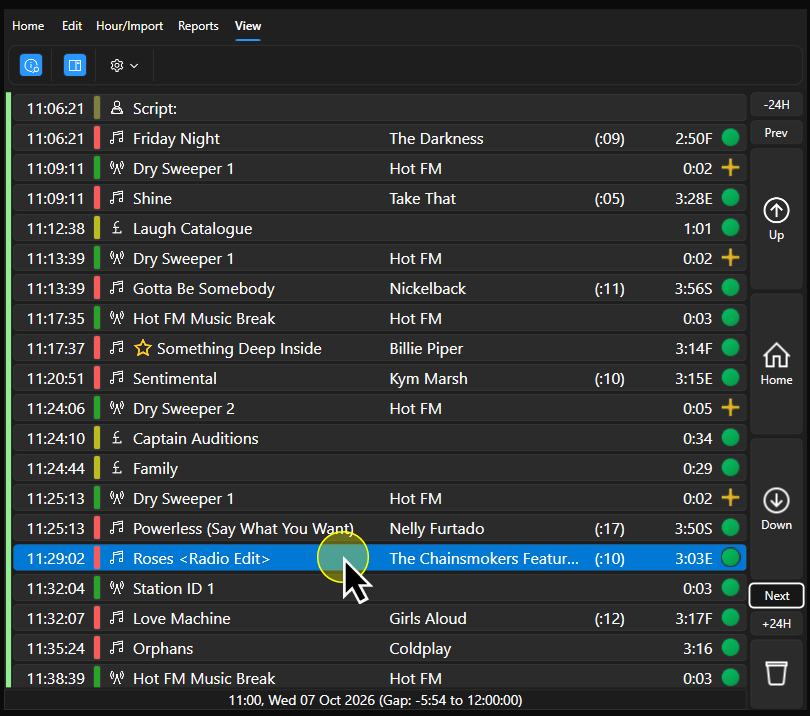
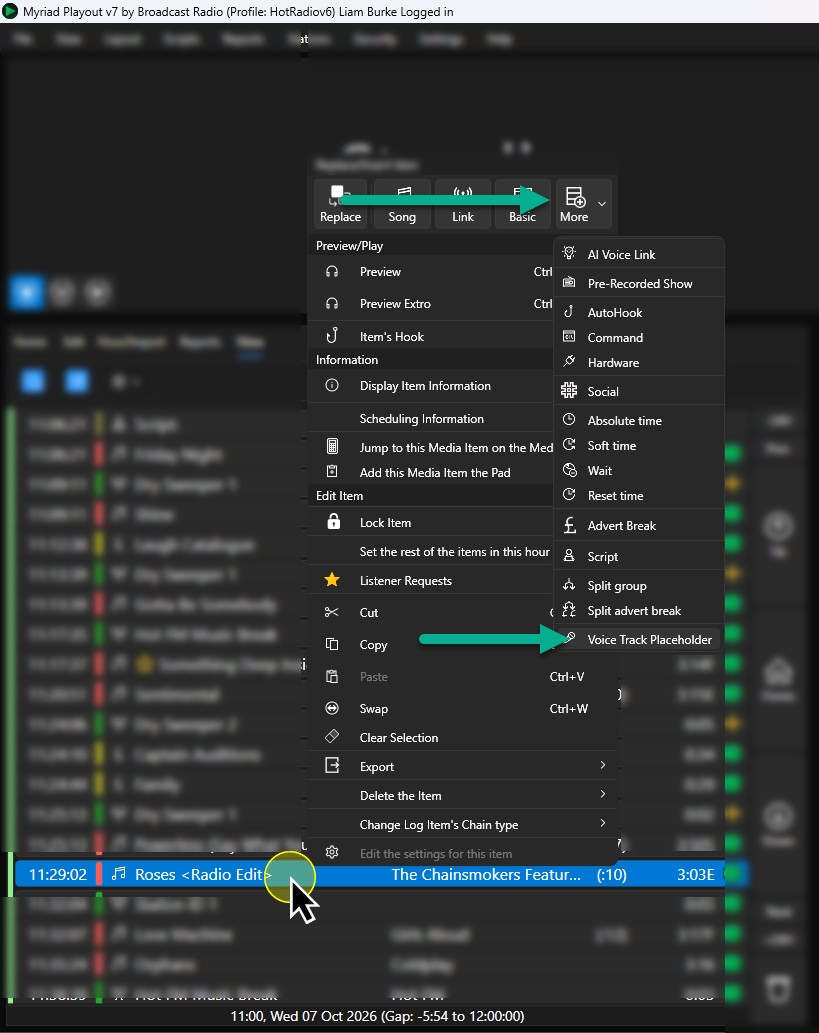
- Right click on the item you want to be playing at the end of the VT and select Right Click > More > Voice Track Placeholder.
- Add a suitable Title and any Notes you want to add for the presenter recording the VT.
- Select Split Stations in the Multi Station Options section.
- Click OK.
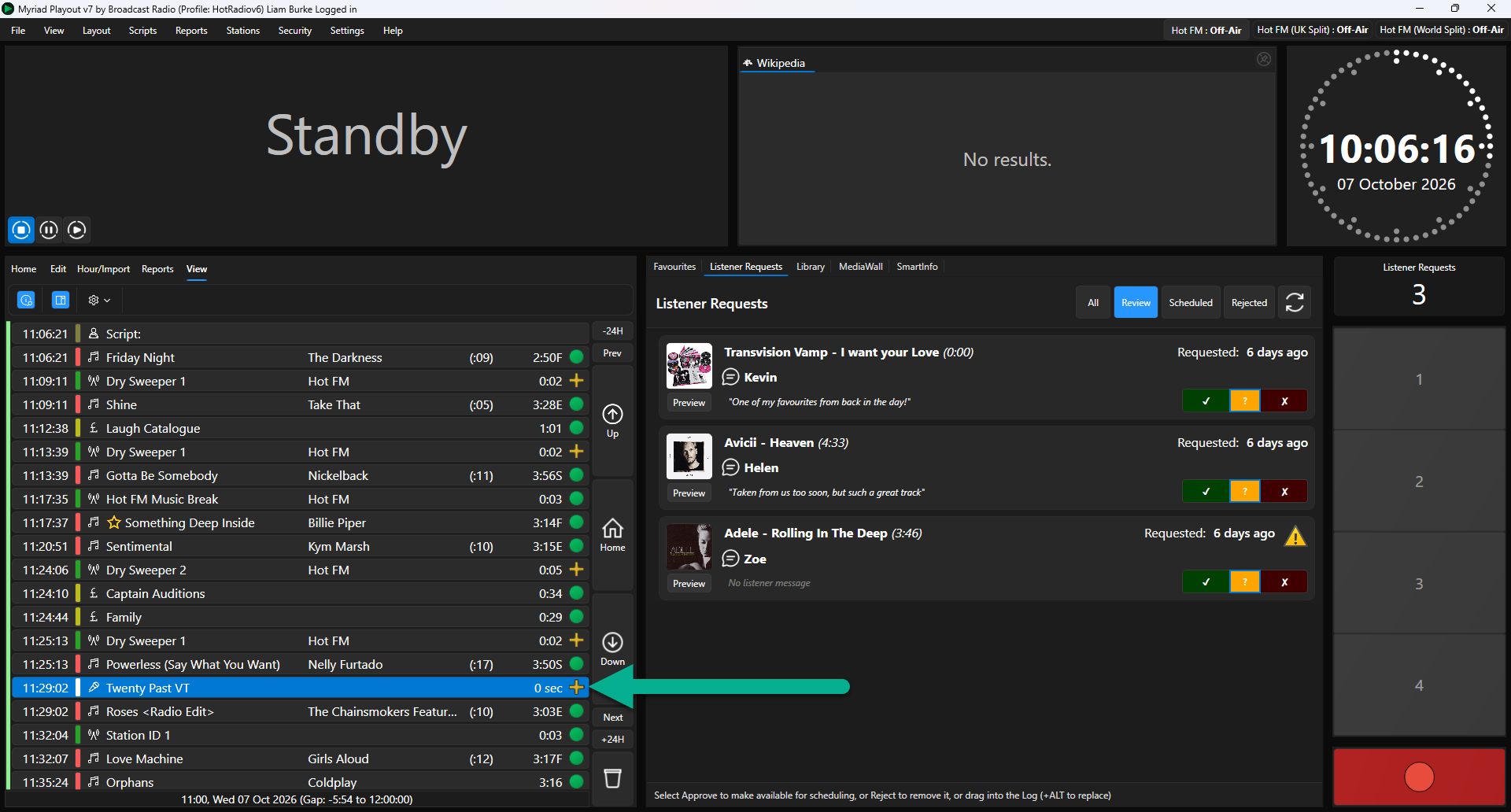
- The Split VT Placeholder is added to the Log.
Recording A Split VT
The process for recording split VT's is very similar to recording a standard VT.
- Select the Split VT Placeholder in the Log.
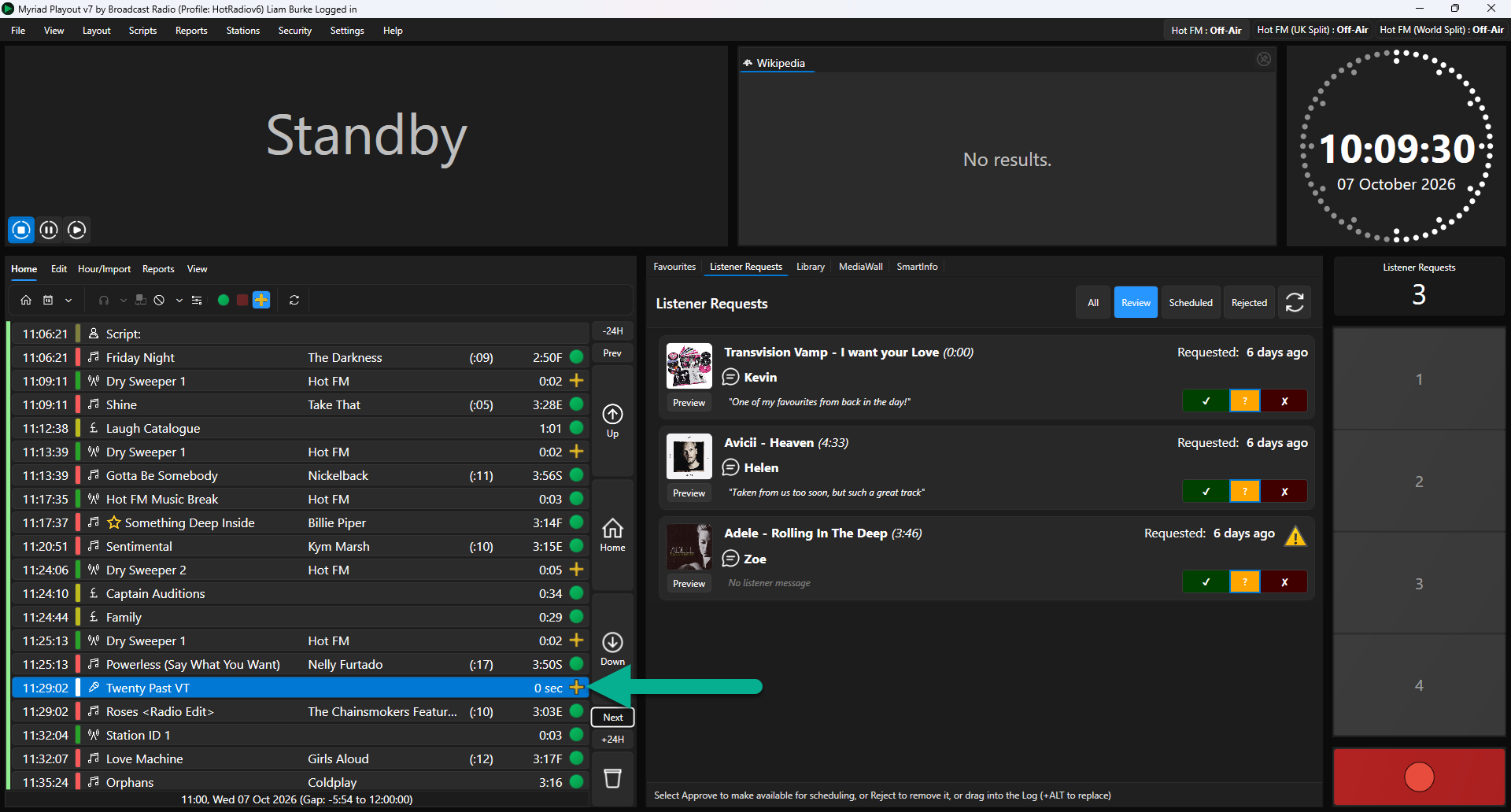
- Click on the Segue Editor button on the Home ribbon (or you can also double click on the VT Place Holder in the Log).
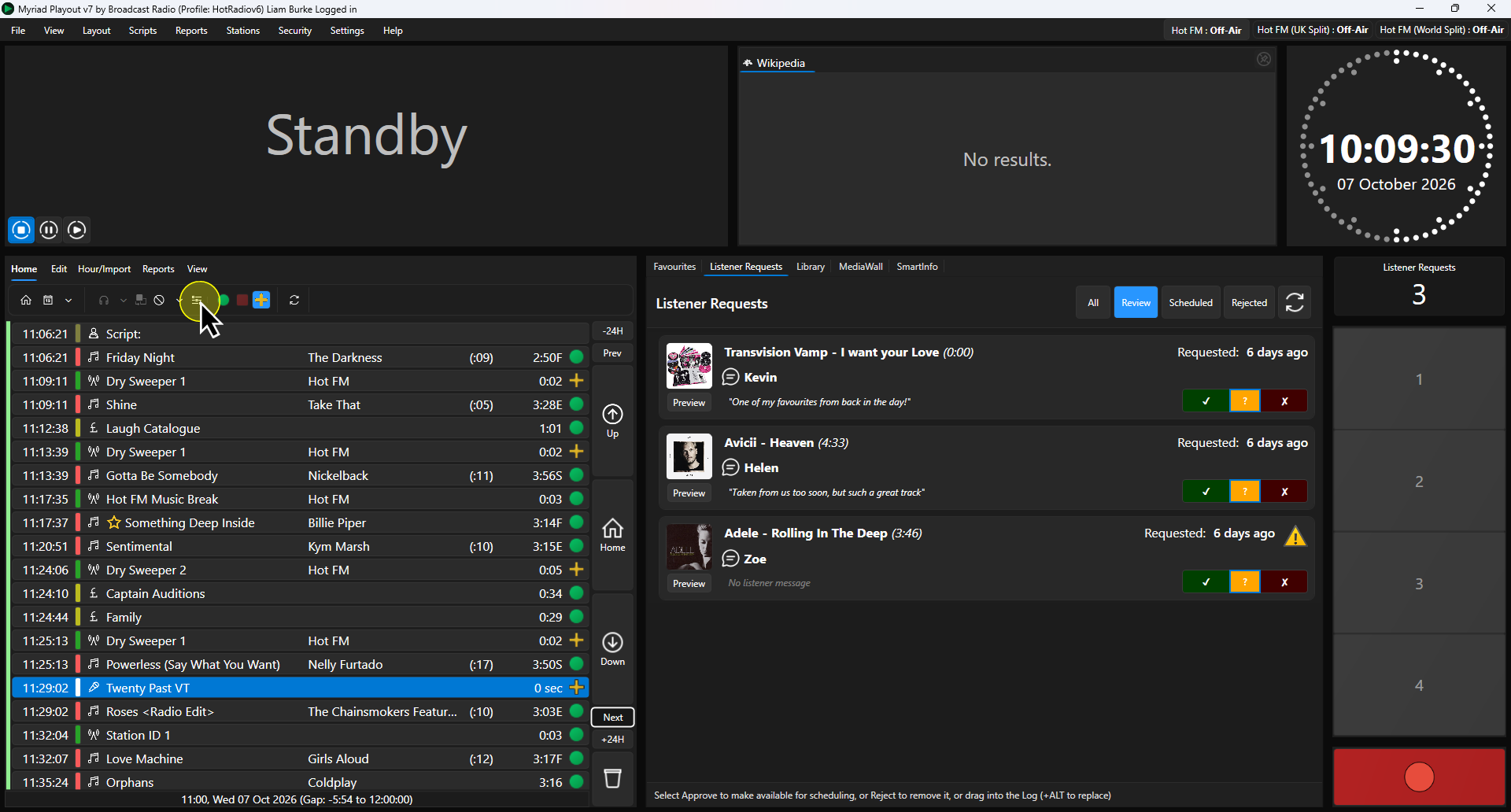
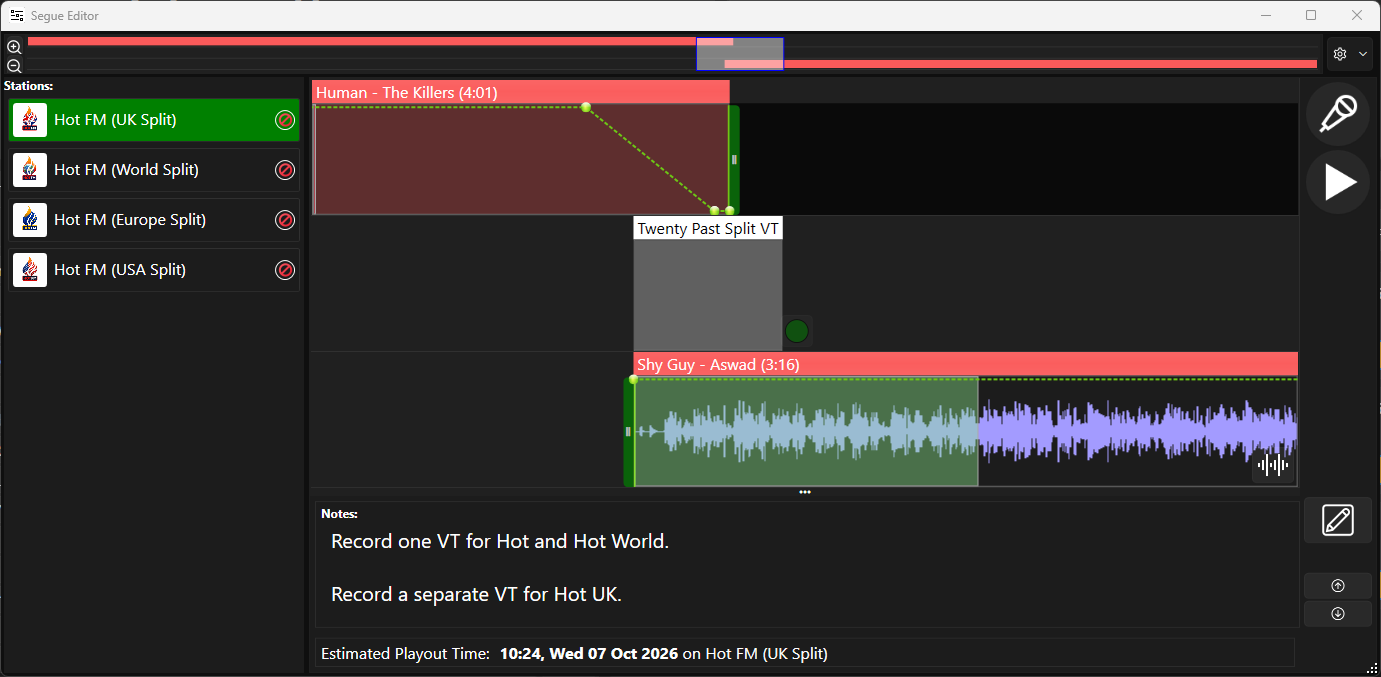
- As this is a Split VT Placeholder, the Segue Editor includes a list of all Split Stations to allow you to record VT's individually.
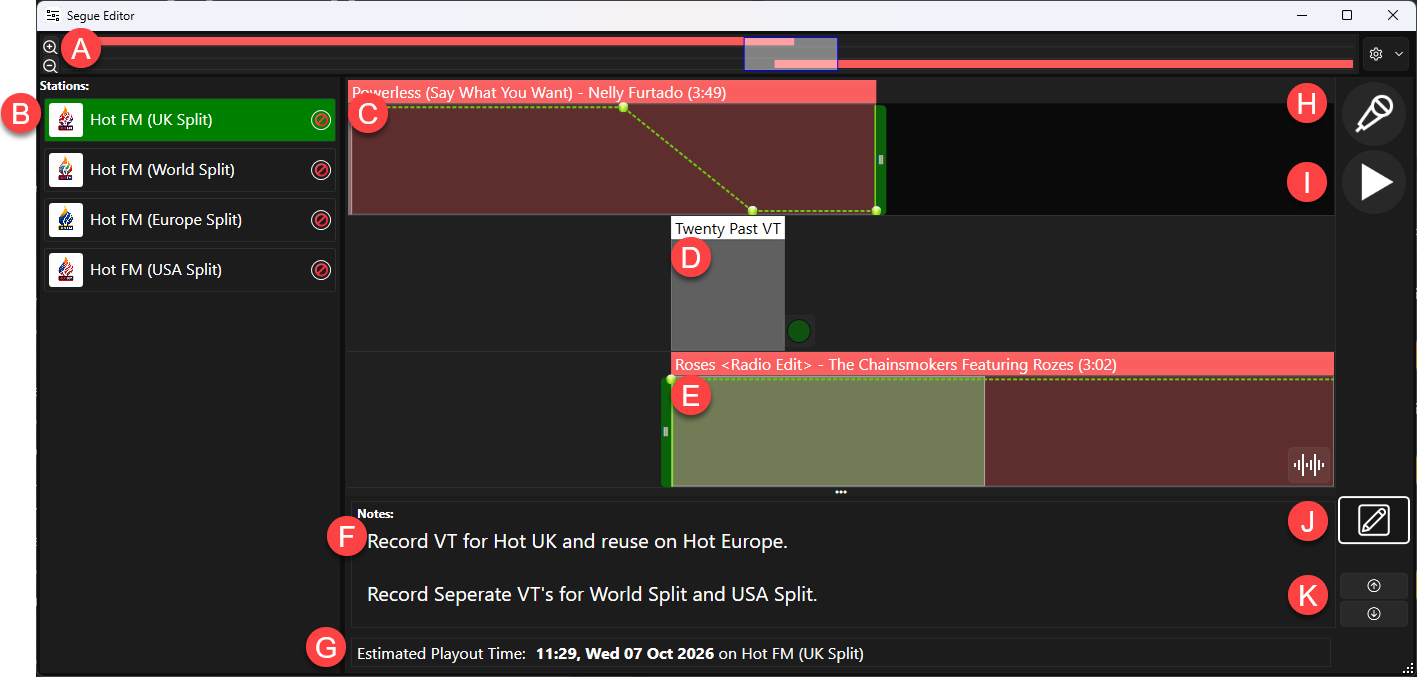
- Time Line & Zoom Buttons -The Zoom buttons allow you to zoom in or out to see more detail of the segue. You can also adjust the section visible by dragging the View Port left or right.

- Split Station Selector - Click on a Station to view and the VT for that split.
- Media In Track - This track shows the tail of the Media Item leading into the VT.
- VT Placeholder Track - This is the track the VT will be recorded into.
- Media Out Track - This track shows the beginning of the Media Item that will be playing at the end of the VT.
- Notes - Displays Notes for the VT.
- Estimated Playtime - Shows the estimated date and playtime for the VT.
- Start / Step Button - This button is used to the start the VT recording sequence and move on to the next step in the sequence. You can use the <SPACEBAR> on your keyboard to perform the same task as the Start / Step button.
Typically, the sequence is:
Start VT (end of Media In Track will start playing automatically) > Start Record (can be triggered by button press or audio level) > Start Media Out (start of Media Out will play) > Stop Recording > Save VT.
The function of the Start / Step button changes to match each of steps in the sequence. - Preview Button - Allows you to review a segue or a Voice Track.
- Edit Notes Button - Click to add or edit notes in a VT Place Holder.
- Jump To Previous / Next Buttons - These buttons allow you to quickly jump to the next VT Place Holder or the previous VT Place Holder in the Log.
- Time Line & Zoom Buttons -The Zoom buttons allow you to zoom in or out to see more detail of the segue. You can also adjust the section visible by dragging the View Port left or right.
- In our example, the notes request that the presenter record a VT for Hot UK and reuse that VT for Hot Europe. The notes also request separate VT's for the World and USA splits.

We will start by recording the VT for the Hot UK split. - Make sure the Hot FM (UK Split) station is selected in from the Station List, then click on the Start / Step button (or press <SPACEBAR> on your keyboard).
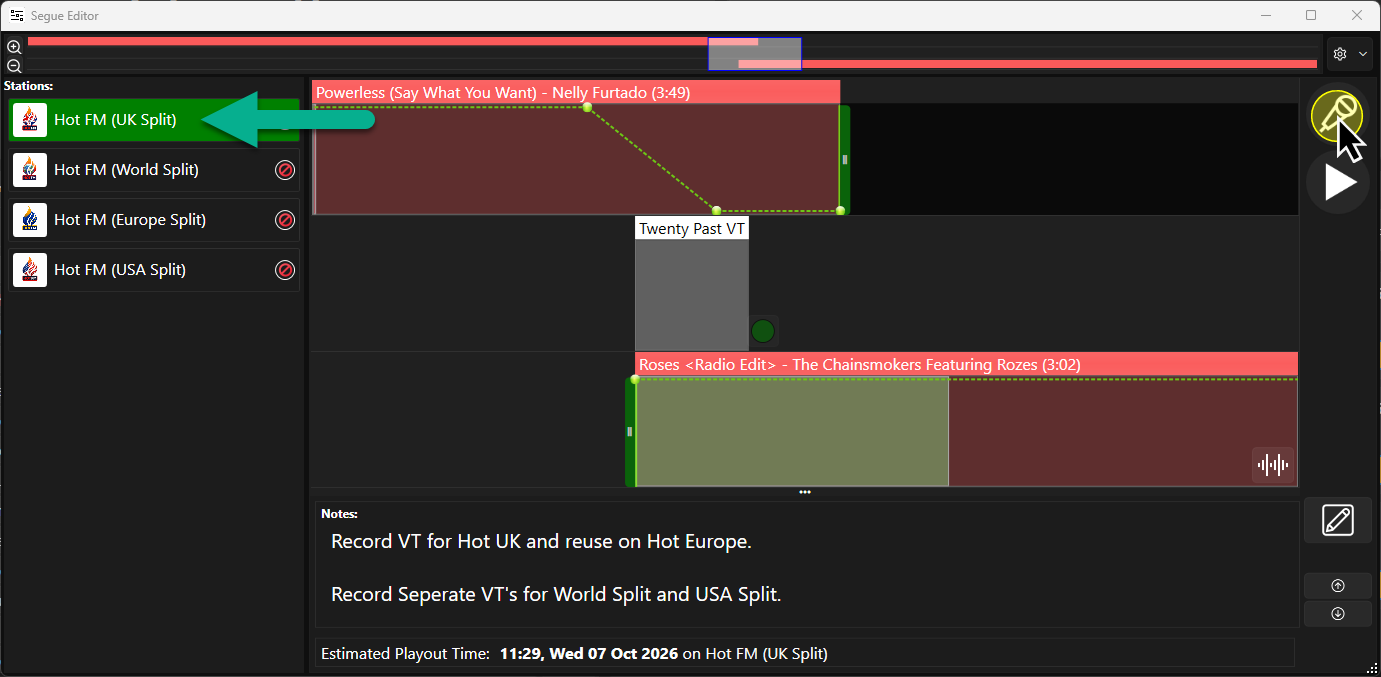
- The last few seconds of the previous Song will start playing automatically.
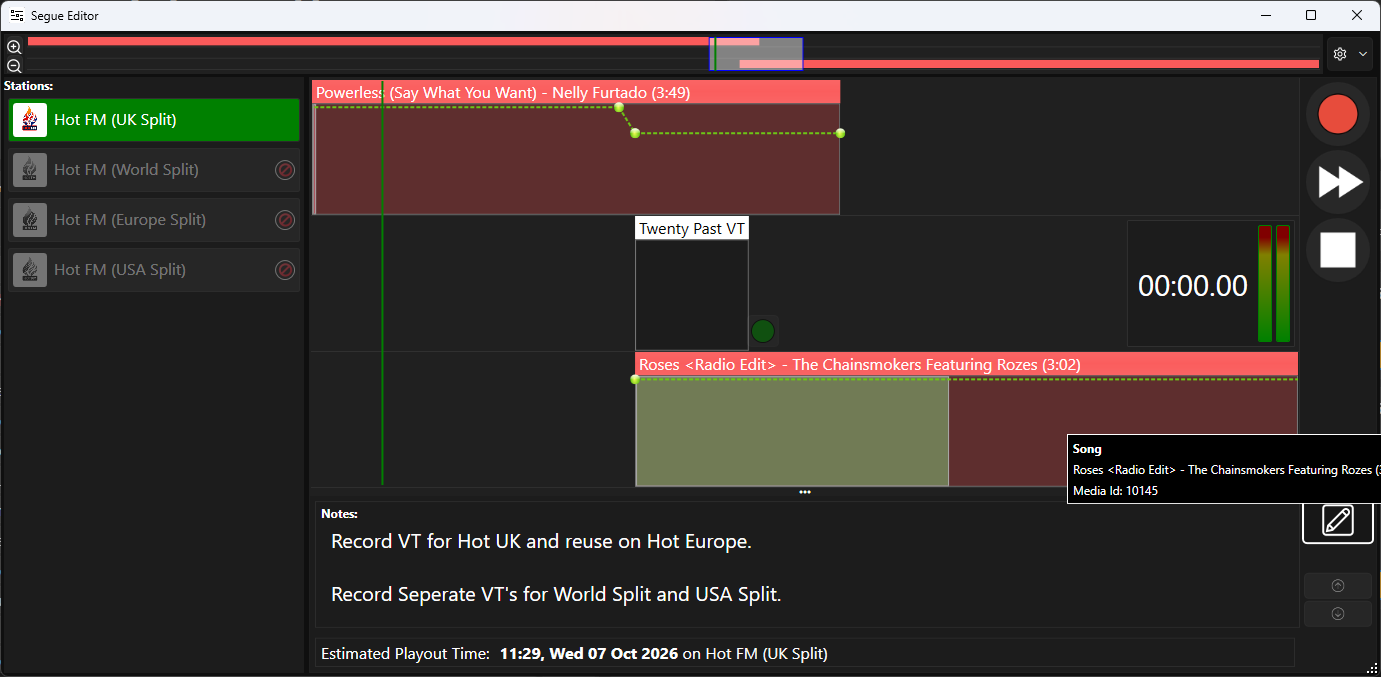
- To start recording your VT, simple start speaking into your microphone and the Segue Editor will automatically start recording. You can also click on the Start / Step button (or press <SPACEBAR> on your keyboard) to manually trigger recording.
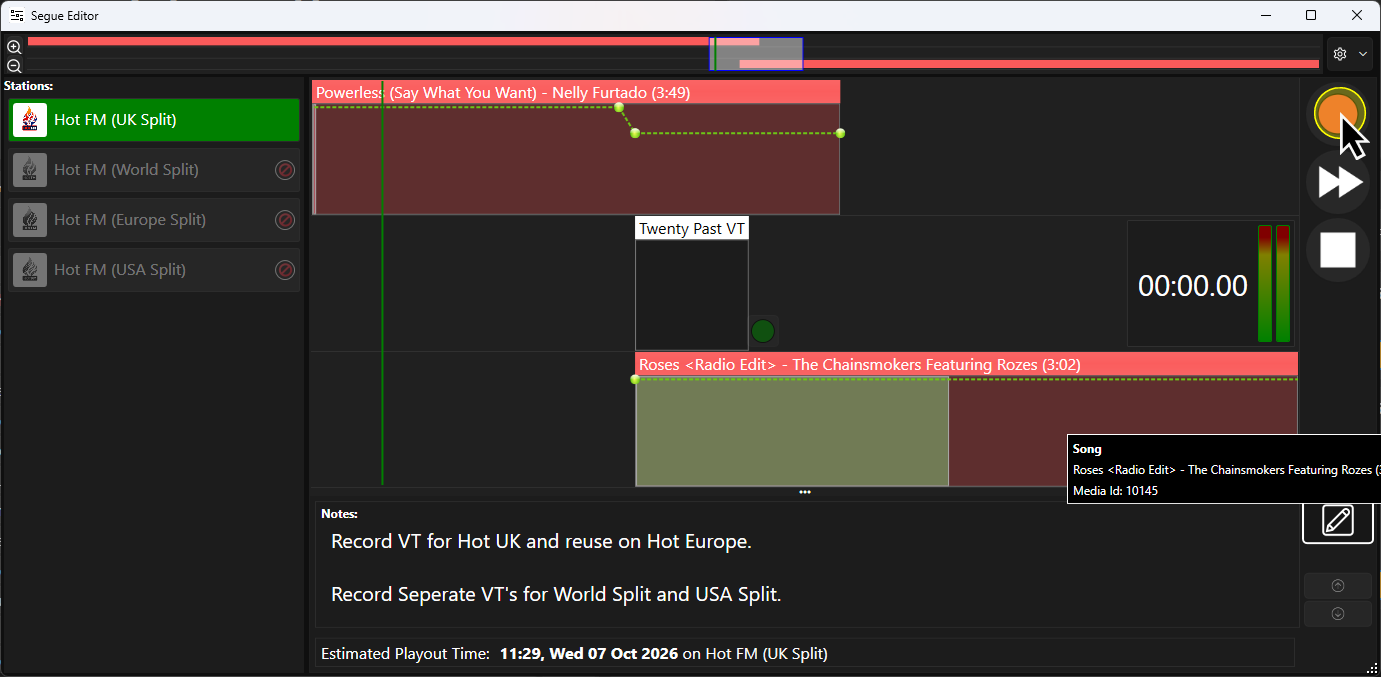
- To start the playback of the next audio in the sequence, click on the Start / Step button which will have a >> icon (or press <SPACEBAR> on your keyboard.
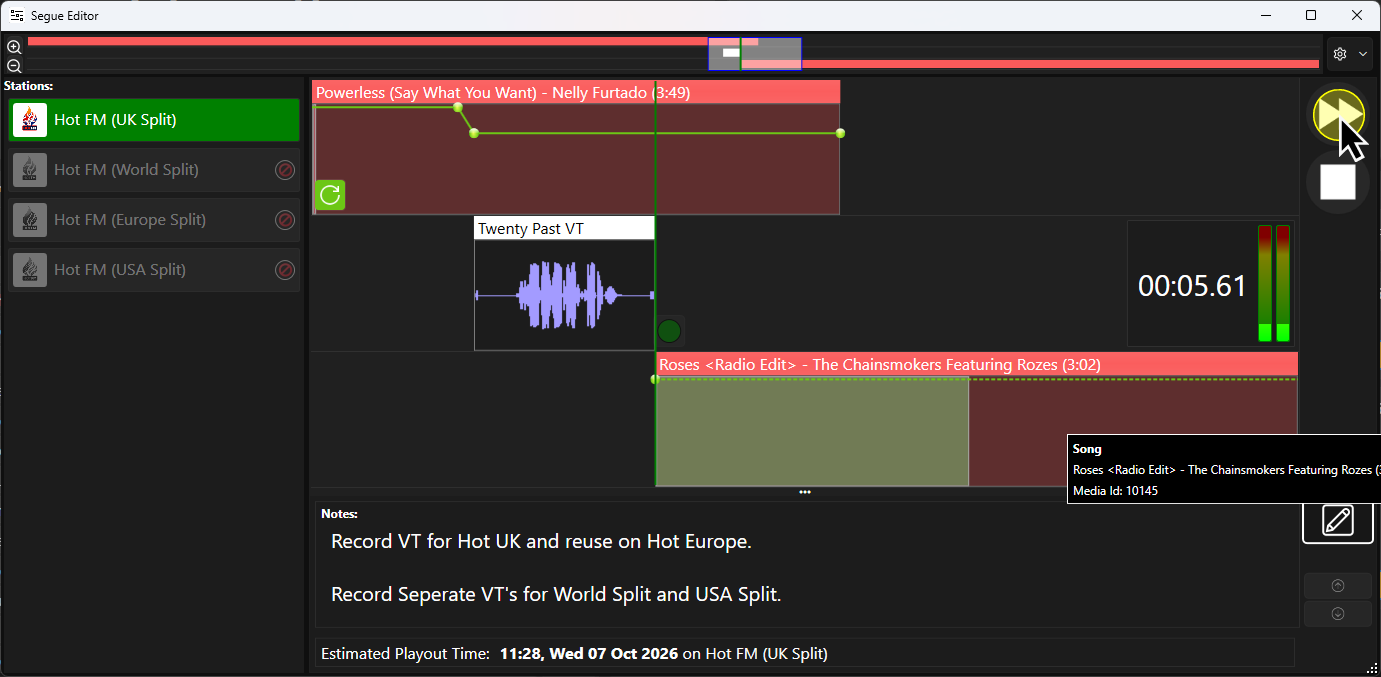
- To stop recording your VT, click on the Start / Step button (or press <SPACEBAR> on your keyboard), now with a stop icon, to end the sequence.
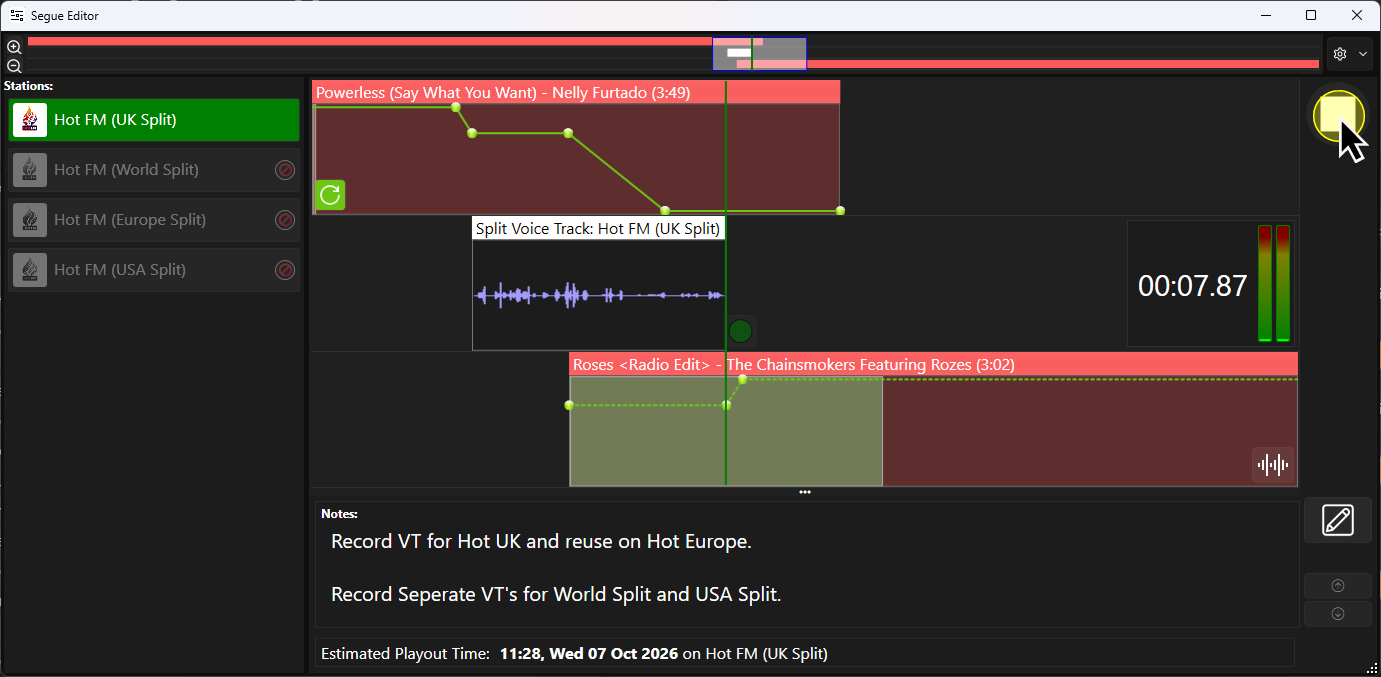
- Click on the Start / Step button or the <SPACEBAR> on your keyboard to save the VT.
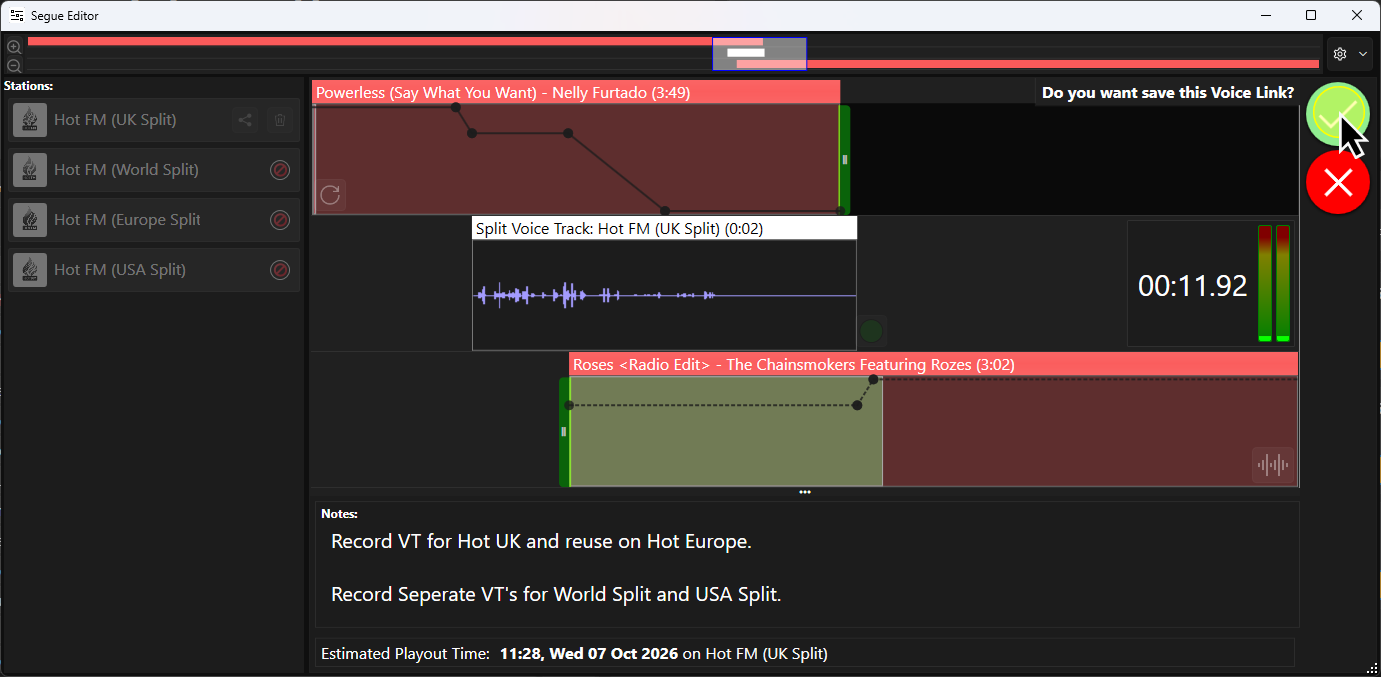
For a more detailed look at recording a VT see - Adding Voice Tracks to the Log (VT Place Holders & Ad-hoc) - The Split VT is now added to the Hot FM (UK Split) station. This will be the Primary VT and will determine the timing for all the other split VTs.
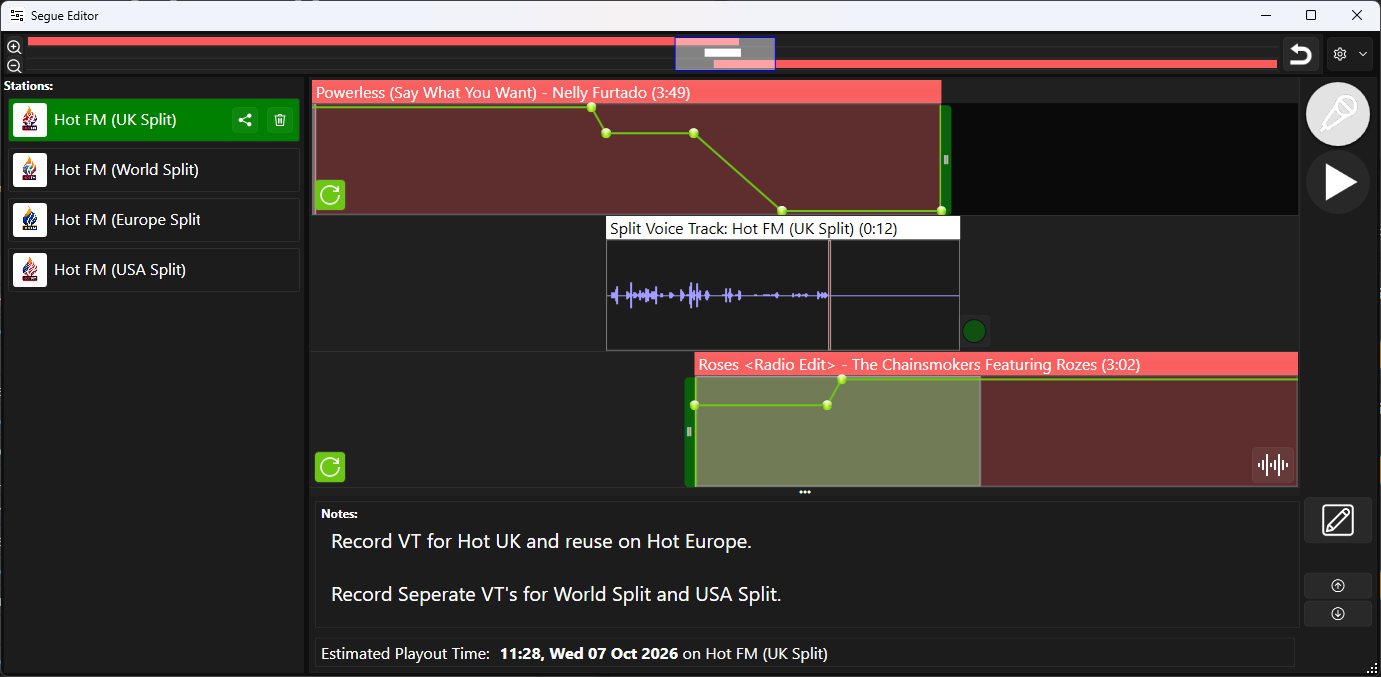
- To share this VT with Hot Europe, click on the Share button on the Hot FM (UK Split) Station.
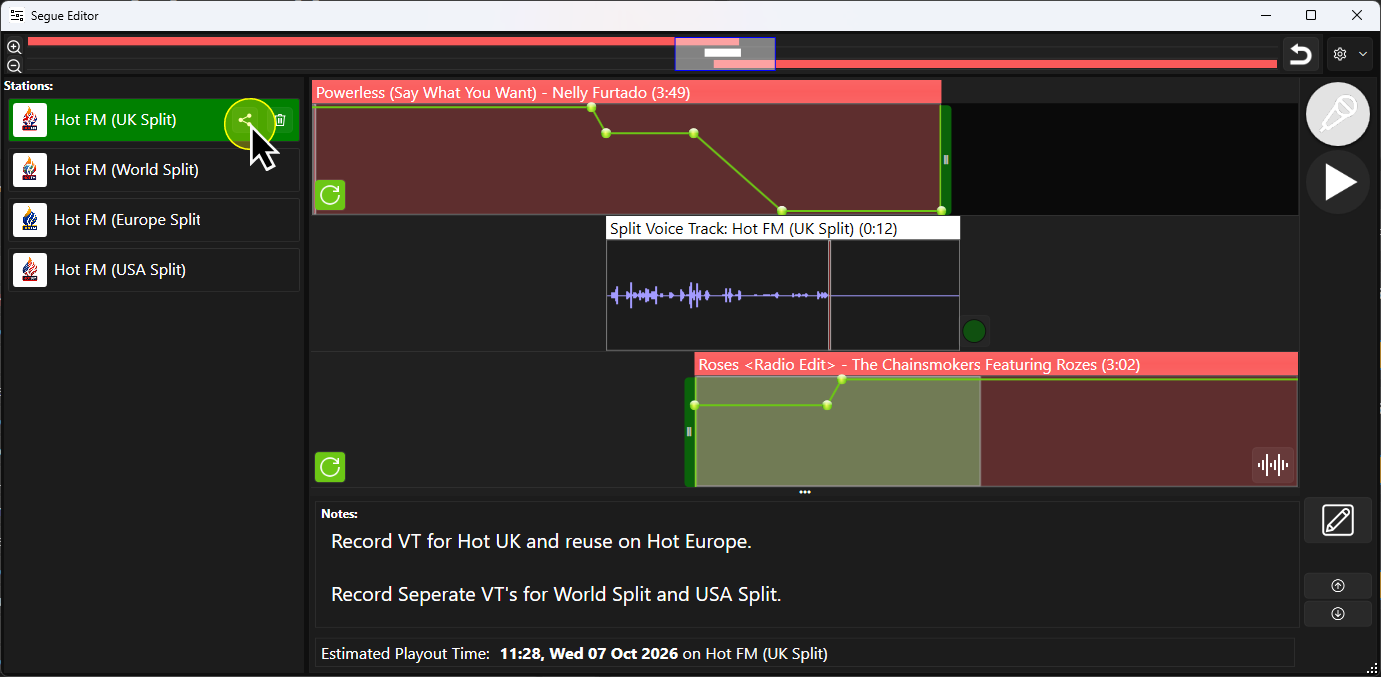
- Tick any Stations that you want to share this VT (Europe Split in this example).
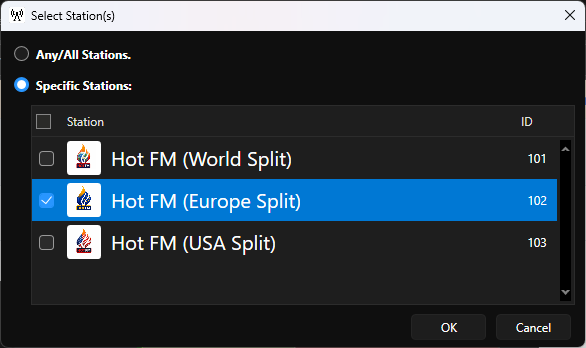
- You can now see that both Hot FM (UK Split) and Hot FM (Europe Split) are sharing a VT (marked A).
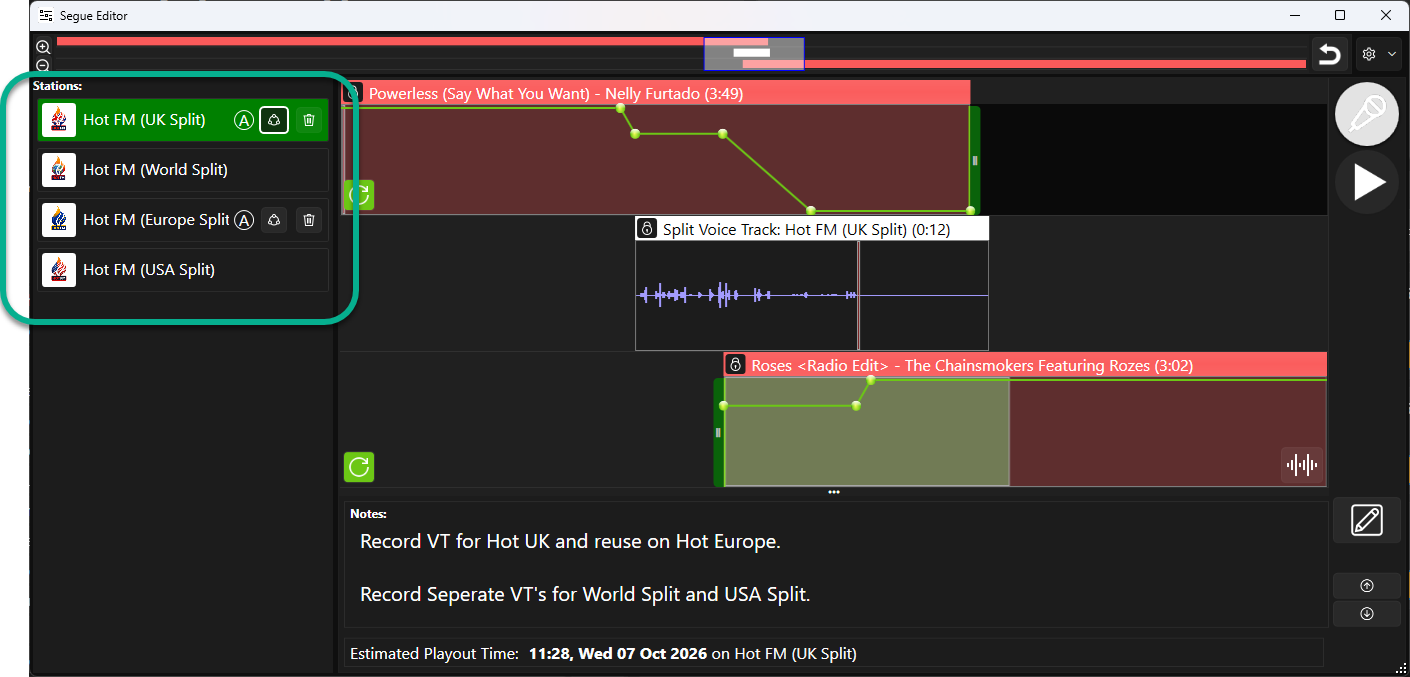
- The presenter notes called for seperate VT's for World and USA so let's record VT's into them individually. Start by selecting one of the Stations. In the example below, we have selected Hot FM (World Split).
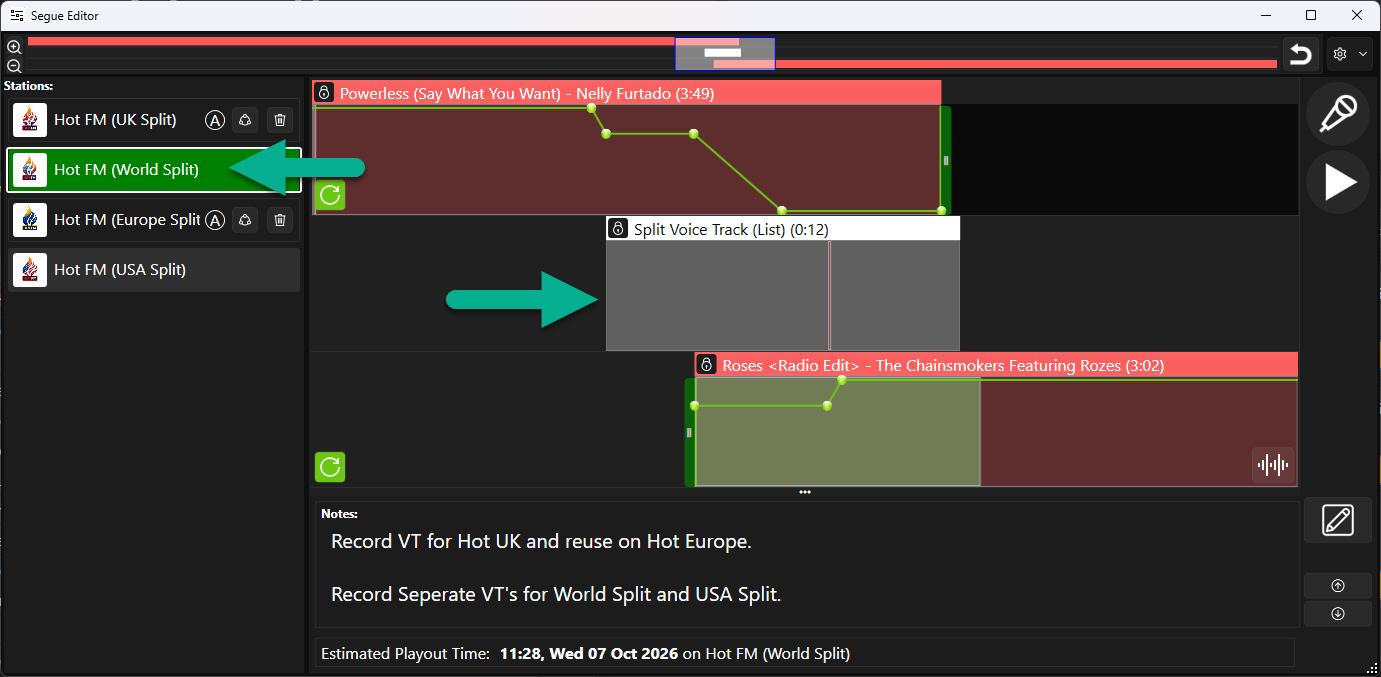
You can see the VT Placeholder is already in place and the same duration as the VT we have already recorded. All the VT's should be the same duration so the splits match.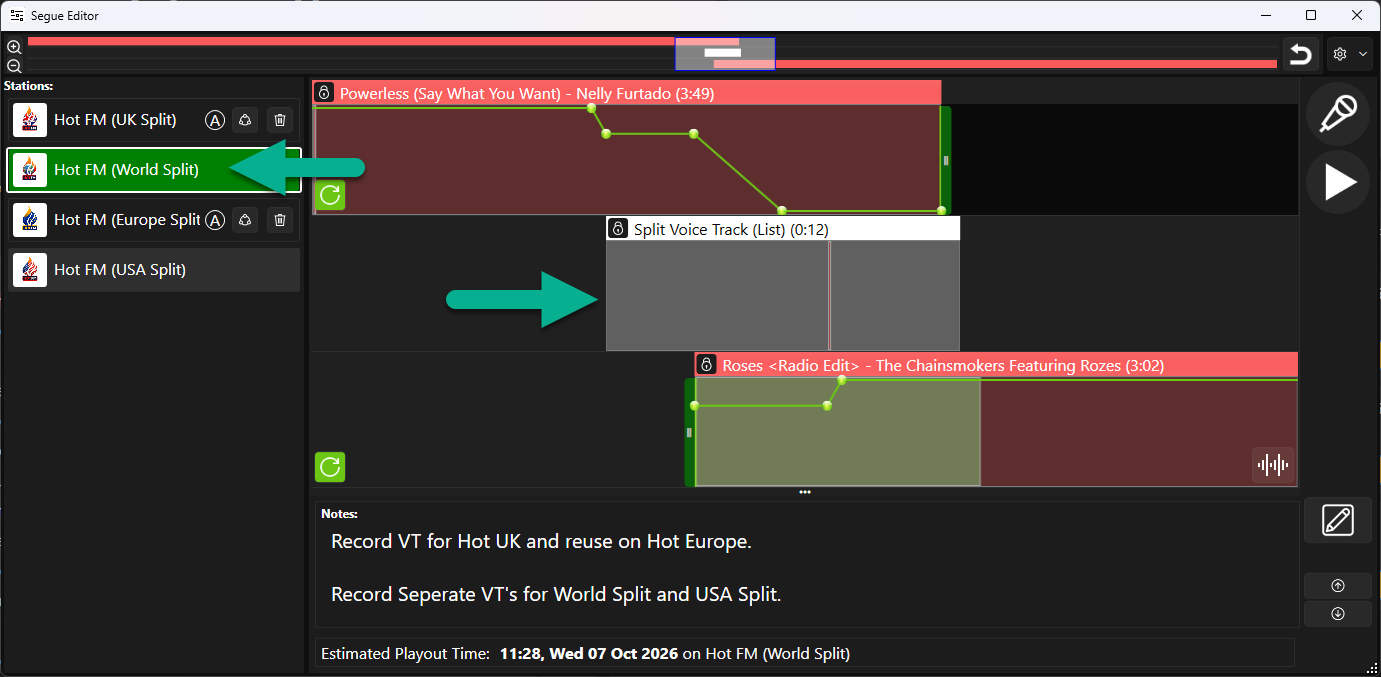
- Click on the Start / Step button or press the <SPACEBAR> to begin the VT sequence. Because the timing for the VT is determined by the Primary VT, the sequence is simplified to:
Playback Starts > Recording Starts (automatically to match the Primary VT) > Presenter records VT to match duration of primary.
In this scenario, the Presenter recording the VT does not control the when the recording starts or when the next Song on starts as they have already been set by the Primary VT.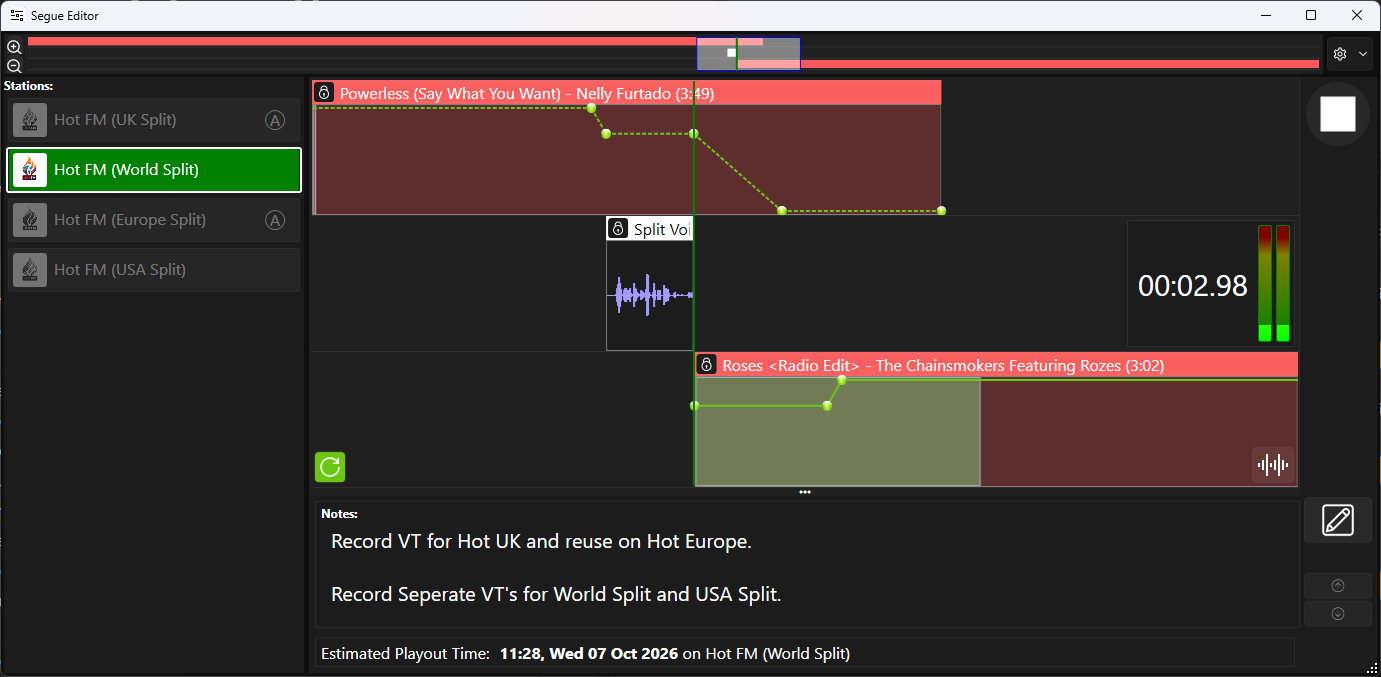
The presenter can allow their VT to be longer or shorter than the Primary VT but should consider that doing so will affect how it will sound on this specific split. For example, if this VT runs for 3 seconds longer on this VT then it would be advisable to adjust the volume envelope accordingly BUT doing so will change the envelope for all VT's as the Song is played by Myriad Playout and so changing the volume envelope will affect how all the Split VT's sound on air.
The presenter should aim to time their VT to match the duration of the Primary VT as closely as possible. - Click on then Start / Step button or press <SPACEBAR> to stop recording.
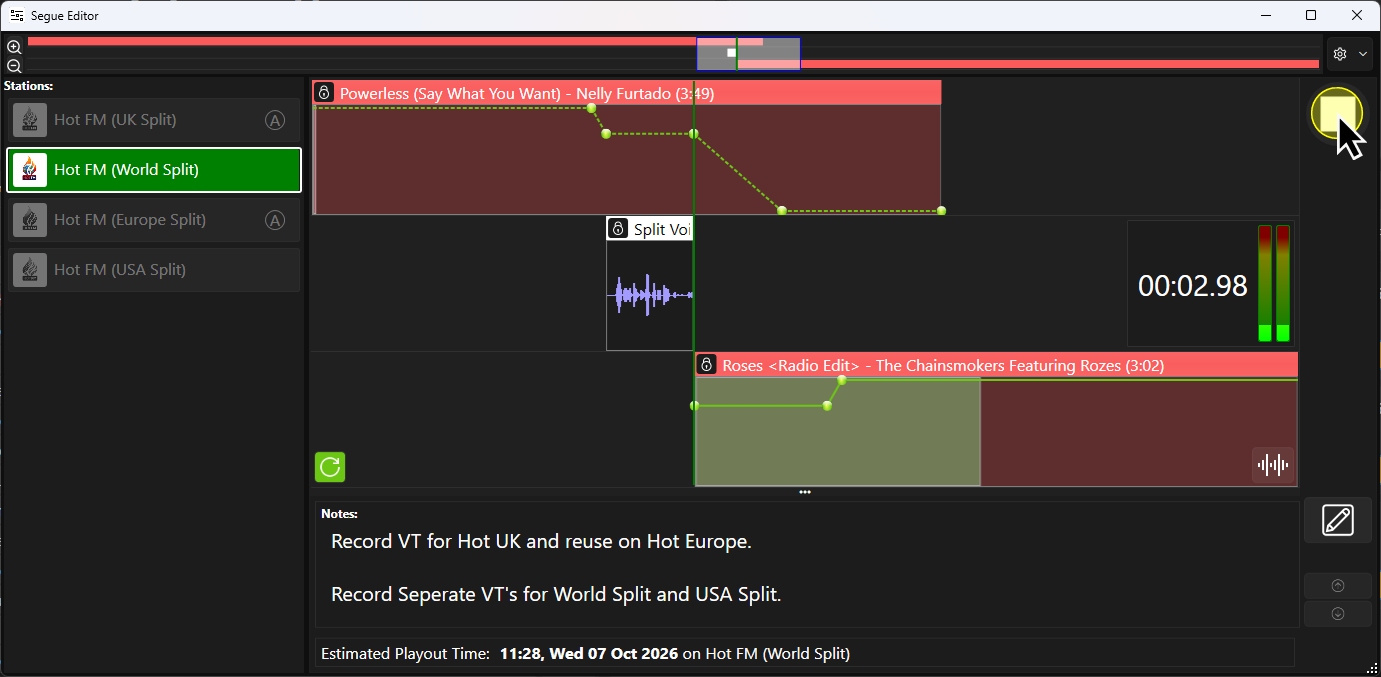
- Click on then Start / Step button or press <SPACEBAR> to save the split VT.
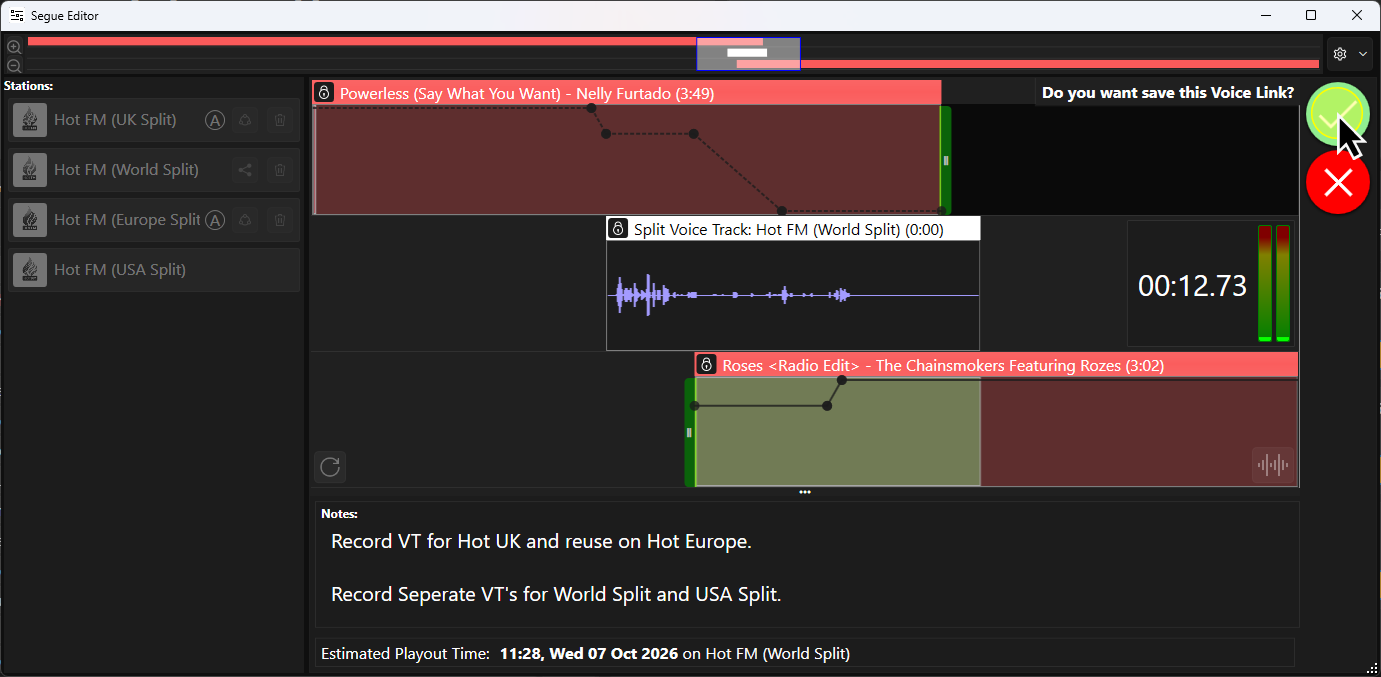
- We now have the Hot FM (World Split) in pace.
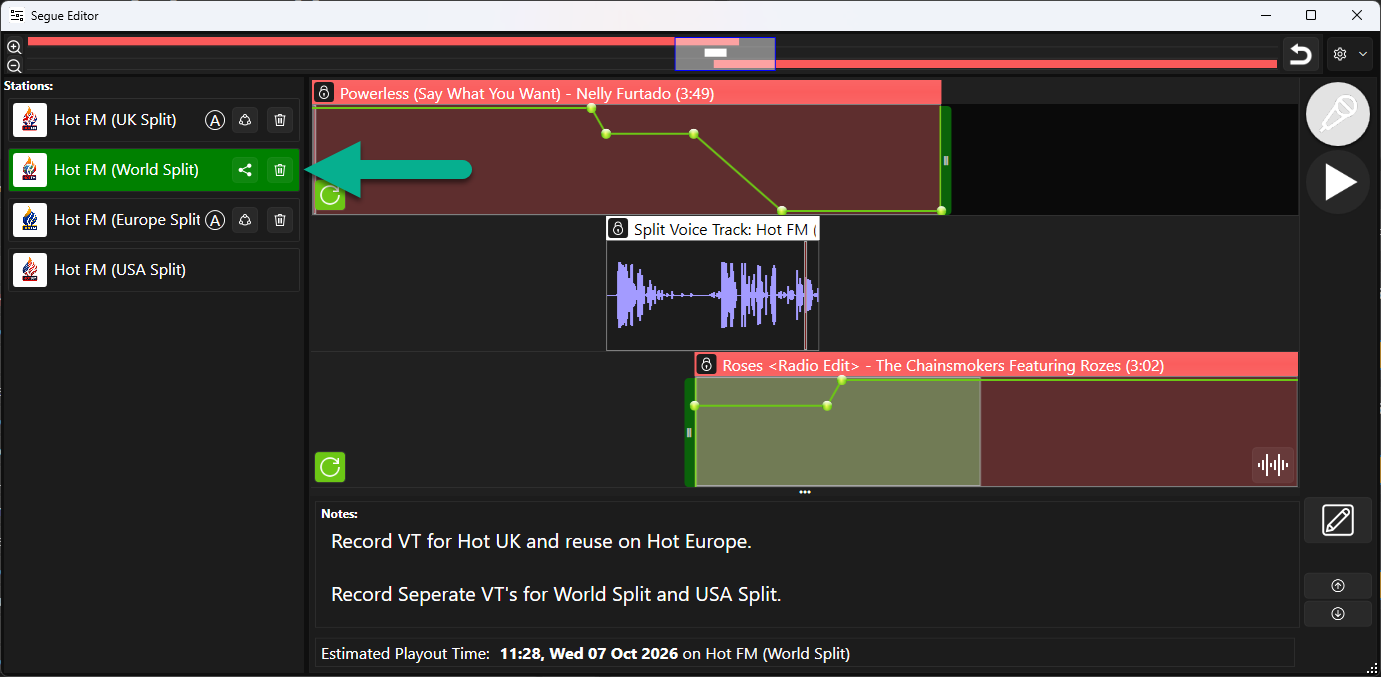
We could share this VT with the final station using the Share button.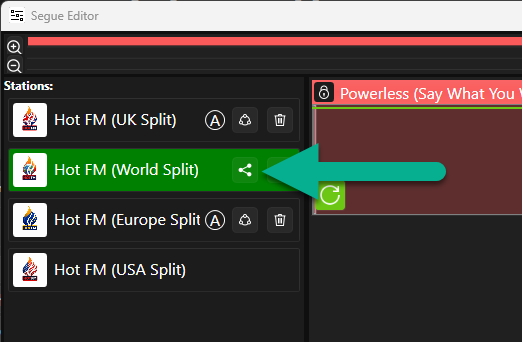
But the notes requested separate VT's for World and USA splits. - Select the Hot FM (USA Split) and repeat the step above to record the final VT.
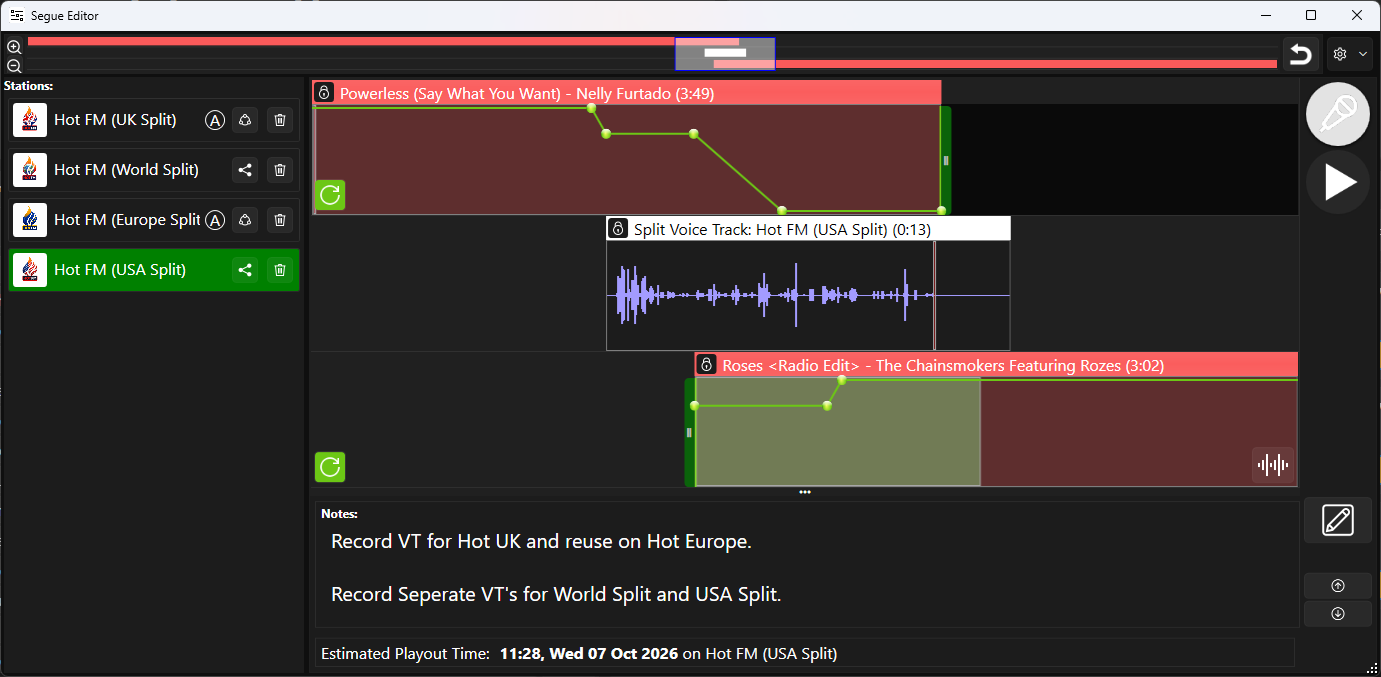
- All the of the requested Split VT's are now in place. You can review each one by selecting the Station to the left and using the Preview button in the Segue Editor.
Editing Existing Split VT's
Because of the nature of Split VT's, editing options are limited and it is important to understand the limitations and why they apply before you start editing existing split VT's.
What Plays What
Key to sucessfully editing Split VT's is understanding where audio is played and which audio is therefore shared between the split outputs.
- Song, Links & Other Log Items - These are played by Myriad Playout and are shared across all Split VTs. This means adjusting the volume envelope on a Song or Link in the Segue Editor will affect all Split VT's in the segue.
- Split VT - The recorded Split VT is played by the individual split playout for that split (separately from Myriad Playout).
Keep this in mind when considering whether to edit an existing Split VT.
Volume Envelope
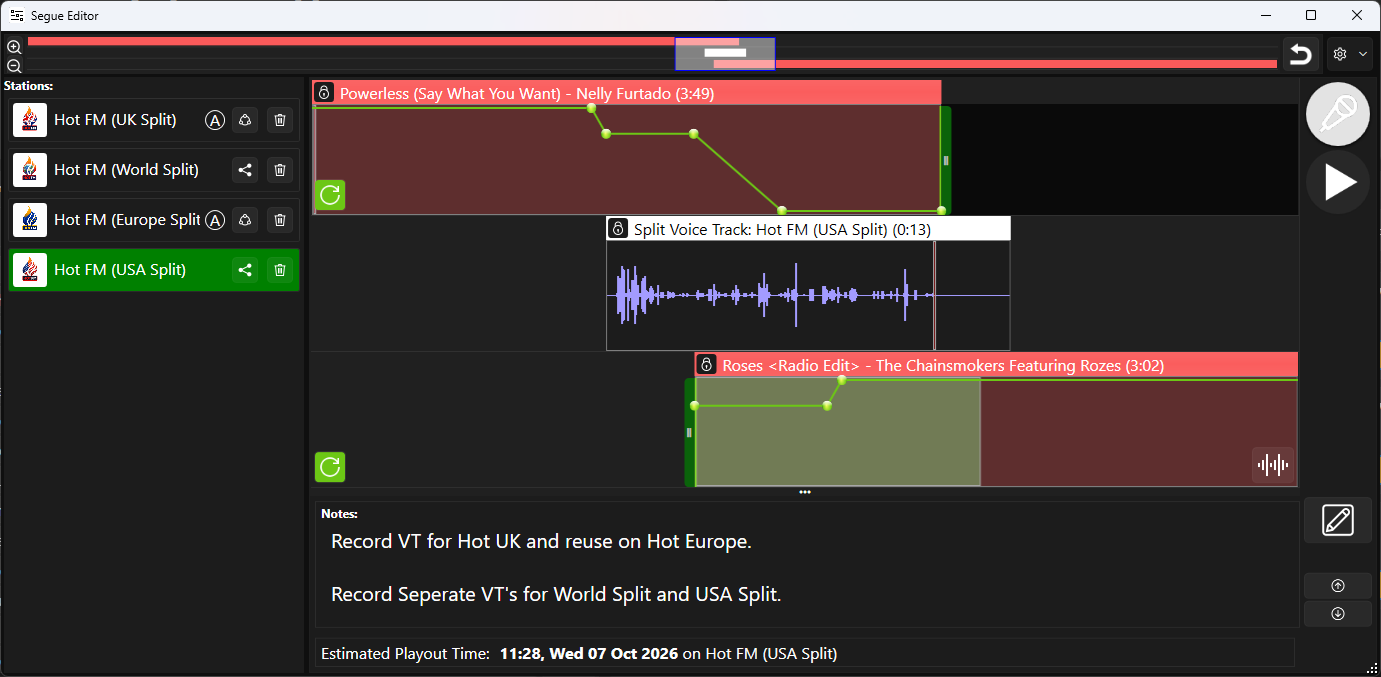
In the example above, the Presenter has recorded a Split VT for the USA Split, that is several seconds longer than the Primary VT. The volume envelope is set to match the duration of the Primary VT but in the case with this split, the volume will be adjusted to full before the VT is finished.
The temptation would be to adjust the volume envelope to accommodate this VT but as previously stated, because Songs and other Log Items are played by Myriad Playout, changing the volume envelope will change the sound of the segue on all splits.
If a Presenter changes the volume envelope to suit this specific split.
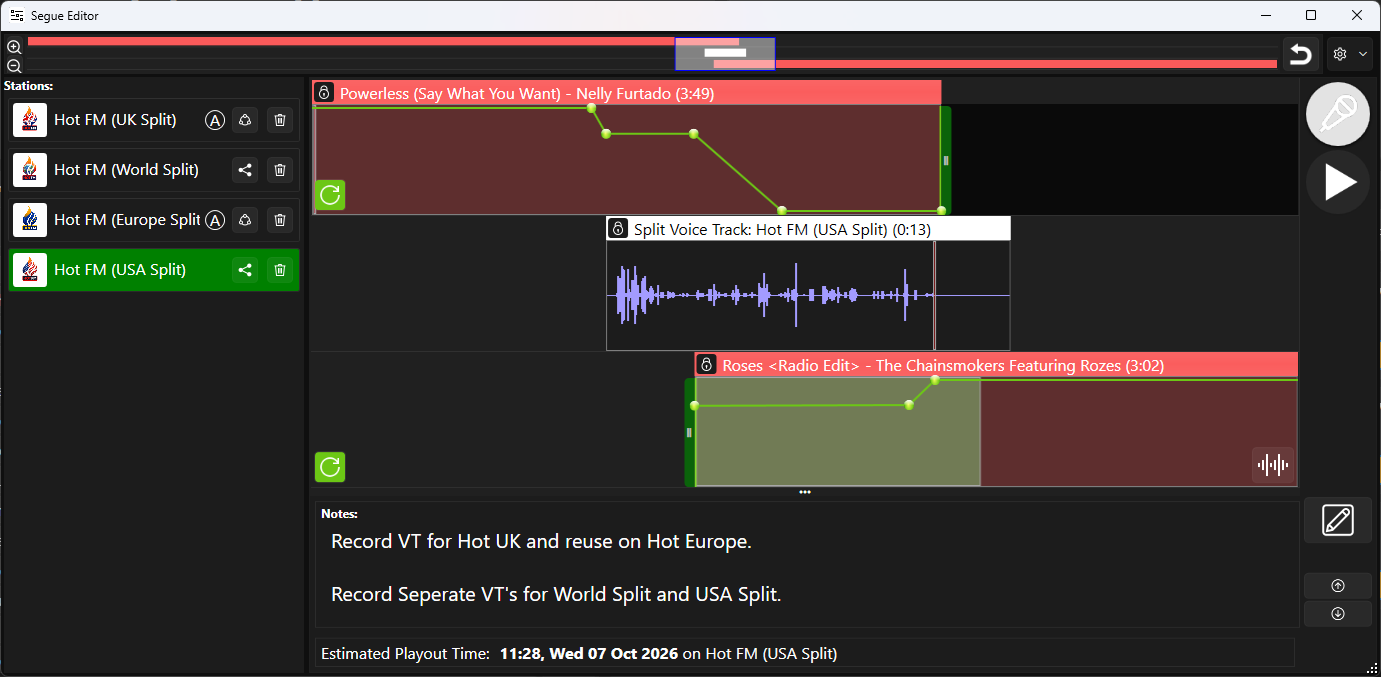
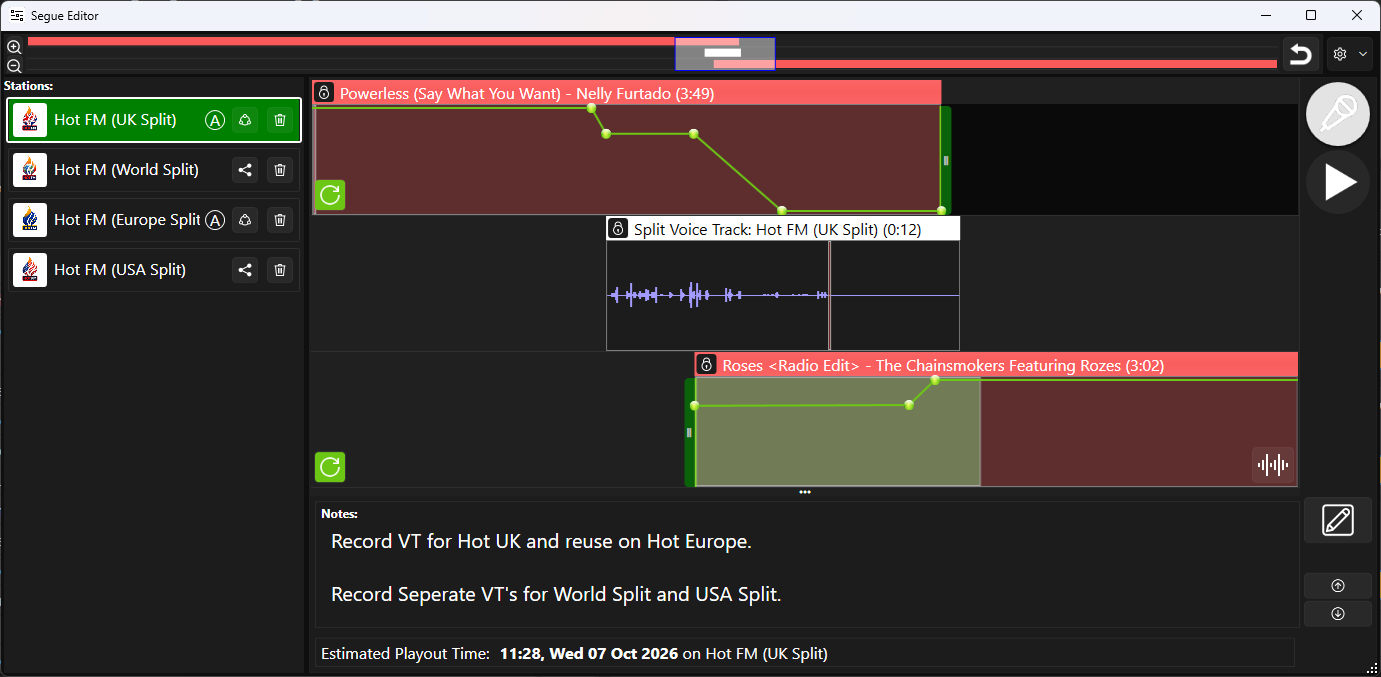
The results on the other splits will be that the volume envelope remains in the lowered state, after the VT has finished.
Removing Split VTs
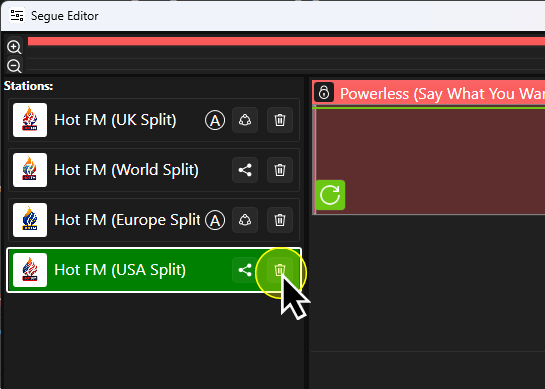
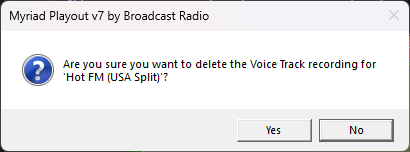
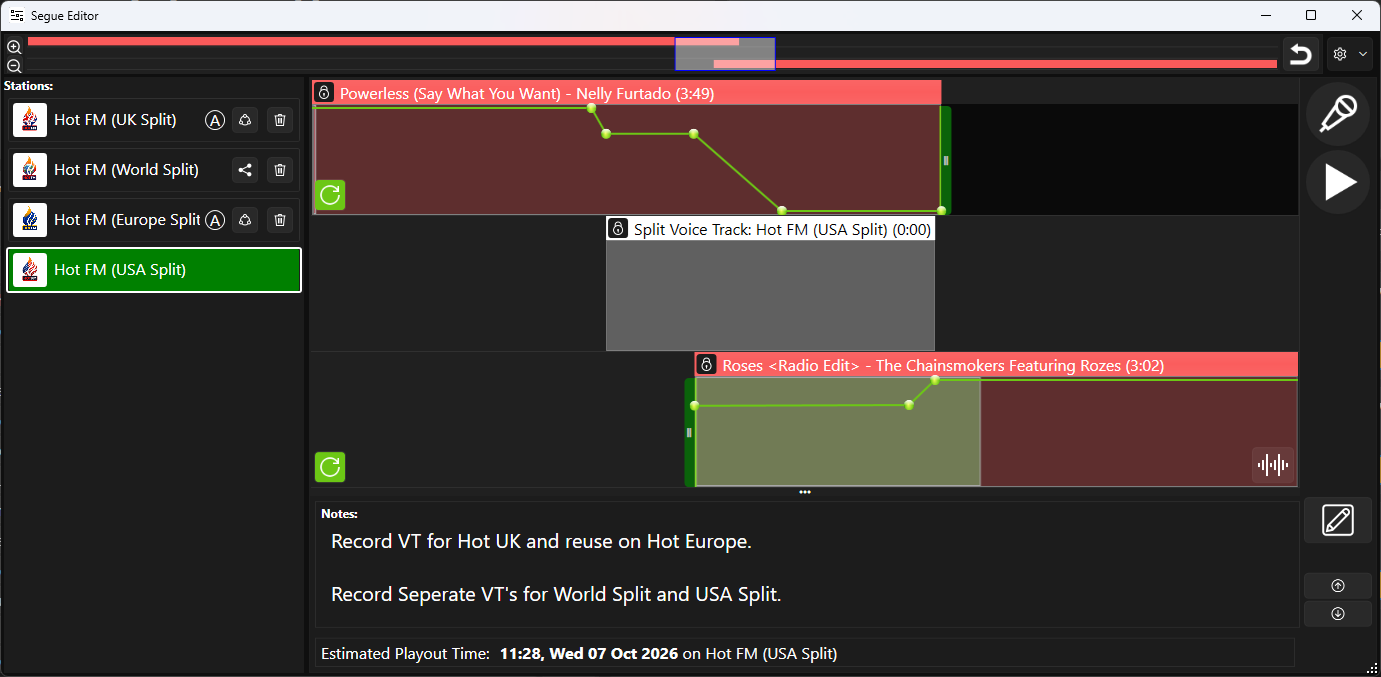
If you want to remove a Split VT (to re-record it for example), follow these steps:
- Select the Split VT you want to remove.
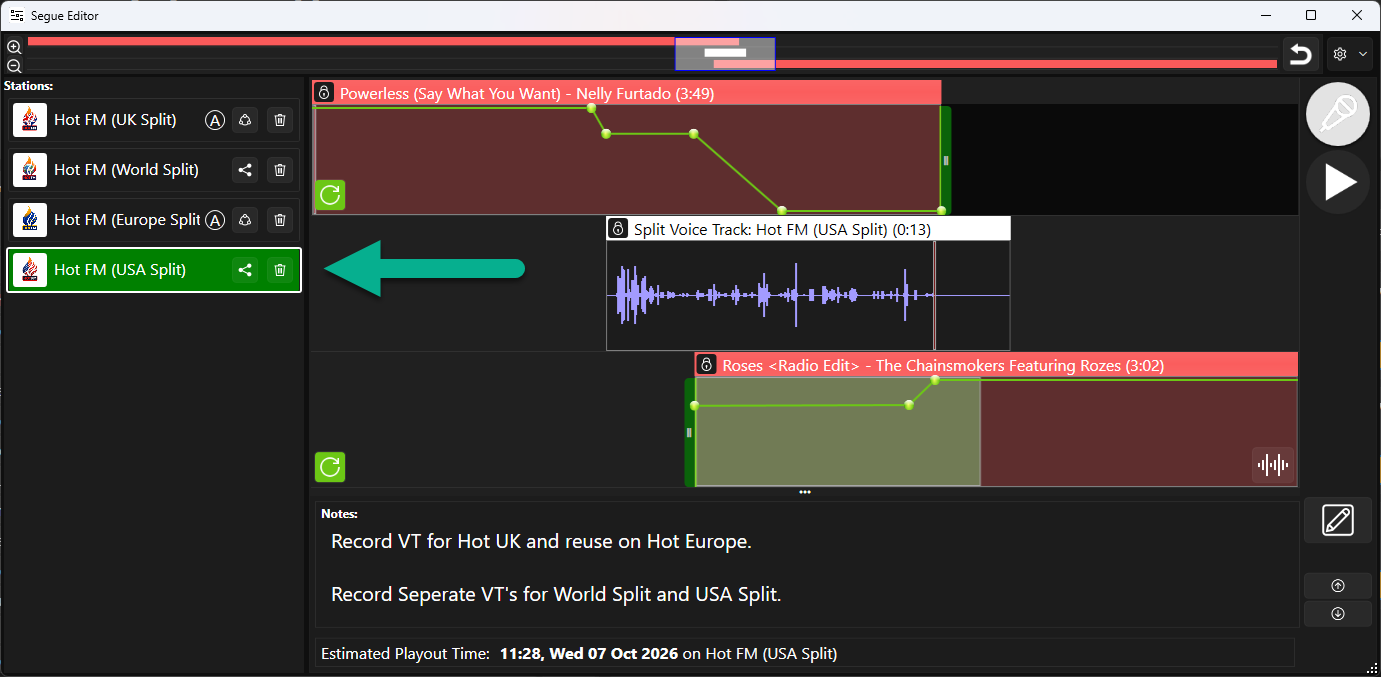
- Click on the Delete VT button.
- Confirm you want to delete it.
- The Split VT is then reset ready to record again.
Changing Shared VTs
You can share any Split VT with any other Station to reuse that VT on more than one Stations.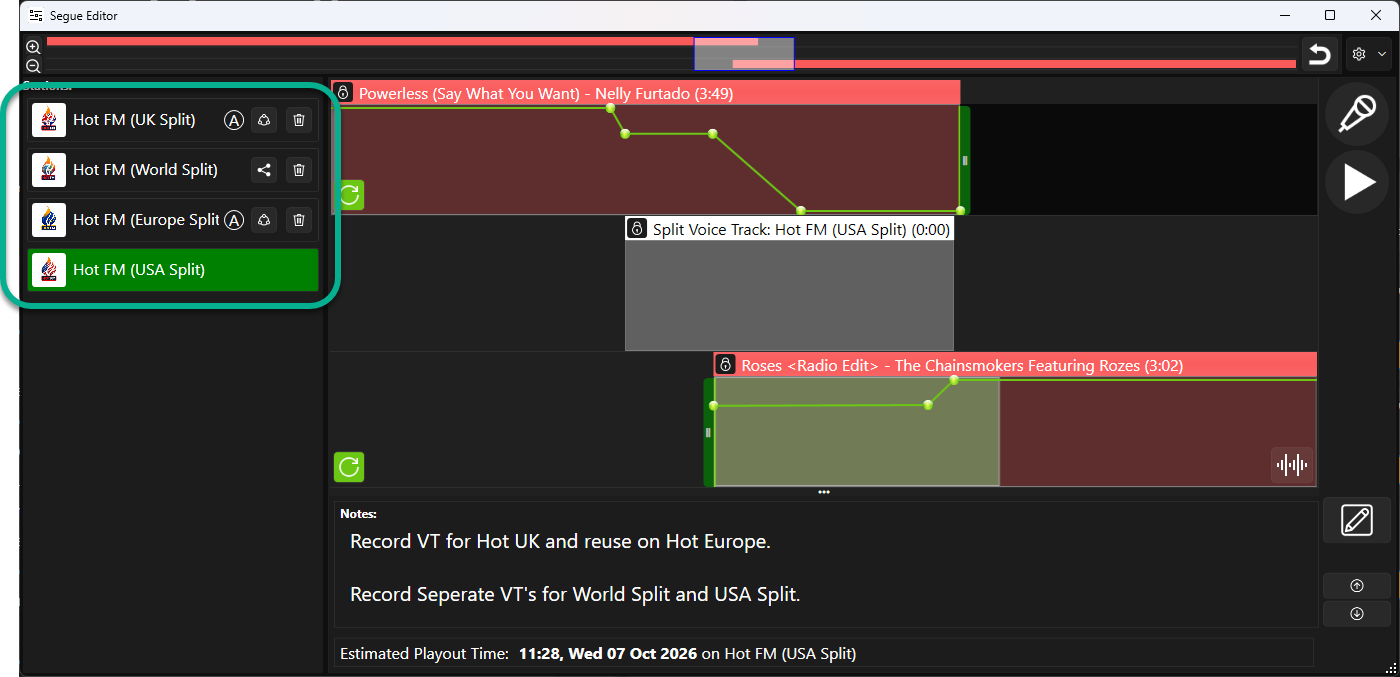
In the example above, Hot FM (UK Split) and Hot FM (Europe Split) currently share the same Split VT. Hot FM (World Split) has it's own Split VT and Hot FM (USA Split) currently does not have a Split VT assigned.
You can extend a currently shared Split VT to include more Stations by clicking on the Currently Shared button.
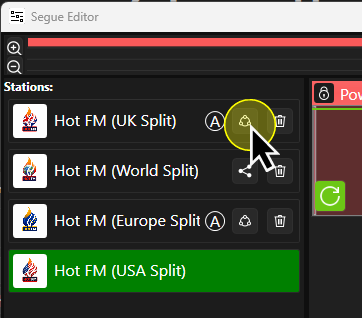
This will list all available Stations that do not have a Split VT currently assigned.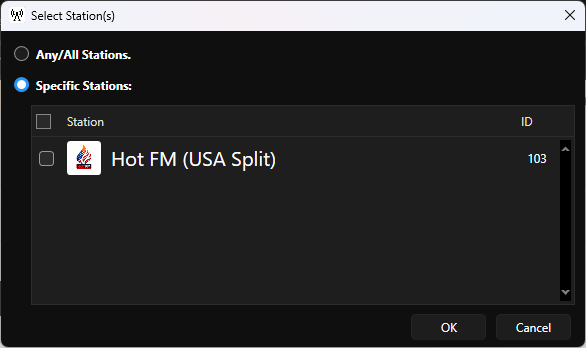
Select one or more Stations and click on OK.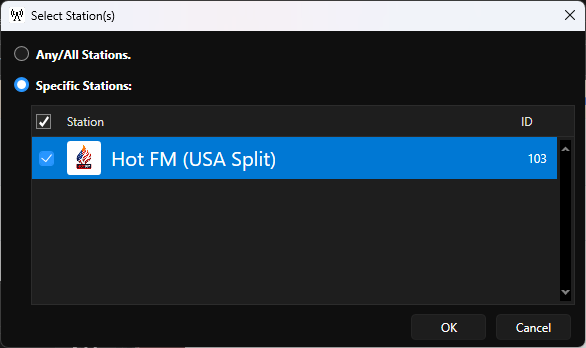
The list will be updated to show which Stations share the same Split VT's.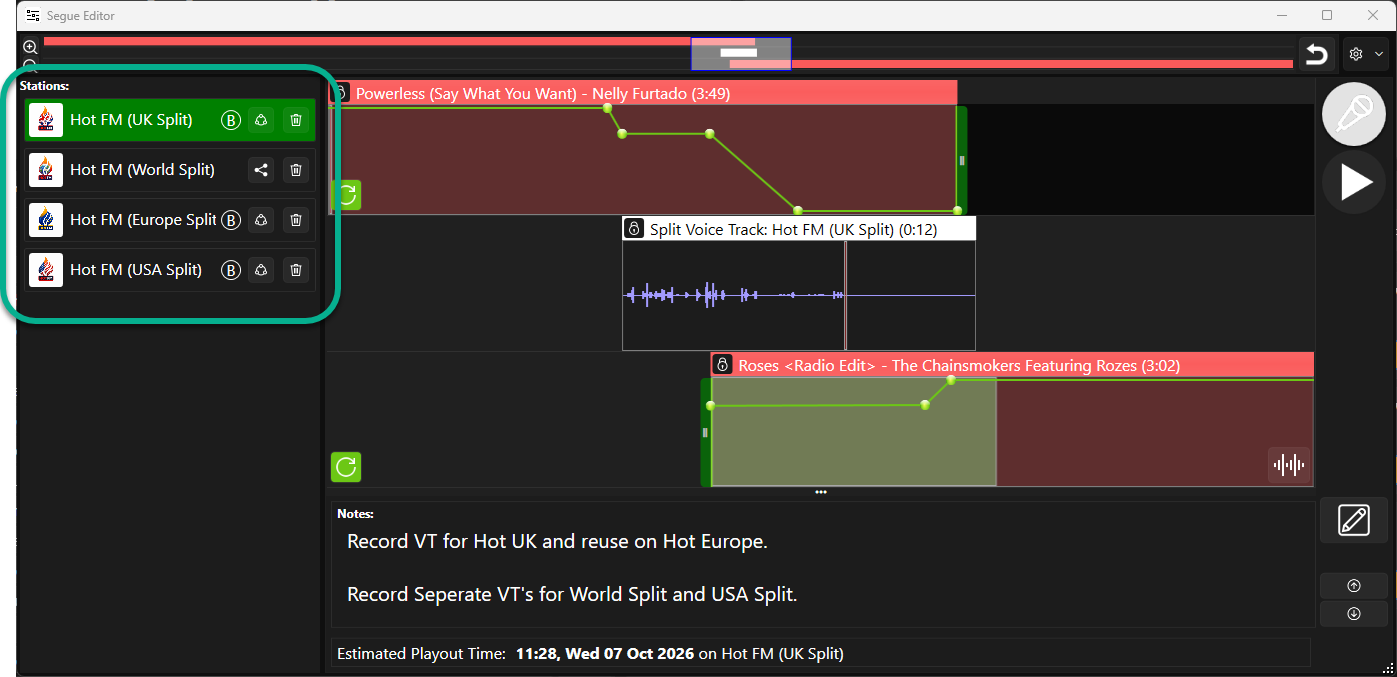
You can also use the Share button to share other (non-primary Split VT's).
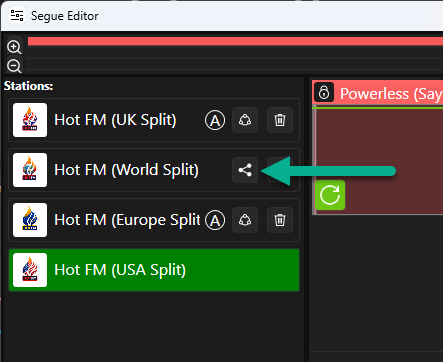
In the example below, we will share the Hot FM (World Split) VT with Hot FM (USA Split).
- Click on the Share button.
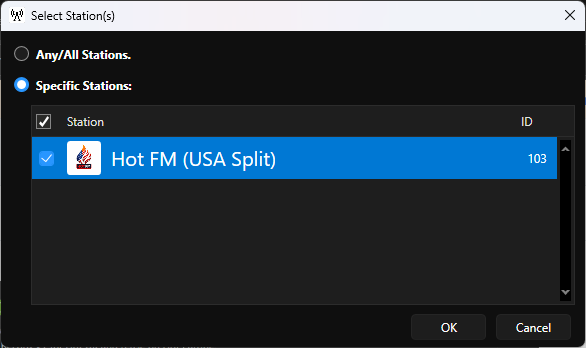
- Select the Station you want to share with.
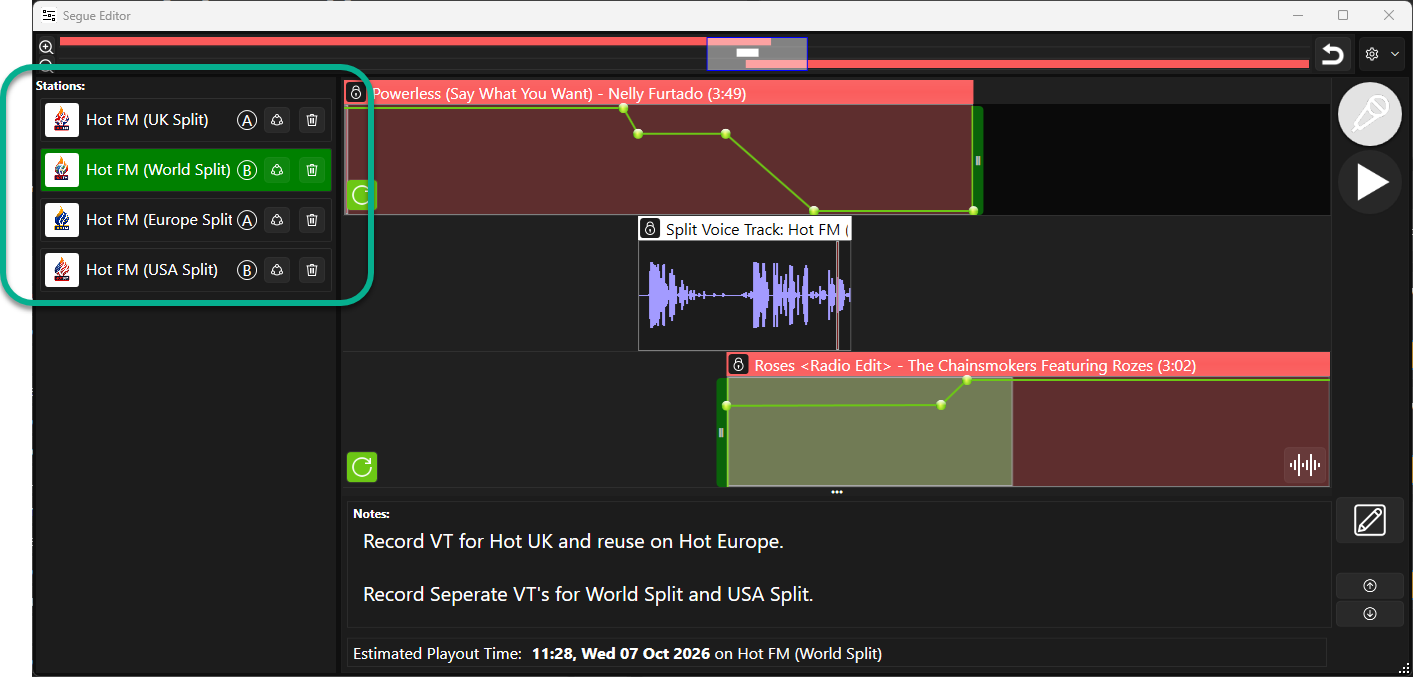
- The list will update to show which Stations are sharing which Split VT's.
Related Articles
Was this article helpful?
That’s Great!
Thank you for your feedback
Sorry! We couldn't be helpful
Thank you for your feedback
Feedback sent
We appreciate your effort and will try to fix the article